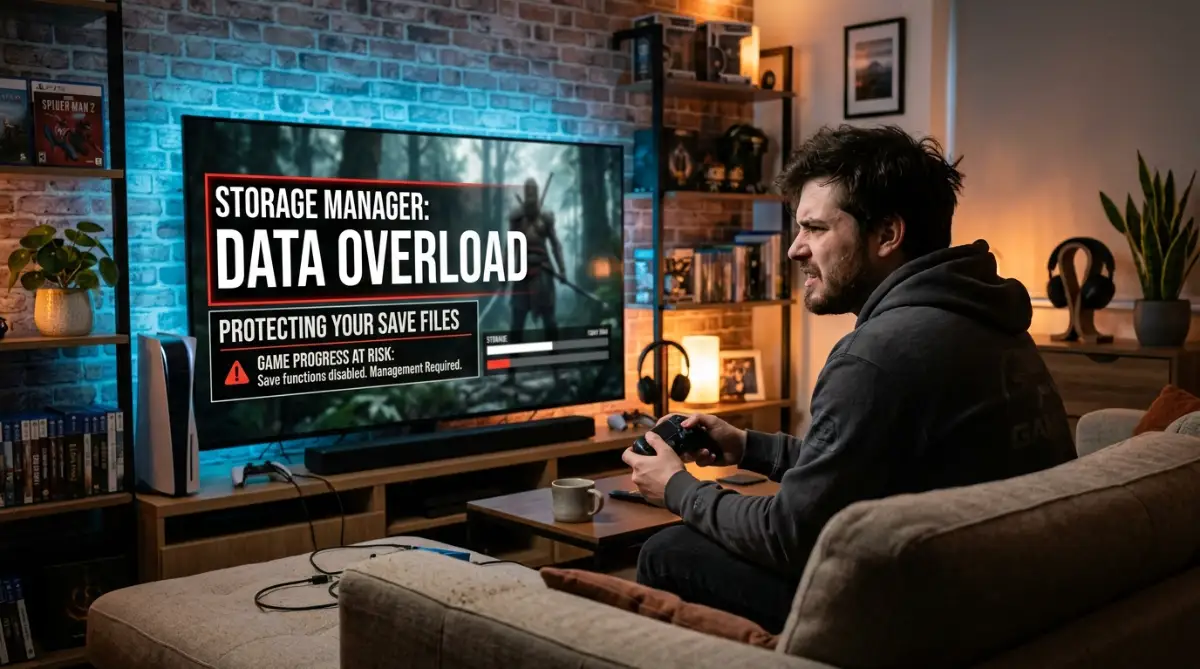
The Heartbreak of the "Corrupted Save" Screen
I remember staring at my television screen in complete and utter disbelief. My hands were physically shaking, and my heart instantly sank into my stomach. I had just spent over eighty long hours grinding through a massive open-world fantasy game, carefully collecting every single hidden item.
Right in the middle of a highly intense boss fight, my screen suddenly stuttered, froze completely, and crashed directly to the home menu. When I nervously restarted the game, a cold, gray pop-up appeared saying my primary save file was permanently corrupted. I lost absolutely everything in a single second, and I felt completely helpless.
It turned out, my internal drive was packed to the absolute brim with massive game files. My system had absolutely zero room left to properly write temporary background data. My own mistake cost me weeks of hard work and completely ruined my entire weekend.
If you are reading this right now, I know exactly why you are here. You are tired of playing the endless, annoying game of storage tetris every single time you want to download a new release.

We have all been there at some point. You finally sit down on a Friday evening, extremely excited to play a massive new multiplayer shooter with your online friends. But instead of jumping right into a fun match, you are forced to stare at an ugly "Storage Full" warning.
You have to make the deeply painful choice of which beloved, classic game to delete just to make room for a new one. This constant, stressful juggling act completely destroys the actual fun of modern gaming. It turns a relaxing, wonderful hobby into an exhausting chore of managing gigabytes and constantly worrying about random system crashes.
When your internal drive is constantly flashing red, it messes with your peace of mind. You cannot even enjoy exploring a digital world because you are terrified that a sudden background update will push your system over the edge. It feels like you are walking on eggshells with your own expensive hardware.
We buy these amazing machines to escape reality and have fun, not to do digital accounting. The anxiety of losing your hard-earned progress is a terrible feeling that no gamer should ever have to experience.
But I have some genuinely good news for you today. You do not have to live in fear of the dreaded corruption screen anymore. By making just a few smart, simple changes to how you handle your digital library, you can completely protect your progress.
The Hidden Mechanics of Your Internal Drive
To properly solve this massive headache, we first need to understand exactly what is happening inside your machine. Modern gaming machines use incredibly fast Solid State Drives (SSDs) to load huge digital worlds in just seconds. These drives are absolute engineering marvels, but they have one very specific weakness.
They absolutely hate being completely full. Think of your SSD like a busy chef working inside a professional kitchen. The chef needs a large, clear countertop to chop vegetables, prepare meats, and plate the final dishes.
If the kitchen counter is completely covered with pots, pans, and dirty dishes, the chef simply cannot do their job. If they try to force it, plates will fall on the floor and shatter. In this exact analogy, the shattered plates are your corrupted game files.
When your drive is at 99% capacity, the system has no empty "counter space" to unpack compressed game updates. When the system tries to aggressively force a new file into a tiny empty space, things go terribly wrong. The processor gets confused, the write process fails halfway through, and your data becomes permanently unreadable.
Understanding Wear Leveling and System Cache
There is a highly technical process happening quietly in the background called wear leveling. SSDs constantly move data around to ensure that all the memory chips wear out evenly over a long period. If the drive is entirely packed, the system cannot move anything around safely.
This extreme lack of space forces the drive to rewrite data on the exact same tiny blocks over and over again. This not only dramatically slows down your loading screens, but it actually damages the physical lifespan of your expensive drive.
Beyond that, your operating system constantly needs room for its system cache. Every time you open a menu, take a quick screenshot, or record a gameplay clip, the machine needs temporary storage. If it asks for space and finds absolutely zero gigabytes available, a hard system crash is almost guaranteed to happen.
Practical Methods to Protect Your Hard Work
Now that we know exactly why this specific disaster happens, we can easily stop it. I am going to share some highly effective, deeply tested methods that will keep your system running perfectly. These are simple habits you can start using right now, without needing any technical computer skills.
The 80/20 "Breathing Room" Rule
The absolute golden rule of digital storage management is something experts call the 80/20 rule. You should always aim to keep at least 20% of your total main storage completely empty at all times. If you have a one-terabyte drive, that means keeping about 200 gigabytes completely free and untouched.
This might sound like a massive waste of precious space, but I promise you it is essentially an insurance policy for your saves. This empty area is your system's safe zone for unpacking massive patches, managing background downloads, and preventing sudden fatal errors.
When a massive 50-gigabyte update drops for your favorite battle royale game, the system actually needs double that space to download and install it properly. Having that 20% buffer guarantees that your machine will never panic and crash during a critical update.
Strategic Library Rotation: The Bookshelf Analogy
One of the biggest mistakes we all make is treating our digital library like a bottomless pit. We download ten massive games at once and try to play all of them at the exact same time. This is a guaranteed recipe for complete disaster and data loss.
Instead, I want you to start treating your active storage like a small, premium wooden bookshelf. You can only display a few of your absolute favorite books on this shelf at any given time. If you want to put a brand new, heavy book on the shelf, you must first take an old one off.
I call this the Active Rotation Strategy. Only keep games installed that you are actively playing this specific week. If you have not touched a massive 100-gigabyte RPG in over a month, you need to firmly delete the base application.
I completely ruined my own hardware a few years ago by refusing to delete games I was "eventually" going to finish. My drive crashed so hard during a system update that I had to factory reset the entire console and lost everything.
Do not worry about losing your personal progress when you delete the massive base game files. Your personal save data is kept in a completely separate, tiny folder on your system. You can easily delete a giant game, reinstall it three months later, and pick up exactly where you left off.
Mastering the Art of Safe Power Cycles
A shocking number of data corruption issues do not actually happen while you are actively playing. They happen while you are deeply asleep in your bed. Modern machines are designed to constantly run in a low-power rest mode to download patches overnight.
Watch this incredible visual breakdown of how background downloads actually write to your SSD while you sleep.
While rest mode is incredibly convenient, it is also highly dangerous if you have a history of power outages in your neighborhood. If your machine is actively writing a save file to the drive during a background sync, and the power suddenly cuts out, that file is instantly dead.
To heavily reduce this risk, you need to change how you handle your power settings. If you live in an area with unstable electricity, completely disable the automatic background update feature in your system menus.
It is much safer to manually start your updates while you are sitting in the room and awake. This way, you can easily monitor the progress and ensure the system shuts down safely when it is totally finished.
Furthermore, you must never simply pull the power cord straight out of the wall to turn off your machine. Always use the proper software menus to initiate a full, clean shutdown. Pulling the plug is the digital equivalent of slamming a heavy door on someone's fingers while they are working.
Myth vs. Reality: Clearing Up Storage Confusion
There is a lot of really bad advice floating around the internet regarding hardware management. People often share terrible tips on social media that can actually harm your system further. Let us clearly separate the actual facts from the popular fiction.
By simply understanding these basic truths, you can immediately stop worrying about making a wrong move. Your digital library is completely safe as long as you respect the physical limitations of the hardware itself.
The Magic of the Database Rebuild
One of the most powerful, completely free tools you have at your disposal is the "Rebuild Database" function hidden in your safe mode menu. Over many months of downloading, deleting, and updating games, your file system becomes incredibly messy and disorganized.
Think of it like a messy filing cabinet where papers are just shoved in randomly. When the system needs to find a specific file quickly, it struggles to search through the giant mess. This sudden lag is exactly what causes games to unexpectedly stutter and freeze during intense moments.
By booting your system into safe mode and selecting the rebuild option, you are forcing the computer to neatly organize every single file. It completely cleans out corrupted leftover junk files from deleted games and creates a highly efficient map of your data.
Doing this once every three months will make your entire system feel brand new again. Your menus will load faster, your games will install quicker, and your chances of sudden corruption will drop significantly. It does not delete your saves, your pictures, or your games. It simply tidies up the messy digital house.
Isolating Cloud Backups from Local Disasters
Even if you follow every single physical rule perfectly, incredibly rare hardware failures can still happen. The internal SSD could simply fail due to a manufacturing defect, or a power surge could fry the internal motherboard.
This is exactly why relying completely on local, physical storage is a highly dangerous game to play. You must build an invisible safety net using cloud synchronization. Most premium gaming networks offer a highly secure cloud backup service for your save files.
However, you should not just turn it on and completely forget about it. Sometimes, a corrupted local file can actually auto-sync to the cloud, instantly ruining your backup before you even notice. This completely defeats the whole purpose of having a safety net.
To create a truly bulletproof system, I strongly recommend turning off the automatic sync feature for your most important, massive RPGs. Instead, make it a solid habit to manually upload your save file to the cloud right after you finish a long gaming session.
If your local file randomly breaks the next day, you can easily reach into the cloud and pull down your pristine, perfectly working file from the night before. This puts you entirely in control of your own data destiny.
By taking control of your free space, rotating your library smartly, and mastering your backup systems, you will never fear the corruption screen again. You can finally just sit back on the couch, grab your controller, and actually enjoy your favorite hobby in total peace.
Pro-Level Strategies for System Health and Longevity
Managing your internal drive like a professional requires looking beyond basic space clearing. You should start by offloading your media files to an external high-speed storage device. Many people keep hundreds of high-definition video clips and screenshots on their main system drive.
These files take up massive amounts of room and slow down the index file system of your console. Moving these to an external drive or uploading them to a private gallery frees up gigabytes of precious system space instantly. It makes your dashboard feel much smoother and more responsive.
Mastering Smart File Management
Another pro-level secret is to regularly check for "ghost data" left behind by games you uninstalled. Sometimes, updates or add-on content packets do not delete properly when you remove the main game. You can find these by digging into your system settings under "Saved Data and Game/App Settings."
If you notice a file for a game you deleted months ago, delete that leftover data immediately. It is just taking up space and potentially causing the system to misread file paths. Doing this cleanup once a month ensures your drive stays lean and fast.
Keeping Your Environment Stable
To maintain a healthy console, pay close attention to where you place your machine. If it sits in a cramped, dusty space with no airflow, it will get extremely hot. When the internal components overheat, the system performance drops, which leads to internal drive read errors.
Make sure your machine is in an open area with plenty of air moving around it. You should also gently dust the vents every few weeks to prevent a buildup of debris. A cool console is a console that protects its data much better than one that is constantly overheating.
If you ever find your device acting up, you might want to learn about fixing audio sync issues which often stem from similar system resource management problems. If your hardware feels unstable, check that your headset connections are secure so you do not have unexpected power spikes. These tiny details contribute to the overall health of your digital ecosystem.

The Dangerous Habits That Cause Data Loss
Many people mistakenly believe that their console is a "set it and forget it" appliance. They treat it like a television, but it is actually a highly sensitive computer. You should avoid turning off your machine while it is in the middle of a big download or a software update.
I have seen so many users pull the power plug because they were frustrated with a slow download. This is a guaranteed way to corrupt your system files. The drive is currently writing data to specific sectors, and cutting the power breaks that chain permanently.
The Problem with Overwriting Saves
Another common trap is constantly overwriting the same save slot. Many games offer multiple save slots for a reason. If you only ever save in "Slot 1," and that specific file gets corrupted, you lose everything.
Always keep at least three different save slots rotating for your long games. This way, if one file becomes unreadable, you have a backup from just an hour ago to jump back into. It is a simple habit that has saved me from losing days of progress in games like hard-to-master flight sims.
Ignoring System Notifications
Do not ignore that little notification telling you your storage is low. When you see that warning, your system is already struggling to function at peak speed. Many users click "ignore" or "later," which forces the console to perform complex data swapping.
This puts unnecessary stress on your hardware and makes a crash much more likely. Instead of hitting ignore, take five minutes to delete a game you are finished with. It is much better to take five minutes now than to spend ten hours replaying a game you lost to corruption.
A Reliable Path to Stress-Free Gaming
You now have all the tools to keep your digital library safe and organized. By keeping your drive clear, using multiple save slots, and avoiding forced power shutdowns, you are in total control. You do not need to be a tech expert to keep your progress secure.
The best feeling in the world is turning on your console knowing your files are safe and your performance is smooth. You have worked hard for those achievements, and they deserve to be protected. Start by cleaning up your drive tonight and setting up a better save rotation.
I know how much your progress means to you because I have lost my own hard work to simple mistakes. Take charge of your console today so you can get back to what really matters: having a great time playing the games you love.
Common Questions About System Storage
Is it safe to use an external drive for my games?
Yes, using an external drive is a great way to store your games and free up space. Just make sure to use a drive that meets the speed requirements set by your console manufacturer.
Does deleting a game affect my system performance?
No, deleting a game will not hurt your performance. In fact, it actually helps your console run faster by providing more room for the operating system to work.
Why does my console tell me I have no space when it looks empty?
This often happens because of temporary cache files or hidden system updates. Research from professional hardware labs shows that even invisible background processes require significant space to function without errors.
Should I worry about my SSD wearing out over time?
All storage drives have a lifespan, but it is very long. As long as you follow the 80/20 rule, your drive will last for many years of heavy use.
Disclaimer: This article is for educational purposes only. Always follow your specific console manufacturer’s official user manual for maintenance instructions. I am not responsible for any data loss that may occur while you are managing your internal storage.