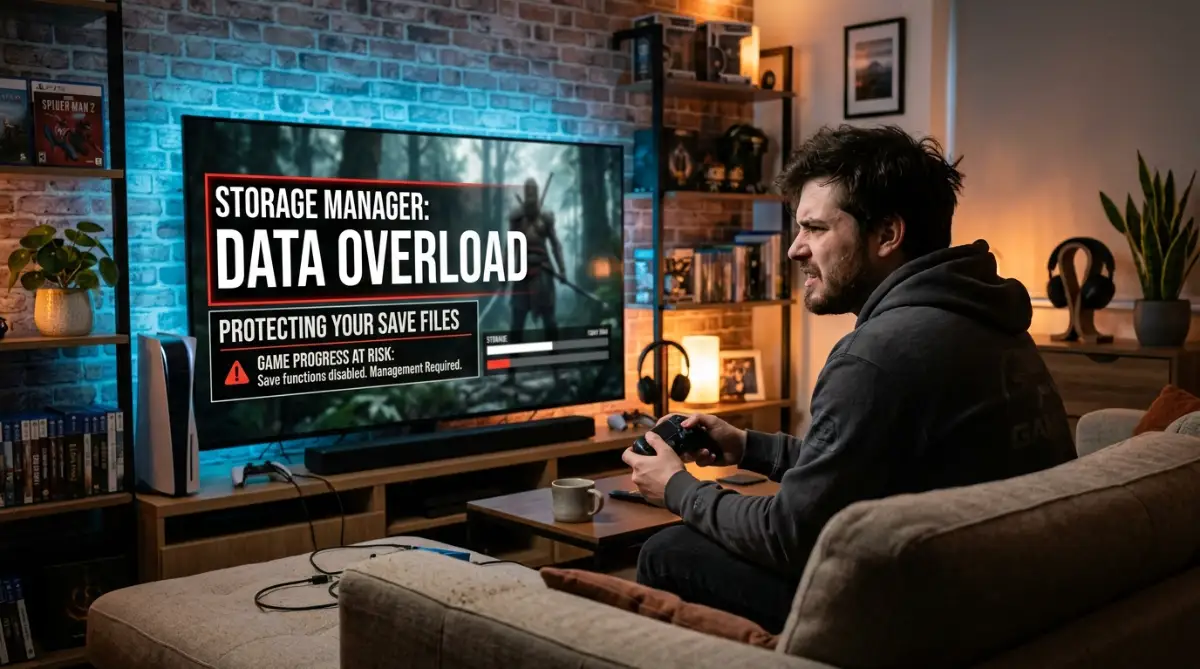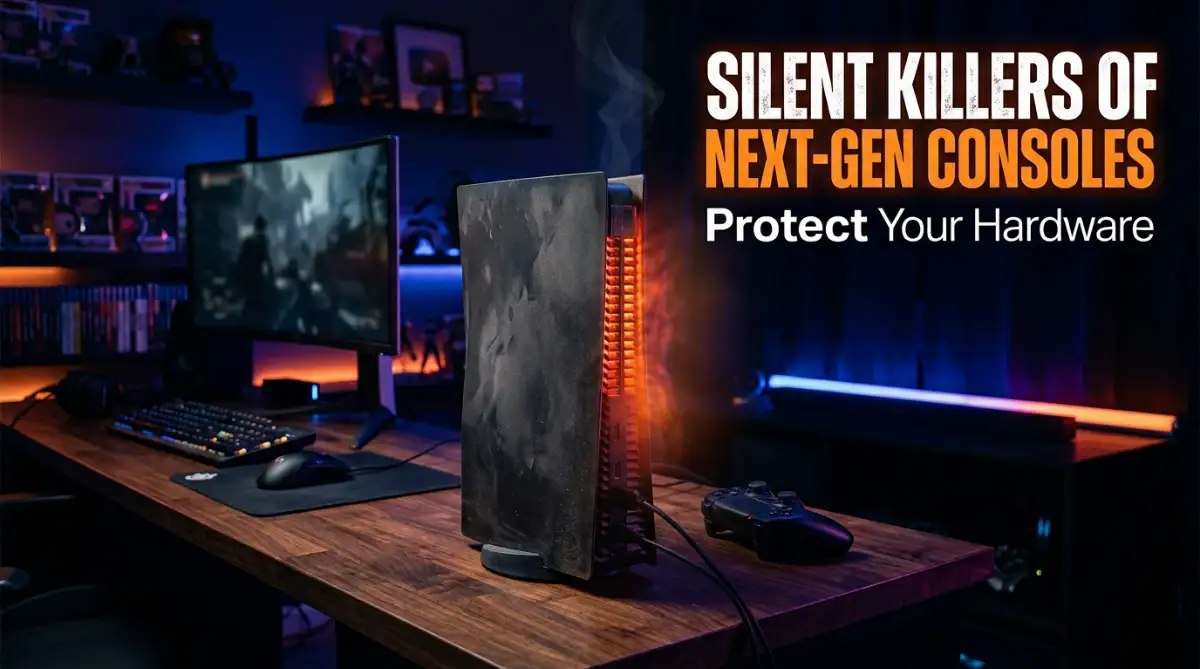
The Heartbreaking Reality of Losing a Beloved Gaming System
I still remember the exact moment my favorite gaming console suddenly shut down right in the middle of a massive boss fight. I was having the time of my life, totally absorbed in the game, when the screen just went completely black. A strange, aggressive beep echoed through my quiet room, followed by a terrifying blinking red light on the front panel. My heart instantly sank into my stomach because I knew exactly what that meant. I reached out to touch the top of the machine, and it was so incredibly hot that it almost burned my hand. That single moment of panic completely ruined my weekend, leaving me with a broken, expensive machine and a lot of regrets.
We buy these incredibly powerful gaming machines to escape from our daily stress and just have some fun after a long day of work or school. But when that expensive piece of hardware starts sounding like a loud jet engine about to take off, our relaxing gaming sessions quickly turn into a source of pure anxiety. You constantly pause your game, wondering if the machine is going to melt down right in front of your eyes. The loud fan noise completely breaks your immersion and makes it impossible to enjoy the quiet, emotional moments in your favorite stories.
Ordinary gamers everywhere are dealing with this exact same nightmare on a daily basis. Instead of focusing on winning matches or exploring beautiful virtual worlds, people are constantly worried about their expensive investment dying a sudden death. It feels incredibly unfair when you spend your hard-earned money on a premium entertainment system, only to watch it struggle to breathe inside your living room. The constant fear of hardware failure slowly drains the joy out of your hobby.
Nobody wants to deal with the heavy financial burden of buying a brand-new motherboard or paying for expensive repair shop fees. When your system randomly shuts down due to extreme temperatures, you do not just lose your unsaved game progress. You actually lose your peace of mind. Every single time you press that power button, you silently pray that the system will survive just one more day.
What Exactly is Cooking Your Hardware from the Inside Out?
Before you can actually protect your expensive gaming gear, you need to understand exactly what is happening behind that sleek plastic casing. These modern systems are basically high-end computers packed into very tiny, beautifully designed boxes. Because they process incredible graphics at lightning-fast speeds, they naturally generate a massive amount of heat.
Think of your console exactly like a high-performance sports car engine. If a sports car does not have a proper cooling system, the engine will quickly overheat and destroy itself under pressure. Your gaming machine relies on a very delicate balance of internal fans, heat sinks, and clear air channels to push that dangerous heat outside. When this system fails, the internal temperature rises incredibly fast, acting as a silent assassin to your electronics.
The Hidden Danger of the "Dust Blanket" Effect
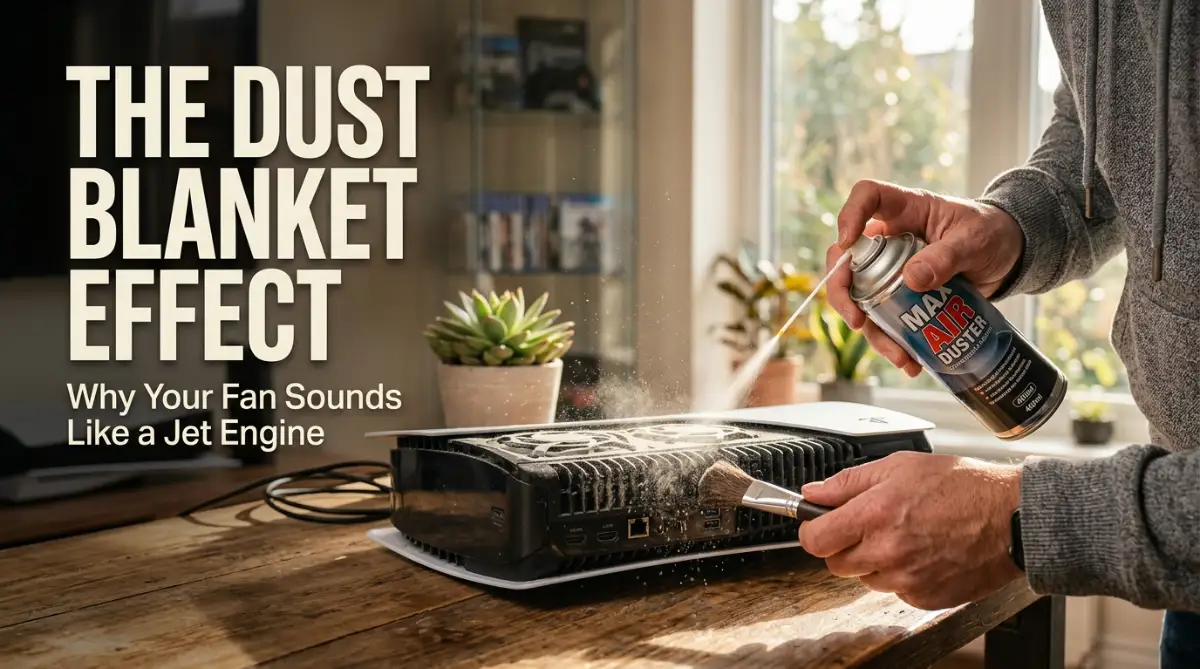
One of the biggest enemies of your gaming setup is something you can find floating around in every single home: regular household dust. Over time, your system's intake fans suck in tiny particles of dust, pet hair, and dead skin cells from the surrounding air. These particles slowly build up and stick to the metal fins of your internal heat sink.
Within just a few months, this sticky buildup creates a thick, fuzzy layer that acts exactly like a heavy winter blanket over your hot components. This dust blanket completely traps the heat inside the machine. The internal fans then have to spin twice as fast just to push a tiny bit of air through the blockage, which is exactly why your machine suddenly sounds so incredibly loud.
I used to think keeping my console safely tucked away inside a closed wooden TV cabinet was perfectly fine, but that single mistake almost fried my motherboard. I never realized it was basically choking on its own hot exhaust until the system started crashing daily. Always leave at least six inches of completely open space around every single side of your system so it can actually breathe and pull in fresh air.
Strategic Airflow Management for Maximum Cooling
The physical location where you place your gaming machine matters more than almost anything else. Many people make the huge mistake of pushing their systems deep into tight corners, right up against the wall. When you block the exhaust vents at the back of the machine, the hot air simply bounces off the wall and gets sucked right back into the system.
You are essentially forcing the machine to breathe its own hot, recycled air. This quickly creates a dangerous cycle of rising temperatures that the internal cooling system simply cannot fight. Proper airflow management means giving your system a clear, unobstructed path for cold air to enter and hot air to escape.
Let's look at a quick breakdown of where you should and should not place your gaming gear for the best possible temperature control.
Never place your heavy gaming electronics directly on a soft carpet or a fluffy rug. Soft surfaces completely block the bottom ventilation holes and act as amazing insulators that trap heat perfectly. Always keep your systems elevated on a hard, flat surface like a wooden desk or a dedicated metal gaming stand.
Myth vs Reality: Do External Cooling Fans Actually Work?
There is a very common myth floating around the internet that buying cheap external cooling fans will magically save your system from overheating. You will see thousands of these colorful, plastic fan attachments sold online, promising to drop your hardware temperatures by massive amounts. But the reality is often very different and sometimes even harmful to your setup.
Most snap-on external fans actually disrupt the carefully engineered airflow path created by the original manufacturers. Instead of helping, these cheap accessories can push air in the wrong direction, causing hot air to stall inside the casing. You are much better off relying on the built-in cooling system and simply keeping the external environment clean and open.
Watch this detailed breakdown on how to properly optimize your gaming setup space.
Recognizing the Early Warning Signs of Thermal Stress
Your gaming machine will almost always try to warn you before it suffers a complete thermal shutdown. Learning to read these early warning signs can easily save you hundreds of dollars in replacement parts. The most obvious sign is an unusually loud fan noise that sounds like a vacuum cleaner running inside your room.
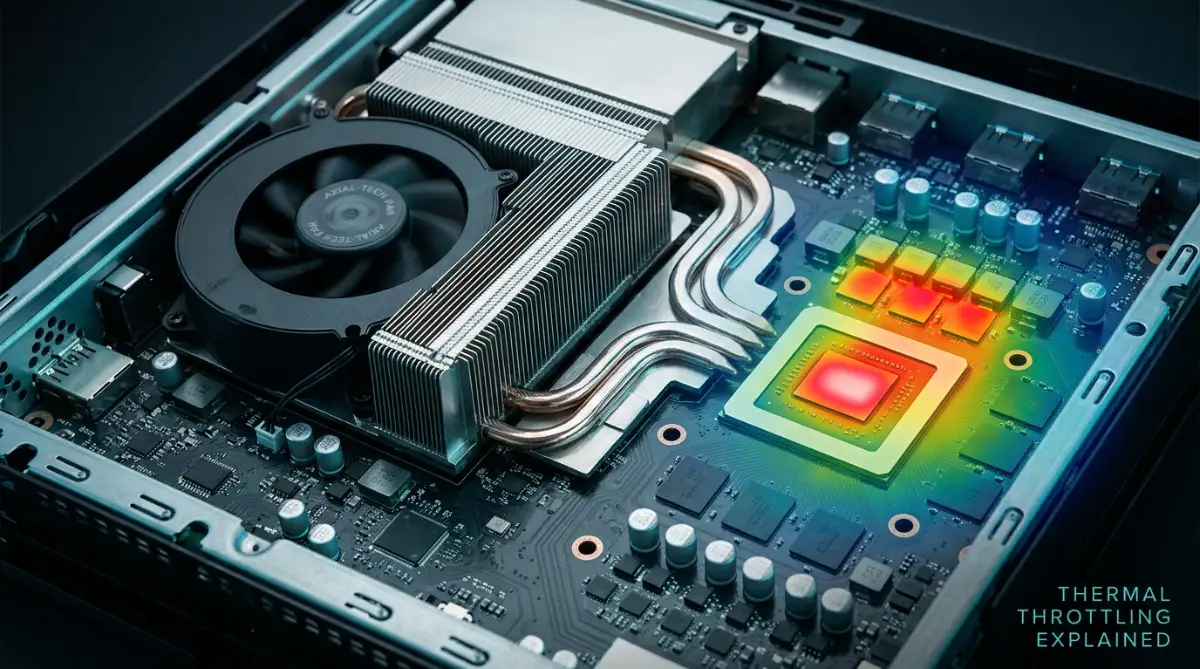
If the fan gets extremely loud even when you are just browsing the main menu or watching a simple movie, your system is crying out for help. Another major warning sign is when your games start to stutter or freeze completely during busy, action-packed moments. This is known as thermal throttling.
When the processor gets dangerously hot, the system automatically slows itself down to generate less heat. This self-defense mechanism causes massive drops in your game's frame rate, making everything look incredibly choppy and unplayable. If you notice your games running terribly after an hour of play, heat is usually the main suspect.
The Slow Degradation of Internal Thermal Paste
Deep inside your machine, sitting directly between the hot processor chip and the metal cooling block, is a tiny layer of gray liquid known as thermal paste. This special paste is designed to transfer heat efficiently away from the fragile computer chips. Over a long period of heavy use, the intense heat slowly dries this paste out until it becomes a crusty, chalk-like powder.
When the thermal paste dries up completely, the heat can no longer travel into the cooling system properly. The processor gets trapped under its own massive heat output. This is exactly why a system that ran perfectly quiet on the day you bought it might start overheating heavily a year later, even if there is absolutely no dust inside the vents.
Routine Cleaning Habits That Actually Save You Money
You do not need to be a professional computer technician to keep your gaming gear running at safe temperatures. Developing a simple, monthly cleaning habit is the most effective way to protect your investment. Start by completely unplugging your machine from the wall to ensure total electrical safety before you do anything else.
Take a clean, dry microfiber cloth and gently wipe down the outside casing, focusing carefully on the plastic vent grills. Once the heavy surface dust is gone, you can use a high-quality can of compressed air to blow out the internal dust. Always hold the fan blades completely still with a toothpick or cotton swab before blowing compressed air into them.
If you let the compressed air spin the internal fans at high speeds, it can actually generate a backward electrical current that easily fries your motherboard. Use short, quick bursts of air rather than holding the trigger down continuously. This simple, ten-minute maintenance routine will easily extend the lifespan of your expensive hardware by several years.
Why Ambient Room Temperature Matters More Than You Think
A lot of gamers completely forget to consider the actual temperature of the room where they play their games. Your machine can only cool itself down by pulling in the air from its immediate surroundings. If you are playing heavy, demanding games in a room that is already boiling hot on a summer afternoon, your console is at a massive disadvantage.
The cooling system is forced to try and cool down a hot processor using hot room air, which is practically impossible according to basic physics. If you do not have air conditioning in your gaming room, try to play during the cooler evening hours or keep a window open with a regular room fan circulating the air. Keeping the ambient room temperature low is half the battle won.
Taking care of your electronics does not have to be a stressful or overly complicated process. By simply understanding how air moves through your machine and keeping the vents completely clear, you are already doing better than most average users. Paying close attention to where you store the system will immediately solve the vast majority of temperature problems you might face.
Beyond Basic Dusting: Pro-Level Thermal Defense Strategies
Once you have mastered the basic cleaning habits, it is time to look into more advanced ways to protect your expensive hardware. Simple dusting is a great start, but true temperature control requires a slightly deeper understanding of how modern electronics breathe. You want to create an environment where your gaming machine never has to struggle for fresh air.
One of the smartest things you can do is modify your actual gaming furniture to support better airflow. If you keep your system inside a wooden entertainment center, grab a hole saw and drill a large opening directly behind where the machine sits. You can install a small, quiet USB-powered PC fan in this hole to actively pull hot exhaust out of the cabinet. This simple weekend DIY project completely eliminates the dreaded trapped heat problem.
You also need to think about the physical orientation of your machine. Most modern systems are designed to stand up vertically or lay flat on their side. However, depending on the specific internal heat sink design, one position usually cools much better than the other. I highly recommend checking hardware repair databases to see the teardown of your specific machine. Seeing exactly where the main exhaust vents are located helps you position the system perfectly on your desk.
The Sticky Truth About Indoor Air Quality
We rarely think about the actual quality of the air floating around our living rooms, but your system definitely notices it. If you have pets that shed heavily, those tiny hairs will quickly bypass the plastic outer shell and tangle up tightly around the fan bearings. Consider running a standalone HEPA air purifier in the same room where you do your heavy gaming.
An air purifier acts as a frontline defender, catching floating dust and pet dander long before it ever reaches your expensive electronics. Understanding household air quality is incredibly important for both your own health and the longevity of your gadgets. Taking care of the air in your room means you will have to open up your electronics for deep cleaning much less often.
Just like you need to use specific microfibers to safely clean your VR lenses, you need to treat your cooling fans with the exact same level of delicate care. Never use harsh chemical sprays near the intake vents. The liquid can easily get sucked inside, causing instant electrical shorts on the motherboard.
Replacing Thermal Paste for Aging Hardware
If your machine is a few years old and completely out of its original factory warranty, a deep internal cleaning might be necessary. Over time, the factory-applied cooling paste turns into a dry, chalky mess that completely stops working. Replacing this paste is a terrifying thought for many beginners, but it is actually a straightforward process if you follow a good guide.
Opening up your machine and applying a fresh, high-quality silver-based compound can drop running temperatures by massive margins. According to basic principles of thermal management in consumer electronics, a good thermal interface material is the only way heat can escape the main processor chip. Upgrading this paste often makes an old, loud machine sound brand new again.
When your processor overheats, it struggles to process data properly, which leads to all sorts of frustrating gameplay issues. Extreme heat can cause visual stuttering, frame drops, and even major sound desync during cutscenes. This is surprisingly similar to the frustration you feel when trying to fix audio delay in VR games. Keep the processor cold, and your gameplay will remain perfectly smooth.
The Hardware Graveyard: Everyday Habits That Destroy Electronics
People often destroy their favorite gaming systems entirely by accident, simply because they do not realize how fragile internal components actually are. One of the absolute worst things you can do is place your machine near a sunny window. Direct sunlight baking through the glass acts exactly like a magnifying glass, heating the dark plastic casing to extreme temperatures before you even turn the system on.
When you start playing a heavy, graphics-intensive game inside a machine that is already baked by the afternoon sun, you are practically guaranteeing a thermal shutdown. Keep your electronics in the shaded parts of your room. You want them to start at room temperature, not baking hot.
Another terrible mistake I see gamers make all the time is placing other hot electronics directly on top of their gaming machine. Your internet router, a warm cable box, or an external hard drive should never rest on top of your main system. You are just forcing the bottom machine to absorb all the extra heat from the devices above it.
The Silent Damage of Sticky Vapor and Smoke
This is a massive warning for anyone who smokes or uses vaporizers heavily while sitting at their gaming desk. The sticky vapor clouds get instantly sucked into the high-speed intake fans of your system. This moisture coats the internal fan blades and the delicate metal heat sink fins with a thick, oily residue that never dries.
Once that sticky residue is inside, regular household dust sticks to it like heavy glue. You cannot simply blow this kind of mess away with a can of compressed air. The buildup forces the system to run so hot that it can actually warp the internal plastic connectors. This type of heat damage easily ruins your USB ports, creating issues much like when a VR headset keeps disconnecting from your PC.
To fix a smoke-damaged cooling fan, you have to completely disassemble the machine and scrub the metal parts with highly concentrated isopropyl alcohol. Save yourself this massive headache by simply blowing vapor away from your electronics. Better yet, keep a small window fan running to push the smoke directly out of the room.
Ignoring Critical Software Updates
Many people think firmware updates are only meant for downloading new menu features or patching game bugs. In reality, manufacturers frequently use these silent background updates to completely rewrite how the internal cooling fans behave. If a specific game is causing systems to run too hot, the developers will push an update to adjust the fan speed curve.
If you constantly play offline and ignore these system prompts, your machine might be using outdated thermal instructions. It will not spin the fans fast enough when the processor is actually screaming for relief. Always let your machine connect to the internet occasionally to grab these safety updates.
Taking care of your electronics requires attention to detail and a proper setup routine. Just like you absolutely must calibrate your drone compass before a flight to avoid a crash, you must regularly check your console's airflow paths. Do not wait until the screen goes black to start caring about your setup.
Taking Charge of Your Setup and Saving Your Gear
Protecting your expensive entertainment setup really comes down to forming a few smart, easy habits. You do not need a degree in computer engineering to keep your temperatures low and your frame rates high. All it takes is a little bit of breathing room, a clean environment, and understanding what your machine is trying to tell you.
When you hear that fan start to ramp up, do not just turn up your headset volume to ignore the noise. Take a quick look behind the TV, clear out the hidden dust bunnies, and make sure the exhaust vents have plenty of open space. Small, five-minute checkups save you from experiencing that heartbreaking moment when the power suddenly cuts out forever.
By managing your room temperature and keeping the internal parts free of sticky dust, you are guaranteeing yourself years of uninterrupted gaming. You work hard for your money, so it only makes sense to protect the things that bring you happiness and relaxation. Take these practical steps today, and your hardware will definitely thank you for it.
I actually almost lost my own favorite gaming system to a dusty, suffocating TV cabinet just a few months after buying it. Changing where it sat and giving it a quick wipe down every weekend completely stopped all my random game crashes. Start treating your gear with a little more care today, and I promise you will never have to panic over a blinking red warning light again!
Burning Questions Gamers Ask About System Temperatures
How hot is too hot for a modern gaming machine?
Your system is designed to run fairly warm, usually hitting anywhere between 50 to 65 degrees Celsius during heavy gameplay. If the outer plastic casing becomes painfully hot to the touch or you smell burning plastic, your system is dangerously overheating. Modern systems will automatically shut themselves off if they cross the extreme 80-degree danger zone to prevent fires.
Does standing my system vertically cause overheating problems?
It completely depends on the specific brand and model you own. Some systems naturally pull cool air from the bottom and push it out the top, making vertical placement perfectly fine. However, if standing it up blocks the main intake vents on the bottom panel, you are accidentally choking the system. Always check your specific manual to see the manufacturer's recommended placement.
Will taking the side panels off my machine keep it cooler?
Removing the side panels completely destroys the careful vacuum seal that pushes air directly through the internal heat sink. While the main processor might feel slightly cooler at first, you are leaving sensitive memory chips completely exposed with zero active airflow over them. It is always much safer to leave the protective covers on and simply clean the existing air vents.
How often should I use compressed air on my setup?
For a normal, clean house with no shedding pets, a quick blast of compressed air every three to four months is usually perfect. If you have multiple cats or dogs in your gaming room, you should really clean the vents once a month to prevent heavy hair buildup. Remember to always power the machine off and unplug it from the wall before starting your cleaning routine.
Can a cooling pad actually lower my temperatures?
Laptop cooling pads placed underneath your machine only work if your specific hardware has air intake holes directly on the bottom. If your system pulls air strictly from the sides or front, a bottom cooling pad will not do absolutely anything helpful. You are much better off spending that money on a small desk fan to improve the overall airflow in your room.
Disclaimer: The information provided in this article is for educational and informational purposes only. Modifying your hardware, opening the outer casing, or replacing internal parts may permanently void your manufacturer's warranty. Always refer to your specific user manual or consult a licensed professional before attempting any deep cleaning or hardware modifications. We are not responsible for any accidental damage caused to your personal property.