The Hidden Frustration of Unsynced Virtual Worlds
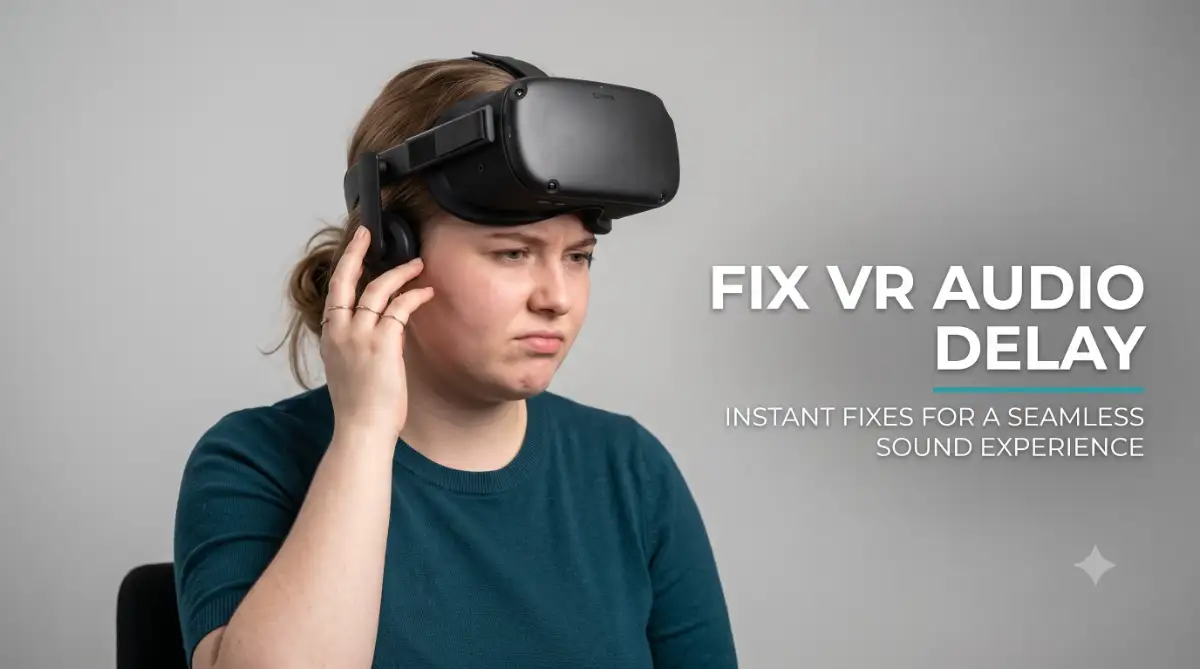
Imagine stepping into your favorite virtual reality game, fully ready to escape the real world. You draw your digital sword, swing it at an enemy, and... total silence. Half a second later, you finally hear the loud clash of steel.
That tiny delay might not seem like a big deal on paper, but in virtual reality, it completely shatters your immersion. When your eyes and ears receive information at different times, your brain gets deeply confused. This disconnect is exactly what causes severe motion sickness for many players.
I remember the first time I bought a pricey VR setup, super excited to swing a digital sword, only to get hit with a nasty half-second sound delay. I ended up with a splitting headache and almost returned the entire headset thinking it was completely broken. It was incredibly frustrating, and I spent days trying to figure out why my brain felt so scrambled after just ten minutes of playing.
I have seen countless gamers spend hundreds of dollars on premium headsets, only to feel dizzy and defeated by persistent sound lag. They often search for answers, only to find confusing forums filled with overly technical jargon. This lack of clear guidance leaves them feeling like their expensive hardware is broken.
Here is what happens when you cannot find a proper solution:
- You start avoiding fast-paced rhythm games because missing beats becomes incredibly frustrating.
- Your brain works overtime trying to match the visuals to the delayed sound, leading to quick mental fatigue.
- You lose confidence in your gaming setup, constantly tweaking settings instead of actually enjoying your time.
- Multiplayer matches become unfair, as you hear enemy footsteps long after they have already sneaked up behind you.
This annoying understanding audio latency problem ruins the magic of VR. Think about it like watching a poorly dubbed movie. Just like how bad video editing is secretly killing your YouTube money and how to fix it, a terrible audio-visual mismatch in VR quietly ruins the entire user experience.
Your mind expects real-world physics. When an object hits the floor in VR, the sound must happen at that exact millisecond. If it does not, the illusion is broken. You deserve to experience virtual reality exactly as the developers intended. The good news is that we can fix this annoying problem together, using some very straightforward steps.
Master Your Audio: Simple Fixes for Instant Sync
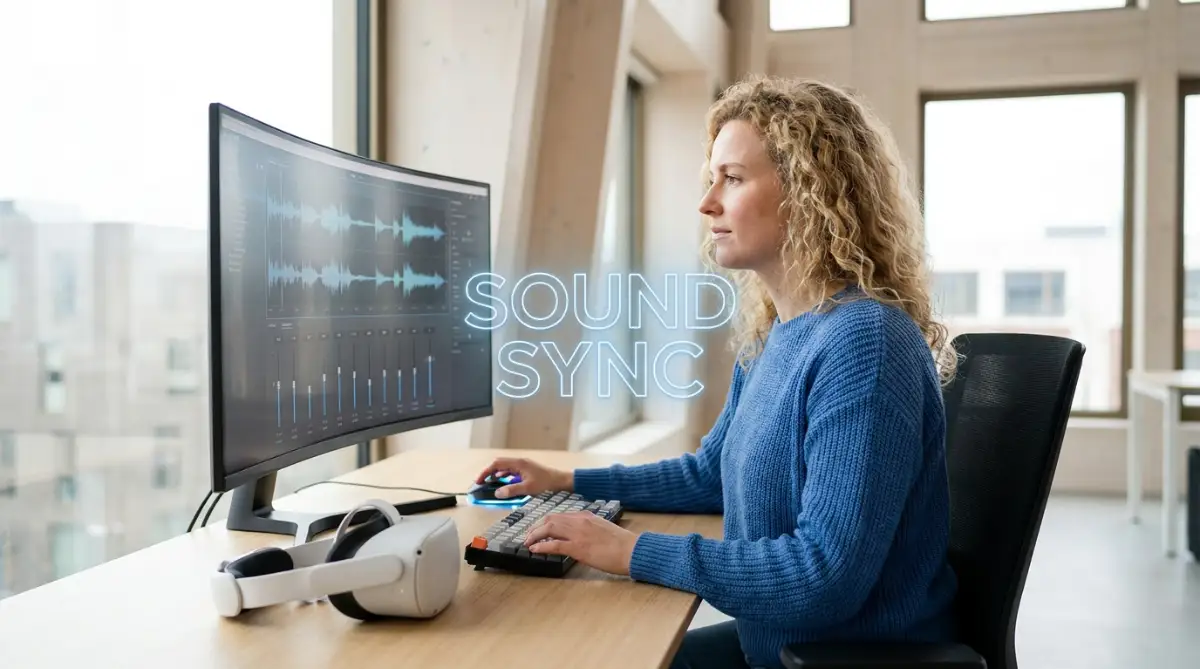
Let us start with the most practical things you can do right now to get your sound perfectly aligned. You do not need an engineering degree to understand these steps. We will walk through them slowly, ensuring you know exactly why each setting matters.
Want to see these audio fixes in action? Watch this quick step-by-step video guide below to easily fix your VR sound lag before diving back into your favorite games!
Say Goodbye to Wireless Audio Connections
The single biggest mistake I see gamers make is trying to use regular Bluetooth headphones with their VR headset. Bluetooth technology is fantastic for listening to music on the bus. However, it is absolutely terrible for high-speed gaming.
Standard Bluetooth connections have a natural delay built into how they process data. The audio signal has to be compressed, sent through the air, received by your headphones, and then decompressed. This entire journey takes time, often resulting in a delay of 200 milliseconds or more. In the gaming world, a 200-millisecond delay feels like a lifetime.
If you are playing a rhythm game where you need to hit blocks precisely on the beat, Bluetooth will make you fail every single time. Your eyes will see the block arrive, but the musical cue will be completely out of sync.
What you should do instead:
Grab a high-quality pair of wired headphones. Plug them directly into the audio jack on your VR headset. A direct wired connection travels at the speed of electricity, meaning the delay drops to virtually zero. If you absolutely hate wires, you must invest in a dedicated 2.4GHz wireless gaming headset with a USB dongle. These dongles use a completely different technology than Bluetooth, designed specifically to eliminate lag.
Match Your Windows Audio Sample Rates
If you are playing PC VR games through a link cable or Wi-Fi streaming, your computer is doing all the heavy lifting. Sometimes, your Windows audio settings get confused about how much data to send to the headset. This confusion creates a digital bottleneck, pushing the sound out of sync.
Think of an audio sample rate like a water pipe. If the game is pumping out water at one pressure, but your headphones are set to receive a different pressure, the flow gets interrupted. We need to make sure everything is flowing smoothly at the exact same rate.
To fix this, right-click the little speaker icon on your Windows taskbar. Select 'Sound settings' and find your VR headset in the list of output devices. Click on its properties and look for the 'Advanced' tab.
The golden setting:
You will see a dropdown menu for the default format. Change this to 16 bit, 48000 Hz (DVD Quality) or 24 bit, 48000 Hz. Make sure your main computer speakers and your VR headset are both set to this exact same number. When all your devices speak the same digital language, the processing speed improves dramatically. You will instantly notice snappier, more responsive sound in your games.
Here is a rookie mistake I made for months: I had my PC speakers set to 44.1kHz while my VR headset was running at 48kHz, which silently ruined my audio timing. Once I forced every device in my sound settings to match at 48kHz, that annoying audio lag vanished instantly.
Clean Up Background Processing Hogs
Your computer only has so much brainpower to go around. When you launch a virtual reality game, your PC is rendering two separate high-resolution images while tracking your head movements in real-time. That is a massive workload.
If you have other heavy programs running in the background, your computer might struggle to keep up. When a PC struggles, it starts prioritizing visual frames over audio processing. This means your graphics stay smooth, but the sound gets pushed back in line, causing a noticeable delay.
This issue is very similar to how to diagnose and fix overheating issues in high-performance laptops. When a system is overwhelmed or thermal throttling, every single process slows down. You need to free up those system resources immediately.
Actionable steps to take:
Before you put your headset on, open your Windows Task Manager. Look for any unnecessary applications running in the background. Close down heavy web browsers with dozens of tabs open. Shut off software updaters, background recording apps, and unneeded game launchers.
By giving your game full access to the CPU and RAM, the system no longer has to delay audio processing. Your sound and visuals will lock perfectly back into place, giving you that seamless immersion you crave.
Update and Refresh Your USB Drivers
Many modern headsets connect to your PC via a high-speed USB-C cable. We often take these cables for granted, assuming they just work automatically. However, the USB ports on your motherboard rely on software drivers to manage the flow of data.
If your USB drivers are old or corrupted, they can struggle to handle the massive bandwidth required by PC VR. The video feed takes up so much space that the audio packets get delayed during transmission. The result? A frustrating echo or lag every time someone speaks in-game.
To resolve this, you need to visit your motherboard manufacturer's official website. Download the latest chipset and USB drivers for your specific board model. Do not rely on the automatic Windows updater, as it often installs generic, outdated versions that do not handle heavy gaming loads well.
Once you install the fresh drivers, restart your computer. Then, try plugging your VR link cable into a different port on the back of your PC. Always aim for a port labeled 'USB 3.2' or a port painted red or blue. These ports offer the highest bandwidth, ensuring your sound and video travel together perfectly.
Disable Unnecessary Audio Enhancements
Both Windows and specific headphone softwares love to add 'enhancements' to your sound. They offer features like virtual surround sound, bass boost, or volume equalization. While these sound great for watching movies, they are terrible for gaming latency.
Every time your system applies an enhancement, it holds onto the audio signal for an extra fraction of a second to process the effect. In the fast-paced world of gaming, that fraction of a second is all it takes to ruin your experience. Your headset already has built-in spatial audio tracking designed by the developers. You do not need extra software messing with it.
Go back into your Windows Sound settings and open the properties for your VR headset. Look for a tab called 'Enhancements'. Check the box that says Disable all enhancements. Hit apply and close the window.
If you are using special software like Razer Synapse or Corsair iCUE, go in and turn off any spatial audio features while playing VR. Letting the game engine handle the sound directly provides the absolute lowest latency possible.
Advanced Strategies for Perfectly Synced Audio
If you have tried the basic fixes and still notice a slight delay, it is time to dig a little deeper. Sometimes, the problem lies in how your specific hardware talks to the game engine. Let us explore some expert-level techniques to guarantee perfectly synced sound.
Just like you would follow precise photography drone calibration tips to avoid costly repairs, calibrating your virtual setup requires a bit of focused attention. Once you set these parameters correctly, you will rarely have to touch them again.
Tweak Your Wireless Network for PC VR
A huge portion of the gaming community now plays PC VR entirely wirelessly using apps like Virtual Desktop or Steam Link. Playing without a cable is incredibly freeing. However, beaming high-definition video and audio across a room requires a nearly perfect Wi-Fi connection.
If your wireless network is congested or improperly configured, audio packets will drop or arrive late. This creates a stuttering, delayed sound experience. The first rule of wireless streaming is that your PC must be connected to your router using a physical Ethernet cable. Never try to stream VR while your PC is also on Wi-Fi.
Your headset should be connected to a dedicated 5GHz or 6GHz Wi-Fi band. Make sure no other devices in your home are downloading large files on this specific band while you play. Think of this Wi-Fi band as a private highway just for your headset. If you let smart TVs and phones onto that highway, you create digital traffic jams.
Optimizing the router settings:
Log into your router's admin panel using your web browser. Look for the channel settings on your 5GHz network. Avoid using 'Auto' channels, as the router might switch channels mid-game, causing massive lag spikes. Download a free Wi-Fi analyzer app on your phone to find an empty channel in your area. Hardcode your router to that empty channel, and your audio streaming will become buttery smooth.
Adjust In-Game Audio Buffers
Many hardcore simulation games and rhythm games offer advanced settings hidden in their menus. One of the most powerful tools you have is the 'Audio Buffer Size' or 'Audio Latency' slider. This setting directly controls how much audio the game prepares before sending it to your ears.
A larger buffer size is safer. It prevents the audio from cracking or popping if your computer stutters. However, a larger buffer directly introduces audio delay. The game holds onto the sound longer to ensure it is safe to play.
A smaller buffer size sends the audio almost instantly, reducing lag to zero. The catch is that your CPU must be powerful enough to keep up. If you set the buffer too low, your audio will start sounding robotic or glitchy.
How to find the sweet spot:
Go into the options menu of your favorite game. Lower the audio buffer size slightly and play for a few minutes. If the sound remains clear, lower it again. Keep doing this until you hear clicking or popping noises. Once you hear those bad noises, raise the buffer setting up one notch. You have now found the absolute fastest audio speed your specific computer can handle.
The Power of Dedicated Audio Interfaces
For gamers looking to build the ultimate immersive setup, relying on standard motherboard audio might not be enough. Professional streamers and competitive players often use an external Digital-to-Analog Converter (DAC) or an audio interface.
Building a great sound system is similar to generating high-quality conceptual art using AI. You need the right tools processing the raw data to get a masterpiece. An external DAC takes the audio processing job completely away from your computer's CPU.
These dedicated devices have one single job: processing sound as fast and as cleanly as possible. By running a long, high-quality audio cable from a dedicated DAC on your desk directly to your headphones, you bypass all the internal Windows software bottlenecks.
While this setup requires a bit of cable management, the result is studio-quality sound with literally zero perceivable delay. It is a fantastic option for players who mostly play seated simulation games like racing or flying simulators.
The Pitfalls: Big Mistakes You Must Stop Making
Even with the best intentions, it is incredibly easy to make simple mistakes that completely ruin your audio sync. If you are still struggling with lag, carefully check to ensure you are not falling into these common traps.
1. Relying on Cheap USB Hubs
Many players run out of USB ports and buy inexpensive, unpowered USB hubs to plug in all their accessories. If you plug your VR link cable or your wireless dongle into a cheap hub, you are sharing that port's bandwidth with everything else on the hub. This creates a massive bottleneck. Always plug your headset directly into the motherboard on the back of your computer.
2. Ignoring Windows Updates
It is tempting to click "remind me later" when a Windows update pops up. However, Microsoft frequently releases patches that fix deep-level audio routing bugs. If you ignore these updates for months, your system architecture becomes outdated. This can lead to random, unexplainable audio desyncs during gameplay. Take the ten minutes to let your system reboot and apply those patches.
3. Mixing Up Audio Output Devices
Sometimes, Windows gets confused when you put your headset on. It might try to play the game audio through your desktop speakers and mirror it to your headset simultaneously. This software mirroring process adds significant delay. Always go into your settings and ensure your headset is set as the one and only primary output device while gaming.
4. Forgetting Headset Firmware Updates
Standalone headsets act like mini-computers. The manufacturers constantly release firmware updates to improve wireless streaming latency and audio processing. If you never connect your headset to the internet to check for updates, you are missing out on free performance upgrades. Make it a habit to check the system settings inside your headset at least once a month.
5. Using Damaged Audio Cables
If you followed my advice to use wired headphones, you must ensure the cable is in perfect condition. An old, bent, or chewed-up aux cable does not just cause static. A damaged connection can actually cause the digital signal to drop packets, which your software then tries to correct. This error-correction process takes time, resulting in a noticeable audio delay. Treat your cables gently and replace them if they show physical wear.
Take Control of Your Immersive Experience Today
You no longer have to accept a sub-par gaming experience. We have covered exactly why your sound gets delayed and exactly how to fix it from every angle. From ditching slow Bluetooth connections to optimizing your Wi-Fi router, you now hold the blueprint to perfect audio synchronization.
Remember, technology should work for you, not against you. Take fifteen minutes today to go through your Windows settings, update those USB drivers, and check your sample rates. These small, free adjustments make a massive difference in how real your virtual worlds feel.
Do not let a tiny sound delay ruin your favorite games or cause unnecessary motion sickness. Put your headset on, load up that rhythm game, and feel the satisfaction of hitting every single beat right on time. You have the knowledge now, so go apply it and enjoy your perfectly synced adventure.
Fixing my VR audio took a bit of tweaking, but playing games with razor-sharp sound sync changed everything for me. Grab your audio cable, open up your sound settings, and make these quick fixes today so you can finally enjoy virtual reality the way it was meant to be experienced!
Disclaimer: This guide is provided for educational and informational purposes only. While the solutions outlined in this article are based on standard operating system settings and common hardware troubleshooting practices, individual results may vary depending on your specific PC hardware, VR headset model, and software drivers. Please ensure you follow proper safety guidelines when modifying system settings or updating software. The author and website are not responsible for any accidental configuration issues, system instability, or hardware damage that may occur while applying these troubleshooting steps.