Why Your Button Presses Feel Sluggish (And How It Ruins Your Peace)
I still remember sitting on my couch after a terribly long day at work, just wanting to relax with a simple multiplayer match. My hands were gripping the wireless controller, and my eyes were locked on the screen. I saw the enemy coming around the corner. My brain reacted instantly, and I pulled the trigger as fast as humanly possible. But my on-screen character just stood there for a split second like a complete fool. I lost the match entirely, and my blood started boiling immediately. It felt like an invisible wall was standing right between my hands and my TV screen.
This hidden delay completely destroys your mental peace when you are just trying to unwind. You start questioning your own gaming skills, wondering if your reflexes are simply getting worse over time. But the truth is, the hardware you paid good money for is actually working against you in the background.
When your button presses take a fraction of a second too long to register on the screen, gaming stops being fun and starts becoming a massive source of stress. You miss that perfect jump in a platformer game. You fail to dodge an incoming attack in a boss fight. You lose racing games because your car steers just a tiny bit too late.
Regular gamers face this exact problem every single day without even realizing what is causing it. You might think it is just a bad internet connection, but the real culprit is sitting right there in your living room setup. This tiny gap in time between your fingers and the display creates a massive disconnect.
Instead of feeling completely immersed in a beautiful digital world, you constantly feel like you are fighting against muddy, unresponsive controls. It completely ruins your weekend gaming sessions and leaves you feeling more frustrated than when you started playing. No one deserves to spend their hard-earned free time feeling cheated by invisible technical delays.
The Ultimate Playbook to Eliminate Controller Delay Forever
Fixing this annoying delay does not require a degree in computer engineering. We just need to understand how the electronic signals travel from your thumbs, through the air, into the console, and finally onto your television display.
By cleaning up this specific pathway, you will instantly notice your games feeling incredibly fast and snappy. Let us look at the most scientific and practical ways to clean up this signal path right now.
Decoding the Processing Power of Your Television
Your modern television is essentially a very powerful computer. When it receives a video signal from your gaming console, it does not just put that picture on the screen right away. The TV wants to make the image look as pretty as possible.
It takes the raw video frame and pushes it through heavy digital filters. It tries to boost the colors, sharpen the blurry edges, and artificially smooth out the motion. Think of it like a professional photographer spending several minutes editing a photo before showing it to you.
While this heavy processing makes movies look absolutely stunning, it is a complete disaster for gaming. All of that digital editing takes precious milliseconds to complete. During those milliseconds, your console has already registered your button press, but the TV is still busy "painting" the frame.
How to Bypass the Heavy Digital Filters
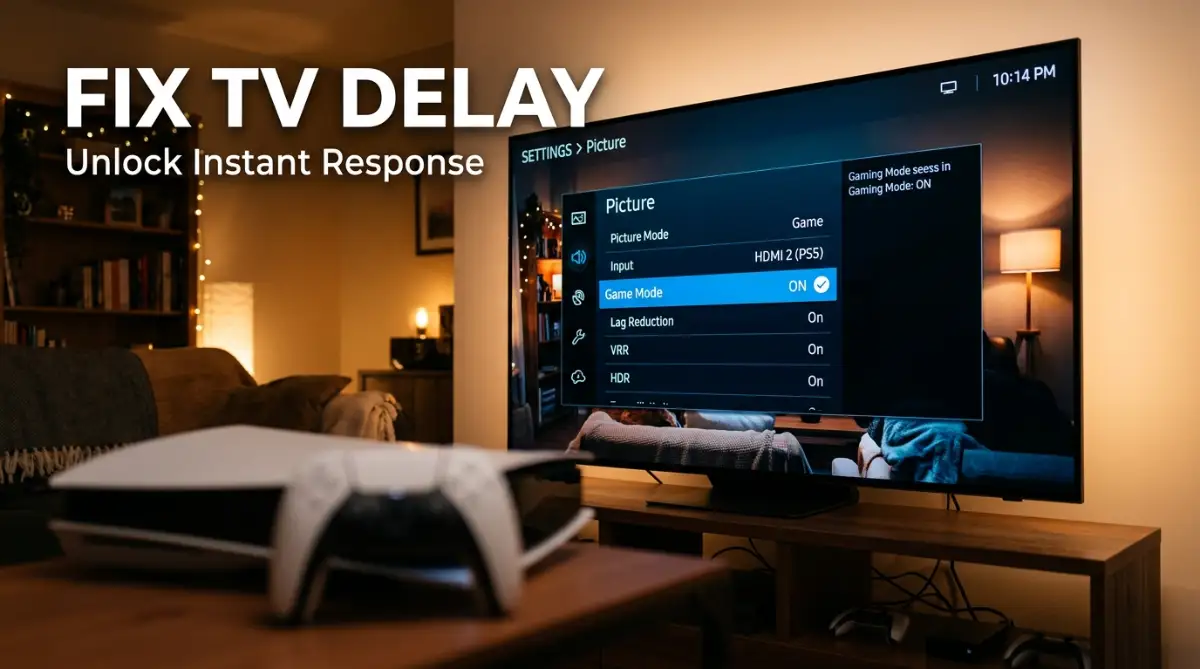
You need to tell your television to stop trying to be an artist and just show the raw image immediately. This is exactly what Game Mode is designed to do. When you turn this specific setting on, it disables almost all of the extra background processing.
The television stops trying to sharpen edges or artificially boost contrast. It just takes the raw video signal from the console and blasts it straight to the screen pixels. This single adjustment can cut your display delay down by more than half.
You also need to dig deeper into the specific picture settings and manually turn off anything labeled as Motion Smoothing, Action Smoothing, or TruMotion. These specific features try to guess what the next frame of video will look like and generate fake frames in between. This guessing game requires massive processing time and introduces terrible input delay.
Are You Using the Right Hardware Port?
Not all connection ports on the back of your television are created equal. Manufacturers often build one or two primary ports with the fastest data transfer speeds, while the others are meant for basic devices like a cable box.
You need to look at the back of your TV and find the port specifically labeled with a gaming icon or a higher data bandwidth rating. Plugging your console into the fastest available port ensures the heavy video data flows without any hardware bottlenecks. If you are using an old, frayed HDMI cable from a previous generation, you are also choking that data flow.
Watch This Expert Breakdown on Display Response Times
If you want to see exactly how these picture settings alter your screen's behavior in real-time, this visual guide breaks down the science perfectly. It shows you the exact menus you need to navigate and proves just how much time you save by turning off motion processing.
Clearing the Invisible Traffic Jam in Your Room
Now that the screen is rendering images instantly, we have to look at how your controller talks to the console. Next-gen controllers use wireless Bluetooth radio waves to send your button presses through the air.
You cannot see these radio waves, but your living room is completely flooded with them. Every single smart device in your house is screaming loudly on the exact same radio frequency. Your smartphone, your smart watch, your wireless headset, and especially your home Wi-Fi router all use the exact same 2.4GHz frequency band.
Imagine trying to have a quiet conversation with your friend across the room while fifty other people are yelling at the top of their lungs. Your console has a hard time hearing the controller's signal through all of that invisible noise.
Managing Your Wireless Network Frequencies
To fix this, you need to clear up the airwaves. The biggest offender is usually your internet router. Most home routers broadcast two different Wi-Fi signals: a 2.4GHz signal and a 5GHz signal.
You should move all of your heavy devices, like your smart TV, laptops, and streaming boxes, over to the 5GHz Wi-Fi network. This 5GHz band is like a separate, empty highway. By moving your heavy internet traffic over there, you leave the 2.4GHz lane wide open for your gaming controller to operate without any interference.
I used to keep my Wi-Fi router sitting right next to my console because it looked incredibly neat on the TV stand. I quickly realized this was flooding my gaming space with invisible traffic, completely choking my controller's direct signal. Once I moved the router just five feet away and placed it on a higher shelf, my button presses felt instantly snappy again.
Removing Physical Signal Blockers
Radio waves also hate physical obstacles, especially heavy metals and dense materials. If your gaming console is stuffed deep inside a glass cabinet or hidden behind a solid metal TV stand, the controller's signal has to fight incredibly hard to get through.
Wood and glass will slow the signal down slightly, but metal completely reflects it away. You need to give your console room to breathe. Place it out in the open where it has a direct, clear line of sight to exactly where you sit on the couch.
Even having a large metal object like a decorative lamp or a thick bookshelf directly between you and the console can bounce the wireless signal in the wrong direction. The signal eventually reaches the console by bouncing off the walls, but that extra travel distance adds tiny fractions of delay to your button inputs.
Optimizing the Hardware in Your Hands
Sometimes, the delay is not caused by the TV or the room environment. Sometimes, the controller itself is struggling to process information quickly.
Inside your controller, there is a tiny computer chip that constantly checks to see if you have pressed a button or moved a thumbstick. The speed at which it checks for these actions is called the polling rate.
Think of polling rate like a mail carrier checking a mailbox. If the carrier checks the box once a day, your mail sits there waiting. If the carrier checks the box a thousand times a second, your mail is delivered the exact millisecond you drop it in.
Keeping Your Controller Healthy
Manufacturers are constantly finding new ways to make this internal software more efficient. They release firmware updates that directly improve how fast the controller can read your inputs and send them to the console.
Most people completely ignore these updates when they pop up on the screen because they just want to play their game. However, taking three minutes to plug your controller in and download the latest software patch can directly improve its internal response time.
Battery life also plays a massive role in signal strength. When your controller's battery drops below twenty percent, it goes into a silent power-saving mode. It starts sending a slightly weaker Bluetooth signal to conserve whatever juice it has left.
A weaker signal takes longer for the console to verify and process. Keeping your controller properly charged ensures it is always broadcasting at maximum strength. If your battery is constantly draining fast, it might be time to replace the internal battery entirely so it can maintain a strong connection.
Myth vs Reality: The Wired Connection Debate
There is a very common belief in the gaming community that plugging your wireless controller directly into the console with a USB cable will instantly solve all input delay problems.
This used to be absolutely true for older gaming generations. However, next-gen hardware handles data a bit differently.
The Reality of Modern Data Transfer
When you plug a modern wireless controller into a console using a standard USB cable, it often just uses that cable for charging while continuing to send data over the Bluetooth connection.
If you actually want the data to travel through the physical wire, you have to go deep into the console's accessory settings and manually change the communication method from "Bluetooth" to "Use USB Cable".
Even then, the difference in response time is incredibly microscopic. Modern Bluetooth technology is so advanced that a clear, uninterrupted wireless signal is often just as fast, if not slightly faster, than a wired connection. The real secret is not tying yourself down with a long cable, but rather ensuring your wireless environment is completely clear of interference.
A Quick Breakdown of TV Settings
To make things perfectly clear, here is a simple breakdown of what your television is doing behind the scenes, and why changing these settings makes such a massive difference in your daily gaming experience.
Fine-Tuning the In-Game Mechanics
Beyond the hardware and the television settings, the games themselves often have internal settings that create a feeling of heavy sluggishness.
When you boot up a first-person shooter or a fast-paced action game, head straight into the controller options menu. Look specifically for a setting called Deadzone.
The deadzone is the amount you have to physically push the analog stick before the game recognizes the movement. Game developers often set this number incredibly high by default to prevent characters from moving on their own if your controller is old and slightly broken.
If you have a healthy controller, a high deadzone simply feels like input delay. You push the stick, and nothing happens for the first millimeter of movement. By manually lowering the deadzone setting to the lowest possible number before the character moves on their own, your thumbs will feel instantly connected to the camera movement.
You should also look at the visual settings inside the game menu. Many modern console games offer a choice between a "Resolution Mode" and a "Performance Mode".
Resolution mode forces the console to push extremely detailed, heavy graphics, which often caps the game at thirty frames per second. Performance mode drops the graphic quality slightly but doubles the frame rate to sixty frames per second.
A higher frame rate directly cuts down on input delay because the screen is updating twice as fast. When the screen updates faster, your button presses are visually reflected much sooner. Always choose the performance option if you want the tightest, most responsive controls possible.
By taking control of your television settings, clearing up your living room's wireless airwaves, and fine-tuning your specific game menus, you completely remove that invisible wall. Your hardware stops fighting against you. Your reflexes directly translate to the screen in real-time, bringing the pure, stress-free joy back to your gaming sessions.
Next-Level Setup Secrets for Instant Gaming Reflexes
Now that you have the basic settings handled, it is time to push your gaming setup to the absolute limit. These advanced tweaks go beyond simple menu changes and directly target the hidden hardware bottlenecks in your living room.
I want to show you exactly how professional gamers keep their hardware running at peak performance. These are the adjustments that separate a decent gaming experience from an absolutely flawless one.
The Magic of Variable Refresh Rate (VRR)
If you have a modern television and a next-gen console, you have a massive advantage called Variable Refresh Rate, or VRR. You need to go into your console's display settings right now and make sure this specific feature is turned on.
Before VRR existed, games used a heavy software trick called V-Sync to stop the screen from tearing when the camera moved fast. V-Sync essentially forces the console to hold onto a picture frame until the television is ready for it. This holding period introduces a very noticeable delay between your controller and the screen.
VRR completely flips this old process upside down. Instead of the console waiting for the TV, VRR forces the television to instantly adapt to the exact speed of the console. You can learn more about how display motion testing and synchronization works to see why this technology is a complete game-changer. It makes your gameplay feel incredibly smooth and completely removes the heavy burden of V-Sync.
Understanding Your HDMI Bandwidth
Many people spend hundreds of dollars on a beautiful new display, only to use the old, dusty cable they found in the back of a drawer. This is a massive mistake. High-quality gaming requires an incredible amount of data to travel from the console to the screen every single second.
If you want to play at high frame rates with zero delay, you absolutely need an Ultra High Speed HDMI 2.1 cable. Older cables simply do not have the physical bandwidth to carry all of that heavy gaming data quickly. According to the official HDMI standard specifications, a proper 2.1 cable can push 48 gigabits of data per second, ensuring your controller inputs are never stuck in a digital traffic jam.
Mapping Your Room's Invisible Signals
We talked earlier about moving your heavy devices to a 5GHz Wi-Fi network. However, you can take this a step further by physically mapping out the invisible radio waves in your gaming space.
Your wireless controller uses standard Bluetooth technology to talk to the console. The Bluetooth Special Interest Group explains that these low-energy signals are easily absorbed by the human body and dense objects. If you sit with your knees pulled up to your chest, your legs might actually be blocking the direct signal path from the controller in your hands to the console.
Just like you need to calibrate your drone compass before your first flight to avoid random drifting in the sky, your gaming controller needs a perfectly clear path to avoid signal drops. Try sitting up straight and making sure nothing is resting directly between your hands and the television stand.
The "Game Motion Plus" Trap
Here is a very sneaky trick that television manufacturers play on gamers. When you turn on Game Mode, your television might automatically activate a secondary feature called "Game Motion Plus" or "Game Enhancer".
These companies think they are helping you by adding a tiny bit of digital sharpening back into the picture. They want the game to look slightly prettier without adding too much delay. However, any extra processing is bad news for fast-paced competitive games.
You need to dig into your advanced picture settings and manually turn off any extra "enhancements" that are hiding inside the Game Mode menu. You want the raw, unfiltered image coming straight from your gaming machine.
Maintaining Your Controller's Internal Health
Over time, dust and dirt will naturally build up inside the tiny plastic joints of your wireless controller. This grime can actually block the internal sensors from accurately reading your thumbstick movements.
Maintaining your gear is always a top priority for peak performance. Just as you should learn how to safely clean your VR lenses without scratching them, you should carefully wipe down your controller every few weeks. Keeping the analog sticks clean ensures the internal sensors do not misread your inputs, which often feels exactly like digital lag.
The Silent Traps Ruining Your Setup
Fixing your gaming space is an amazing feeling, but it is incredibly easy to accidentally ruin your progress. Many gamers fall into a few common traps that completely destroy their hardware's responsiveness.
I have personally spent hours trying to figure out why my favorite game suddenly felt heavy and sluggish. Most of the time, the problem was caused by a simple mistake I made without even realizing it.
Leaving Secondary Bluetooth Devices Active
This is easily the biggest mistake I see people make today. You sit down on the couch to play a game, but you leave your smartwatch on your wrist and your wireless earbuds sitting on the coffee table.
Even if you are not actively using these extra devices, they are constantly sending out invisible handshake signals, asking if anything wants to connect to them. This constant digital chatter creates a messy cloud of interference right where you are sitting.
Sometimes, heavy wireless interference does not just cause delay; it causes complete data dropouts. This is very similar to when a VR headset keeps disconnecting from a PC due to a corrupted data path. Turn off the Bluetooth on your phone and smart accessories during your heavy gaming sessions to keep the airwaves completely silent.
The "Rest Mode" Memory Leak
Modern consoles have a very convenient feature that lets you put them to sleep instead of turning them completely off. This allows you to jump back into your game in seconds.
However, leaving your console in rest mode for weeks at a time causes the system's temporary memory to become incredibly bloated. The background software gets messy, and the system starts struggling to process simple controller commands quickly.
You should completely shut down your console at least once a week. This clears out all the temporary digital junk and gives the internal processor a fresh start. You will be amazed at how much snappier the system menus feel after a proper reboot.
Ignoring Audio Synchronization
When we talk about gaming delay, we usually focus entirely on the visual picture. However, if your game audio is slightly out of sync with your controller actions, your brain will trick you into thinking the game is lagging.
If you use a wireless soundbar or Bluetooth headphones connected directly to your television, there is almost certainly an audio delay happening. If you ever play virtual reality, you know that fixing audio delay in VR games is absolutely necessary for immersion. Console gaming works exactly the same way.
To fix this, you should plug your gaming headset directly into your controller, or use a dedicated wireless headset that connects directly to the console via a USB dongle. This bypasses the television's audio processing entirely and delivers sound exactly when you pull the trigger.
Trusting "Auto Low Latency Mode" Blindly
Many new televisions advertise a feature called Auto Low Latency Mode (ALLM). This feature is supposed to detect when you turn on a gaming console and automatically switch the TV into Game Mode for you.
While this sounds incredibly convenient, it is completely unreliable. Sometimes the television gets confused by a software update or a specific streaming app on your console, and it quietly switches back to standard movie mode.
You might play for hours wondering why your aim is suddenly terrible, only to realize ALLM failed to do its job. It is always safer to manually select Game Mode with your TV remote every time you plan to play something competitive. This guarantees your TV input lag testing results remain consistently low without relying on unpredictable automatic software.
Your Blueprint for Unstoppable Gaming
You now hold all the knowledge needed to completely transform how your games play and feel. You no longer have to accept sluggish controls or frustrating deaths caused by hardware bottlenecks.
By taking charge of your television settings, clearing up your wireless space, and avoiding common setup mistakes, you have removed the invisible wall between you and the screen. Your reflexes are finally allowed to shine.
Every single button press will now instantly translate into action, making your digital adventures feel incredibly lifelike and responsive. Gaming is supposed to be a fun, relaxing escape, and now your hardware is finally working with you instead of against you.
I used to blame my own slow reaction time whenever I lost a tough match online. Once I finally sat down and properly tuned my television and wireless setup, it felt like someone gave me a brand-new pair of hands. Take ten minutes today to check your own settings, and I promise you will never want to go back to the old way of playing.
Common Questions About Gaming Delay
Does a wired controller physically reduce input delay?
While a wired connection guarantees zero wireless interference, modern Bluetooth controllers are actually incredibly fast on their own. In many testing scenarios, a clear wireless signal is just as fast as a USB cable. The main benefit of a wire is simply avoiding unexpected signal drops from nearby smart devices.
Why does my TV feel much slower on older gaming consoles?
Older gaming machines cannot output a high frame rate like modern consoles do. When a game runs at a low frame rate, the screen takes longer to update your actions visually. Your television also has to work much harder to stretch that low-resolution image to fit a massive modern screen, which adds heavy processing delay.
What is the real difference between response time and input lag?
These two terms get mixed up constantly by gamers. Response time is how fast the physical pixels on your television can change from one color to another. Input lag is the total time it takes for your controller button press to travel through the console and finally show up on the screen.
Will turning off HDR improve my gaming performance?
High Dynamic Range (HDR) makes your game colors look incredibly bright and realistic. On older televisions, processing these HDR colors used to cause a noticeable delay. However, modern displays handle HDR effortlessly in Game Mode, so you can usually leave it turned on without sacrificing your quick reflexes.
Disclaimer: The information provided in this article is for educational and informational purposes only. Modifying your television or console settings is done at your own risk. Always refer to your specific hardware manufacturer's manual before making advanced system changes. We do not take responsibility for any accidental data loss or hardware issues.