When Silence Becomes Your Biggest Enemy
I remember sitting in my chair late one night, heart pounding against my ribs, waiting for a single sound. My screen showed a quiet hallway in a popular shooter game, but my ears were telling me nothing. I had spent a good chunk of my savings on a fancy "surround sound" headset, yet I still felt blind. I kept getting jumped by players I never heard coming, and it was driving me absolutely crazy.
My frustration reached a breaking point when I lost a match that I should have won easily. I could see the enemy on my map, but I couldn't tell if they were above me, below me, or right behind the wall. I felt like I was playing at a massive disadvantage. It wasn't just about losing; it was about the feeling that my gear was lying to me. I wanted that immersive experience, but all I got was a muddy mess of noise that made me second-guess every single move.
Do you ever feel like you are missing out on half the game? It is a common struggle that many players face without even realizing it. When your audio is not set up correctly, the beautiful sound design of a game turns into a chaotic wall of noise. You lose your cool, your focus slips away, and suddenly, you are not having fun anymore. It feels like you are fighting against your own hardware, which is the last thing you need when you are trying to relax or compete.
This loss of peace is real. It turns a hobby you love into a source of stress and annoyance. You sit there, adjusting the volume knob, trying to find that "sweet spot" where you can hear footsteps, but all you end up doing is blowing out your eardrums with loud explosions. It is exhausting. Many of us just accept this as normal, but the truth is, you can actually fix it. You do not need to be an audio engineer to make your headset work for you.
Understanding Your Audio Environment
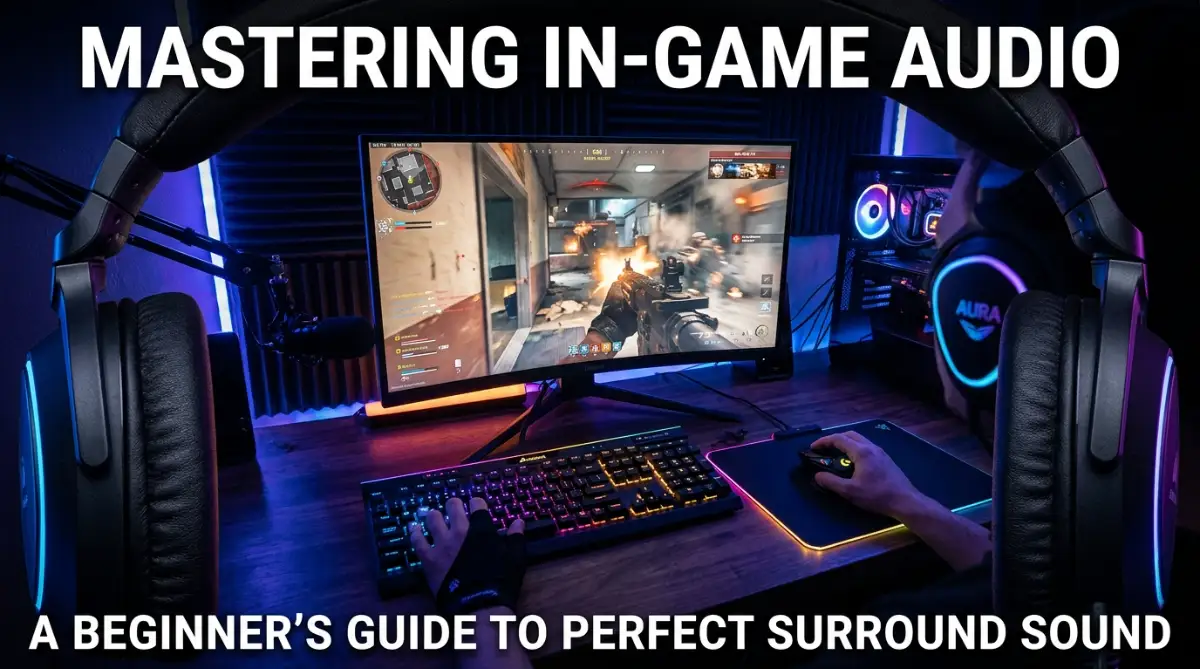
Before we touch any settings, we need to understand what is actually happening inside your headset. Most modern gaming headsets come with virtual surround sound, which is meant to trick your brain into hearing 360-degree audio. The problem is that most people plug them in and never look back. They treat the device like a simple speaker, but it is actually a complex tool that needs to be calibrated.
Think of your headset like a pair of glasses. If the prescription is wrong, the world looks blurry, and you get a headache. If your audio settings are wrong, your game sounds "blurry," and you cannot pinpoint where sounds are coming from. The goal is to bring clarity to the chaos so that you can hear the difference between a distant reload and a nearby footstep.
The Myth of "More Bass"
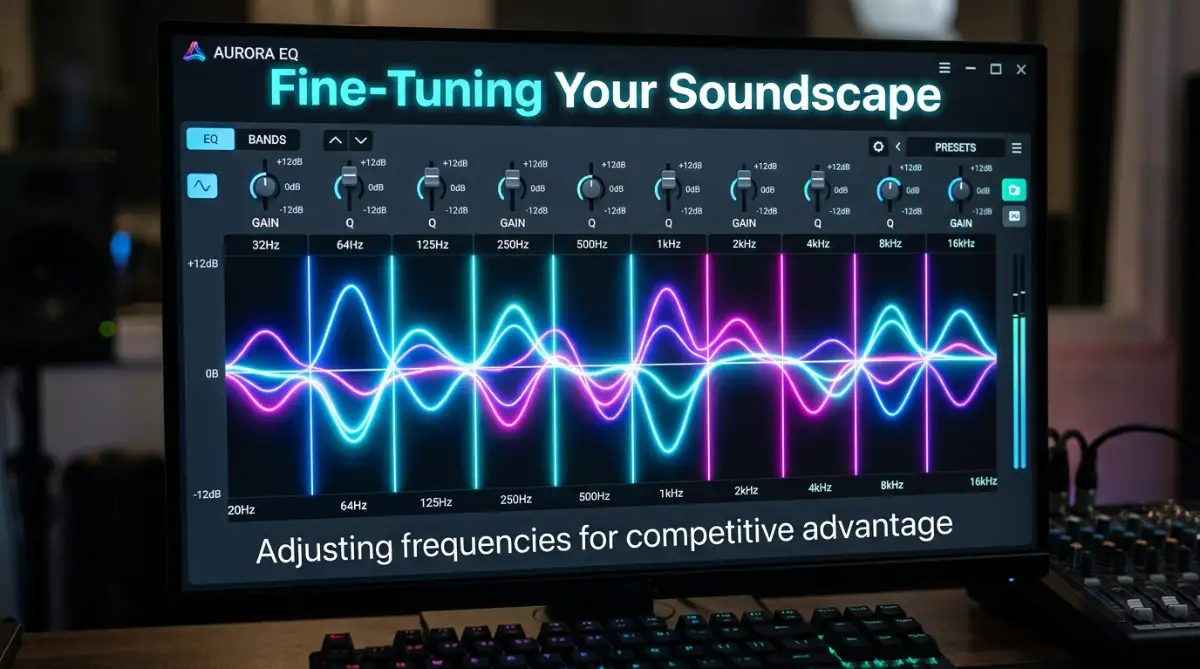
Many beginners believe that turning up the bass makes a game more immersive. While explosions might sound "bigger," this is actually the worst thing you can do for competitive gaming. Heavy, booming bass frequencies naturally drown out the higher, sharper sounds like footsteps, glass breaking, or tactical beeps. If you want to gain an edge, you actually need to lower the bass and boost the mid-to-high frequencies.
Getting Your Windows Settings Ready
Before you open any game, you have to ensure your computer is talking to your headset correctly. Right-click your volume icon and go to your sound settings. Make sure your headset is selected as the primary output device. Look for properties and ensure that the "Spatial Sound" or "Windows Sonic" feature is toggled on if your headset supports it. This is the foundation upon which all other audio improvements are built.
Pro Tip: I used to spend hours changing in-game settings without realizing my Windows sound settings were capping my audio quality. I learned the hard way that you must set your sample rate to at least 24-bit/48,000Hz in the advanced sound properties. Making this small change changed everything for me, as it allowed my headset to finally process the high-fidelity sound the game was actually producing.
The Power of Software Equalization
Most gaming headsets come with their own software—like Logitech G Hub, Razer Synapse, or SteelSeries GG. Do not ignore these apps! They allow you to manually adjust the equalizer (EQ). If you want to hear footsteps, you should create a profile that slightly boosts the range between 1kHz and 4kHz. This is where most footstep sounds live in the audio spectrum.
Why You Should Test Before You Play
Don't just jump into a ranked match after changing your settings. Spend ten minutes in a "shooting range" or a "practice mode" where you can control the environment. Walk around, jump, and reload your weapon. Listen to how the sounds change as you rotate your character. If the sound shifts smoothly from left to right, you have successfully set up your spatial audio.
To truly get the most out of your audio, you need to see how professional players configure their gear.
Watch this video to learn the secret to perfect audio positioning.
Testing Directionality in Practice
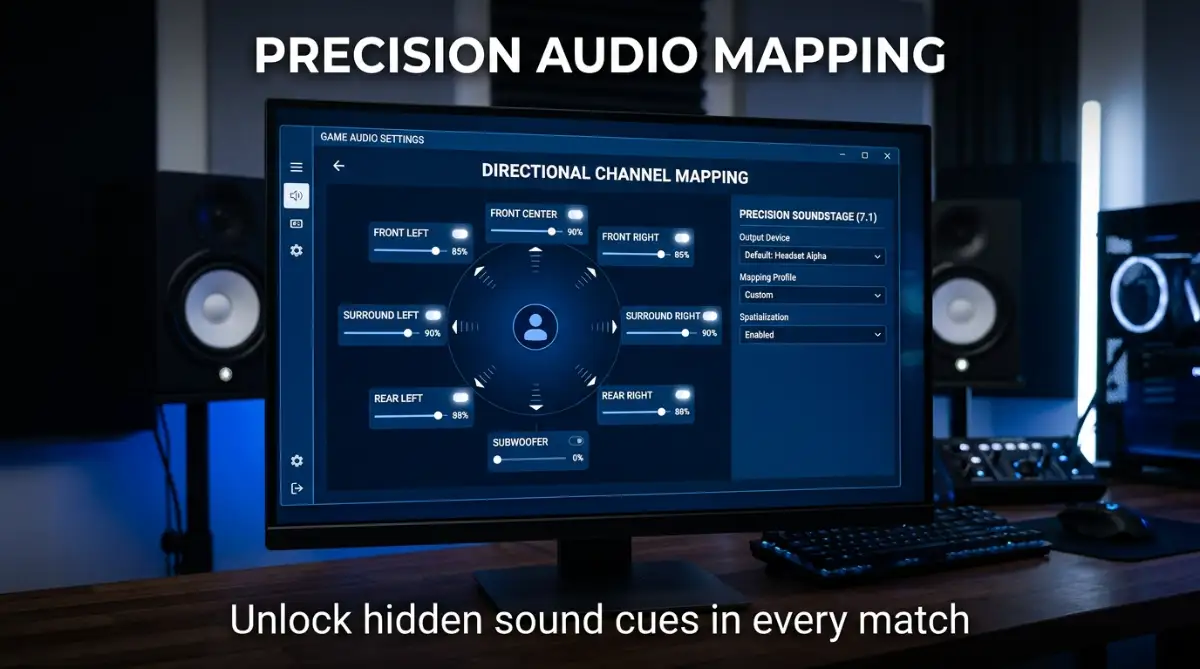
Now that you have your EQ adjusted, it is time to test your directional awareness. Find a game area with clear sound cues, like a wooden floor versus a metal surface. Ask a friend to run around your character while you keep your eyes closed. If you can tell exactly where they are based on sound alone, you have mastered your setup. If not, go back into your software and tweak the channels again.
Balancing Volume and Comfort
One common mistake is keeping the master volume at 100%. This often leads to audio compression, where all sounds are squeezed together, making it impossible to distinguish quiet sounds from loud ones. Keep your master volume at around 70-80% and adjust individual game volumes instead. This gives the audio driver enough "headroom" to present a clear, detailed sound stage.
Avoiding Common Audio Interference
Did you know that other software can mess up your audio? Discord, for example, often has its own processing that can sometimes conflict with your game audio. Check your communication app settings and make sure "Noise Suppression" isn't accidentally muffling your in-game sounds. Keeping your audio stream clean is just as important as the settings you apply to your headset.
Why Less is Often More
You might be tempted to turn on every "enhancement" setting in your software. Things like "Crystal Voice" or "Deep Bass Boost" often add artificial noise that makes it harder to hear clearly. Stick to the basics: a flat EQ or a custom footstep-focused EQ is almost always better than the pre-made "Music" or "Movie" presets that come with your software.
The Importance of Consistent Practice
Once you have your settings exactly where you want them, stick with them. Changing your audio profile every other day will confuse your brain, and you will never develop the muscle memory needed to react to sounds instantly. Give your ears a few days to adjust to your new, optimized soundscape, and you will notice a massive improvement in your ability to pinpoint enemies in the dark.
Taking Your Soundstage to the Next Level
Once you have the basics down, it is time to look at the finer details that separate casual gamers from those who seem to have a "sixth sense" in every match. Most people stop after adjusting the volume or the simple equalizer settings. To truly gain an advantage, you need to understand how the game engine handles 3D sound processing.
If you are playing titles that support Spatial Audio technology, you should ensure your game settings match your Windows configuration exactly. Mismatched settings often cause audio "smearing," where sounds seem to bleed into each other rather than coming from a distinct point. My own experience taught me that enabling "Headphone Virtualization" inside the game menu while also having it on in Windows creates a double-processed mess that destroys directional accuracy.
Fine-Tuning Your Personal Audio Profile
You should look for the "Dynamic Range" setting in your favorite games. I always suggest choosing the "Night" or "Low Dynamic Range" mode if you want to hear quiet footsteps clearly. This setting brings the quietest sounds up to a volume level where you can actually hear them without blowing your eardrums out when a grenade goes off.
If you ever feel like your audio is out of sync with the action on screen, you might be dealing with latency issues. It is important to know how to fix audio delay in games to ensure that what you hear matches the visual frames exactly. Even a tiny delay of a few milliseconds can be the difference between a successful dodge and a respawn screen.
Keeping Your Hardware at Peak Performance
Your headset is a physical machine that collects dust, skin oils, and debris over time. Just as you clean your gear to keep it running smoothly, you must keep your ear pads and microphone intake clean. A clogged microphone or dirty drivers can lead to muffled sound that no software adjustment will ever fix.
I make it a habit to check my cables every week. A frayed cable or a loose USB connection is a common culprit behind intermittent sound cutting out. If you notice your headset keeps disconnecting from the PC, do not panic; it is often just a driver update or a faulty port that needs a quick look.
The Invisible Traps That Ruin Your Audio
The biggest mistake I see beginners make is relying on "Gaming" presets provided by manufacturers. These presets usually boost bass to an extreme degree, which is great for cinematic effect but terrible for hearing subtle audio cues like footsteps. You are essentially painting over a masterpiece with loud, clashing colors.
Another massive pitfall is the habit of changing settings mid-match. When you constantly tweak your equalizer or volume levels, your brain never gets a chance to calibrate to the new soundscape. It is much better to spend an hour in a training lobby, finalize your settings, and leave them alone for at least a week.
Some players also make the mistake of ignoring their room acoustics if they use open-back headphones. If you have a noisy fan or a loud air conditioner nearby, it will ruin the precision of your high-end headset. You need a quiet environment to get the most out of your audio equipment.
Finally, do not get caught up in the "expensive gear" trap. You do not need the most expensive headset on the market to be competitive. A well-tuned, mid-range headset will always outperform an expensive, uncalibrated, or poorly configured piece of equipment.
Your Path to Audio Mastery
Improving your in-game audio is a journey of patience and observation. By simplifying your settings and focusing on clarity rather than raw power, you open up a whole new layer of gameplay. You will start to hear enemies rotating around corners, identify weapon reloads from across a room, and react faster than you ever thought possible.
Remember that your ears are just as important as your mouse or keyboard. Take the time to set up your profile, keep your gear clean, and practice in a controlled environment. When you stop fighting your own audio, you start playing the game the way it was meant to be experienced.
I know how frustrating it is to feel like you are at a disadvantage, but I promise that once you take these steps, the game starts to feel entirely different. My biggest breakthrough happened when I stopped chasing the loudest sound and started listening for the clearest one. Go ahead and apply these changes today, because you truly deserve to play with the confidence that you are hearing everything happening around you.
Frequently Asked Questions
Does surround sound really help in competitive gaming?
Yes, but only if it is configured correctly. Proper spatial audio allows you to pinpoint the direction and distance of enemies, giving you a huge advantage over players using standard stereo settings.
Should I use the equalizer presets in my headset software?
Most experts recommend starting with a flat EQ and manually boosting the mid-range frequencies. Pre-made presets like "Music" or "Movies" are usually too muddy for competitive play.
Why do footsteps sound different in every game?
Each game uses its own audio engine with specific frequency ranges for footsteps. You may need to create a unique EQ profile for each title you play to get the best results.
How do I know if my headset is broken or just poorly set up?
If you hear static, crackling, or inconsistent volume, check your cables and ports first. If the sound is clear but lacks direction, it is almost certainly a software or configuration issue.
Disclaimer: The tips provided in this guide are for informational purposes only. Please be mindful of your volume levels to protect your hearing. Prolonged exposure to high volume can cause permanent hearing damage.