The Hidden Risks of Sharing Your Main Password
You probably do it without thinking. A friend comes over, asks for the Wi-Fi, and you hand over your main network password. I used to do the exact same thing because it just feels polite. But giving out your primary password is like handing a house guest the master key to your front door, your safe, and your private filing cabinet all at once.
If their phone has a hidden bug from a sketchy app they downloaded last week, your personal laptop, security cameras, and smart TV are suddenly sitting in the danger zone. You are letting outside devices bypass your router's security wall entirely. Let's fix that today by setting up a completely separate, safe space for your visitors.
Every single device connected to your main router can technically communicate with the others. If a visitor's smartphone carries hidden malware from a recent risky download, that software can quietly scan your entire home network in the background. It searches for unprotected smart TVs, poorly secured security cameras, or shared network drives containing sensitive personal files.
Setting up a dedicated secondary connection specifically for visitors is the most effective way to eliminate this risk. This method allows you to be a good host while keeping a thick digital wall between your private data and the outside world.
Here is a quick reality check on common guest network myths before we start changing your router settings:
What You Will Accomplish Today:
- Block snooping: Keep visitor phones from seeing your private laptops and network drives.
- Stop speed drops: Set hard limits so guests cannot drain your internet bandwidth.
- Hide your password: Create a simple QR code so you never have to spell out your password out loud again.
- Trap cheap tech: Move vulnerable smart plugs and cameras to an isolated safety zone.
The Complete Setup Guide for Home Protection
Way 1: Activate Network and AP Isolation
Creating a secondary connection is just the beginning of a secure guest Wi-Fi network setup. Simply naming a new network "Guest" does not automatically protect your main devices. You have to physically separate the traffic.
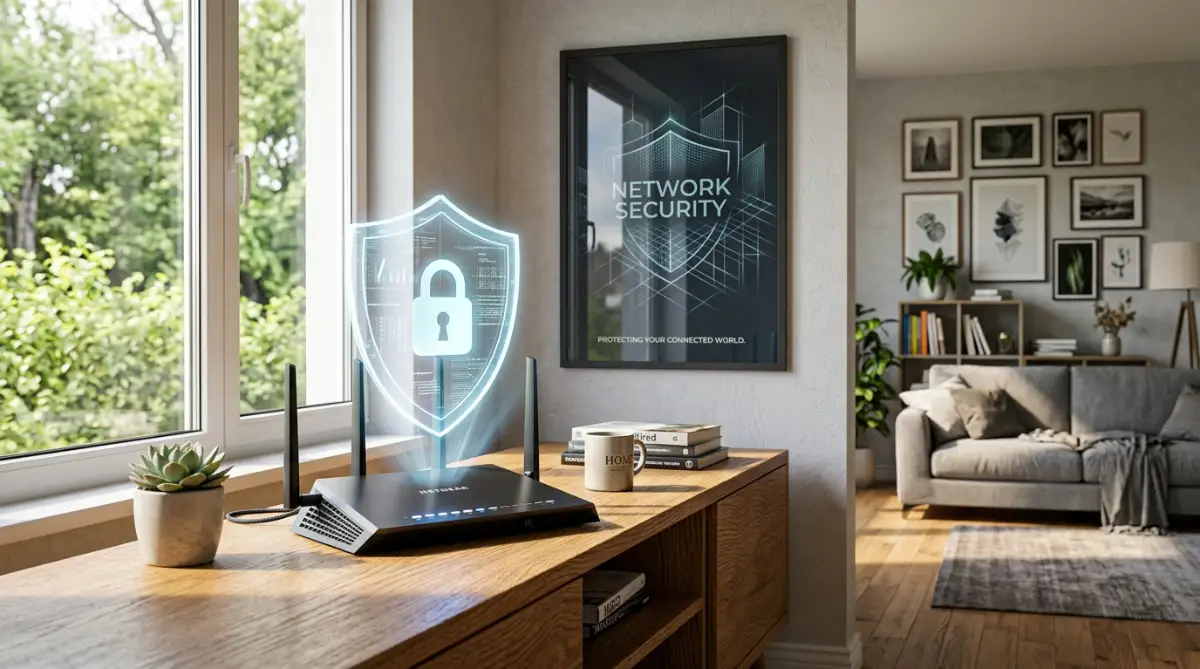
This is where a feature called AP Isolation comes into play. AP stands for Access Point. When you turn on AP Isolation in your router settings, you are telling the router to treat every single connected device as an island.
Think of your standard internet connection as a busy conference room where everyone can talk to each other. AP Isolation changes this dynamic completely. It places every guest into their own soundproof booth. They can talk to the main presentation screen which is the internet, but they cannot talk to the person in the booth next to them.
This prevents a malware-infected tablet from spreading malicious files to another visitor's phone or sniffing out vulnerabilities in your local system.
Aggressive Sharing vs. Defensive Isolation
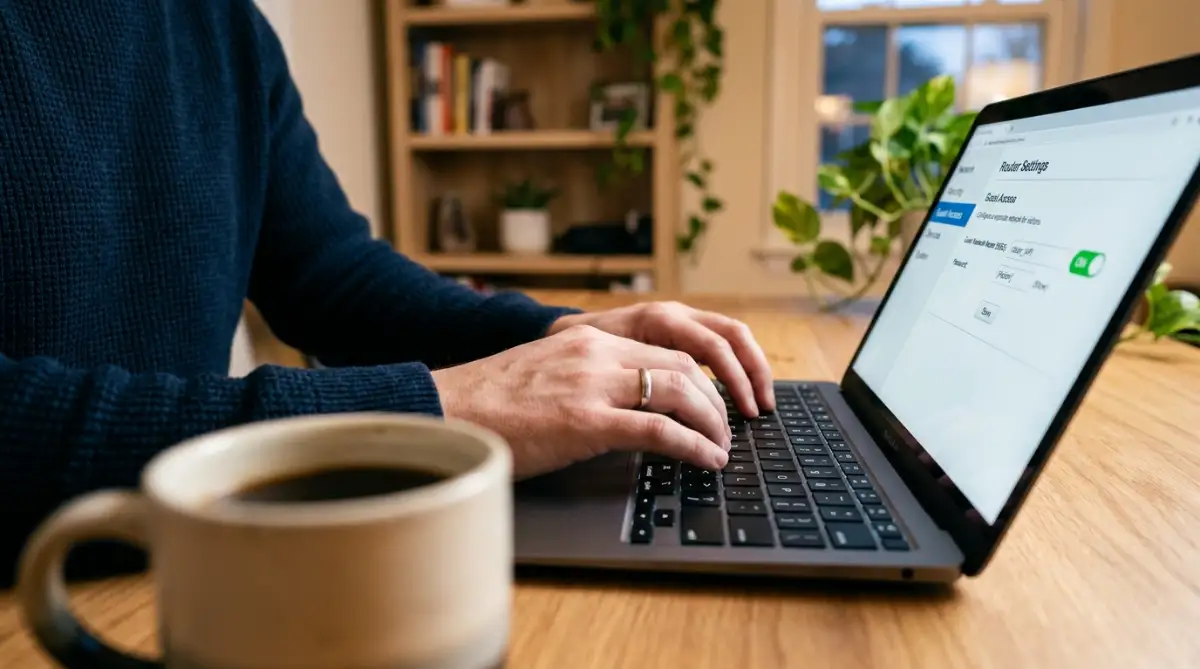
To set this up, log into your router's administrative dashboard using the IP address found on the back of the device. Look for a section labeled "Wireless" or "Guest Network." Enable the secondary network and ensure the checkbox for "Allow guests to see each other and access my local network" is strictly turned off.
Watch this helpful breakdown of network isolation basics.
Finding the exact setting to block devices from talking to each other can be tricky, as different companies use different labels. If you cannot find "AP Isolation" in your dashboard, look for these specific terms based on your router brand:
Way 2: Enforce WPA3 Encryption and Unique Passphrases
Just because a connection is meant for temporary visitors does not mean it should have weak security. Leaving a secondary network completely open without a password is a massive security hazard. Anyone walking past your house or sitting in a parked car across the street could connect to your internet.
Open networks attract unwanted traffic and can lead to illegal downloads being traced back to your public IP address. You must password-protect this connection just as rigorously as your primary one.
When configuring the security settings, always select the highest encryption standard available. Most modern hardware supports WPA3, which offers significant security improvements over the older WPA2 standard. WPA3 makes it incredibly difficult for attackers to guess your password through brute-force dictionary attacks. If WPA3 is not available on your dashboard, select WPA2-AES. Never use older protocols like WEP or WPA-TKIP, as these can be cracked in minutes by basic software tools.
Expert Pro Tip: Hardware manufacturers like Netgear with their Nighthawk series and Asus with the RT-AX88U provide dedicated WPA3-Personal options directly in the guest network configuration tab. Selecting WPA3-Personal ensures that even if a hacker captures the data packets floating through the air, they cannot decipher the information passing between the router and the connected devices.
Choose a strong passphrase for this setup. It does not need to be as complex as your primary network key, but it should be entirely unique. A combination of three random words with a number is usually easy for visitors to type while remaining highly resistant to automated hacking attempts.
Way 3: Set Strict Bandwidth Limits and Access Schedules
A secure guest Wi-Fi network setup is not only about blocking malware. It is also about protecting your internet performance and preventing bandwidth abuse.
Sometimes, visitor devices automatically begin downloading massive operating system updates the moment they connect to Wi-Fi. Other times, background applications might start syncing gigabytes of high-resolution photos to cloud storage. This sudden surge in data transfer can cause extreme lag for your own devices, interrupting video calls or buffering streaming services.
Many modern routers allow you to set specific bandwidth limits for secondary connections. By capping the download and upload speeds for visitors, you ensure that your main devices always have priority access to the internet.
Limiting speed also acts as a subtle defense mechanism. If a visitor's laptop is secretly infected with crypto-mining malware or is being used as part of a botnet, capping the upload speed severely restricts the damage that malicious software can do while connected to your home hardware.
You can also use scheduling tools to control when the secondary connection is active. If you only have friends over during the weekends, there is no logical reason to leave the visitor connection broadcasting signals on a Tuesday night.
Navigate to the scheduling section within your router's dashboard. You can program the hardware to automatically disable the secondary connection at midnight and turn it back on at a specific time. Reducing the amount of time your network is actively broadcasting a signal reduces your overall exposure to local wireless attacks. Every hour the network remains off is an hour hackers cannot attempt to breach your system.
Advanced Network Protection Strategies
Way 4: Stop Sharing Passwords and Use QR Codes
Spelling out a complex password for every single visitor is frustrating. You read the letters, they type it in wrong, and you have to start all over again. Beyond the annoyance, reading your password out loud or handing over a sticky note creates a physical security gap. Anyone standing nearby can overhear it, or that sticky note can easily end up in the wrong hands.
There is a much smarter and completely frictionless method to handle this. You can turn your wireless credentials directly into a scannable QR code.
Both Apple and Android operating systems now have built-in features that let you share a connected network via a custom graphic. Alternatively, many router mobile apps will generate this specific code for you directly inside their settings panel. Once you generate the graphic for your secondary connection, print it out and place it inside a small picture frame in your living room or guest bedroom.
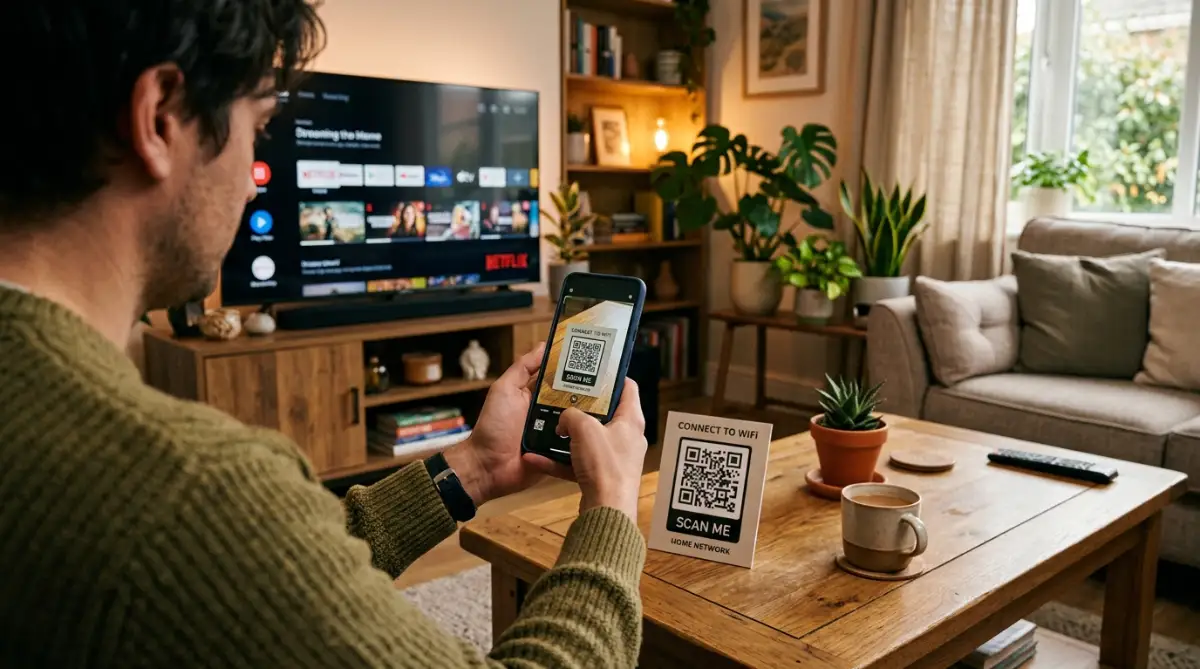
When someone asks for the internet, simply point them to the frame. They open their smartphone camera, scan the glass, and connect instantly. They never actually see the text string of your password.
This simple switch keeps your credentials completely hidden from casual view while making you look like a highly organized host. If visitors ever experience strange connectivity drops on their devices while scanning, it might be a hardware glitch on their end. You can suggest they look into why your laptop Wi-Fi keeps dropping connection and how to fix it rather than instantly blaming your home setup.
Way 5: Relocate Vulnerable Smart Home Gadgets
Your secondary connection is not just for human visitors. It is actually the perfect containment zone for your own smart home electronics.
Modern homes are filled with cheap internet-connected devices. You might have smart light bulbs, automated pet feeders, Wi-Fi coffee makers, and generic security cameras. The problem is that many manufacturers of these cheap gadgets completely ignore cybersecurity. They rarely release software updates to patch known vulnerabilities.
If a hacker finds a flaw in your smart thermostat, they can use it as a backdoor to sneak into your primary network. From there, they can easily reach your personal laptop or network storage drive.
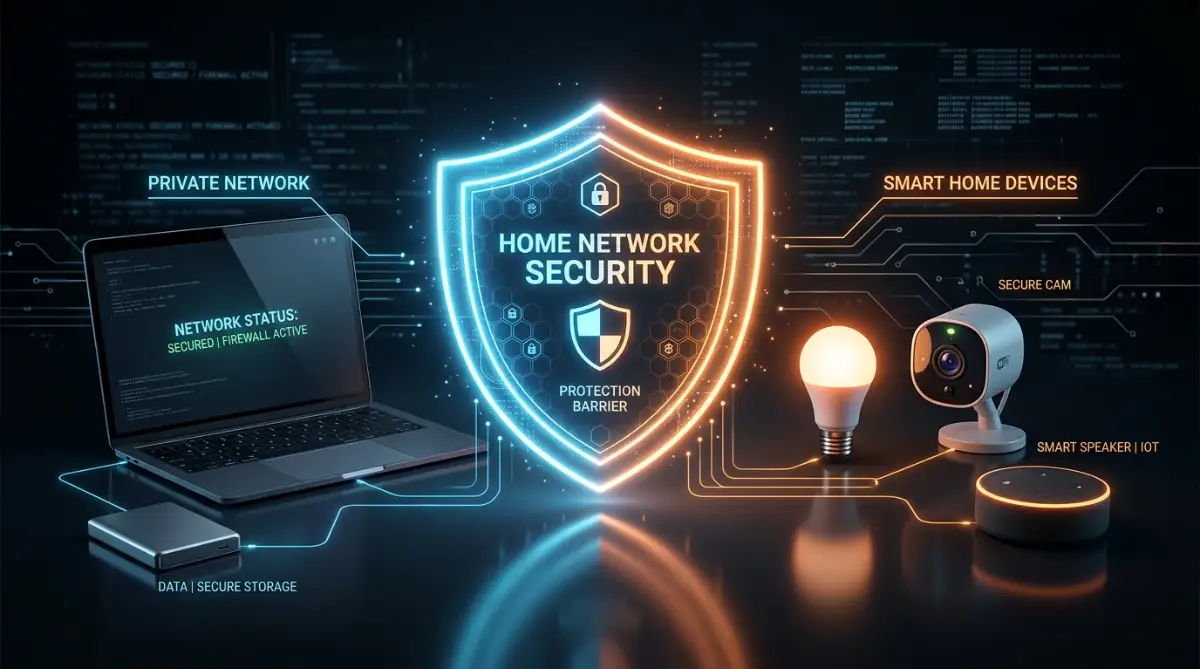
To stop this from happening, move all of your smart home devices over to your visitor connection. Because you have already turned on AP Isolation (as discussed earlier), these cheap gadgets will be trapped on their own digital islands. The Center for Internet Security (CIS) strongly recommends using a guest network precisely for this reason. They advise treating internet-of-things (IoT) gadgets with high suspicion, keeping them strictly separated from your sensitive financial and personal data.
By migrating these gadgets, you build a heavy wall between your unprotected smart plugs and the computer you use to file your taxes.
Do's and Don'ts for Visitor Access
Do: Rotate the visitor password immediately after hosting a large gathering or party.
Do: Monitor your router app once a month to check for unrecognized connected devices.
Don't: Include your family name, home address, or phone number in the network title.
Don't: Leave the secondary network permanently broadcasting if you rarely have people over.
The Costly Pitfalls of Network Convenience
People often assume that because they know and trust a friend, they can inherently trust that friend's smartphone. This is a massive security blind spot. A digital virus does not care about your friendship.
If your best friend recently downloaded a shady application or clicked a bad link on a public coffee shop network, their phone is compromised. When they walk into your house and connect to your main router, that hidden software goes to work. It silently scans your local environment, looking for open ports on your computer or unprotected shared folders. This is called lateral movement. The malware jumps from their infected phone straight onto your clean desktop computer.
Another major trap is the "convenience over security" mindset. Many people set up a visitor connection but leave it entirely open without a password. They think it makes logging in easier for elderly relatives or quick visitors.
Leaving a connection open is highly dangerous. Anyone parked in a car across the street can easily jump onto your signal. They can use your home IP address to illegally download copyrighted movies or launch cyberattacks. When authorities track that illegal activity, the digital footprint leads directly back to your physical address.
Privacy organizations consistently warn against open signals. Guidance from the Cybersecurity and Infrastructure Security Agency on securing wireless networks clearly states that unencrypted traffic allows anyone nearby to easily intercept your transmitted data.
Sometimes, the gadgets your visitors bring into your home carry performance issues that drain their own batteries rapidly. If they complain that your network is making their device work too hard, it is usually a background syncing issue. Directing them to check the hidden settings draining your battery while you sleep can help them fix their own hardware problems without compromising your setup.
Your Next Move for Total Security
Take five minutes right now to log into your router's mobile app or administrative web dashboard. Locate the specific toggle for visitor access, turn it on, and enforce a strong WPA3 password. Immediately connect your own smartphone to this new setup and try to access your local smart TV or wireless printer; if your phone fails to find them, your isolation barrier is working perfectly.
Frequently Asked Questions About Home Wi-Fi Defense
Does a secondary Wi-Fi network slow down my main internet?
Simply turning the feature on does not reduce your overall internet speed at all. The router just splits your existing bandwidth. However, if multiple visitors start streaming 4K movies simultaneously, it will consume your total available speed. You can easily prevent this by setting a hard download speed limit for the secondary connection in your router settings.
Can visitors on my secondary connection see my browsing history?
No, they absolutely cannot see your browsing history. Your router keeps your internet traffic completely separated from theirs. As long as you have AP isolation turned on, visitors cannot snoop on your activity, and you cannot see what websites they are visiting either.
How often should I change my visitor password?
You should update the password immediately after having contractors in your home, hosting a large event, or when long-term houseguests leave. For normal everyday use, changing the password three to four times a year is a highly effective habit to ensure old devices cannot automatically reconnect when they pass by your property.
Disclaimer: The information provided in this article is for educational and general security awareness purposes only. Network configurations and software interfaces vary heavily by hardware manufacturer. Always consult your specific router manual or contact a certified IT professional before making significant changes to your digital security setup.