The Hidden Frustration of an Unstable Internet Connection
A few months ago, I was presenting my monthly strategy to my boss when my screen froze and my Wi-Fi died completely. I spent the next twenty minutes frantically restarting my router while my face was stuck in an embarrassing expression on everyone else's screen. That exact moment pushed me down a rabbit hole to figure out why my laptop kept kicking me offline once and for all.
Picture this exact scenario. You are right in the middle of a highly important Zoom meeting with your boss, or perhaps you are about to save an hour of hard work on a cloud document.
Suddenly, the dreaded spinning wheel appears on your screen. The video freezes, the audio cuts out, and the little internet icon at the bottom right corner of your screen shows a yellow triangle. Your laptop Wi-Fi has dropped again. This exact situation is not just slightly annoying, it is deeply frustrating and disrupts your daily workflow.
When your internet connection is unstable, you lose momentum. It breaks your focus and forces you to restart your thought process all over again.
Why You Suffer Unnecessarily from Misinformation
Finding a real solution to this problem is surprisingly difficult. The internet is heavily flooded with generic, copy-pasted advice that simply does not work for everyone.
Here is exactly how bad information makes you suffer even more:
- Wasting money on the wrong hardware: Many people instantly blame their router. They spend hundreds of dollars on brand-new equipment, only to realize the dropping issue is still happening.
- Following dangerous tech advice: Random forum posts often tell you to delete deep system files or change registry settings. This can permanently break your operating system.
- Blindly updating the wrong drivers: Relying on automated "driver updater" software often installs the wrong version for your specific laptop model. This actually makes the Wi-Fi card crash more frequently.
- Ignoring environmental factors: Most guides completely forget to mention how everyday household items block Wi-Fi signals. You end up chasing software bugs when the real problem is physical interference.
The Heavy Toll on Your Mental Peace and Confidence
We rarely talk about the psychological impact of bad technology. Constant tech failures slowly chip away at your daily confidence and peace of mind.
Here is how a dropping Wi-Fi connection secretly drains your energy:
- Constant meeting anxiety: You start dreading online video calls. You are always terrified that you will freeze mid-sentence and look unprofessional in front of your clients.
- Fear of missing strict deadlines: When you cannot rely on your internet, every simple task feels like a ticking time bomb. You are constantly stressed about saving files before the network crashes.
- Feeling helpless and overwhelmed: Not everyone is a tech expert. When complex tech terms are thrown at you, it makes you feel deeply frustrated and powerless to fix your own machine.
- Lost relaxation time: Your laptop is also meant for entertainment. Buffering movies and lagging games completely ruin your weekend downtime.
You deserve a stable, reliable connection. You need solutions that actually make sense, backed by clear logic, without needing an advanced computer science degree.
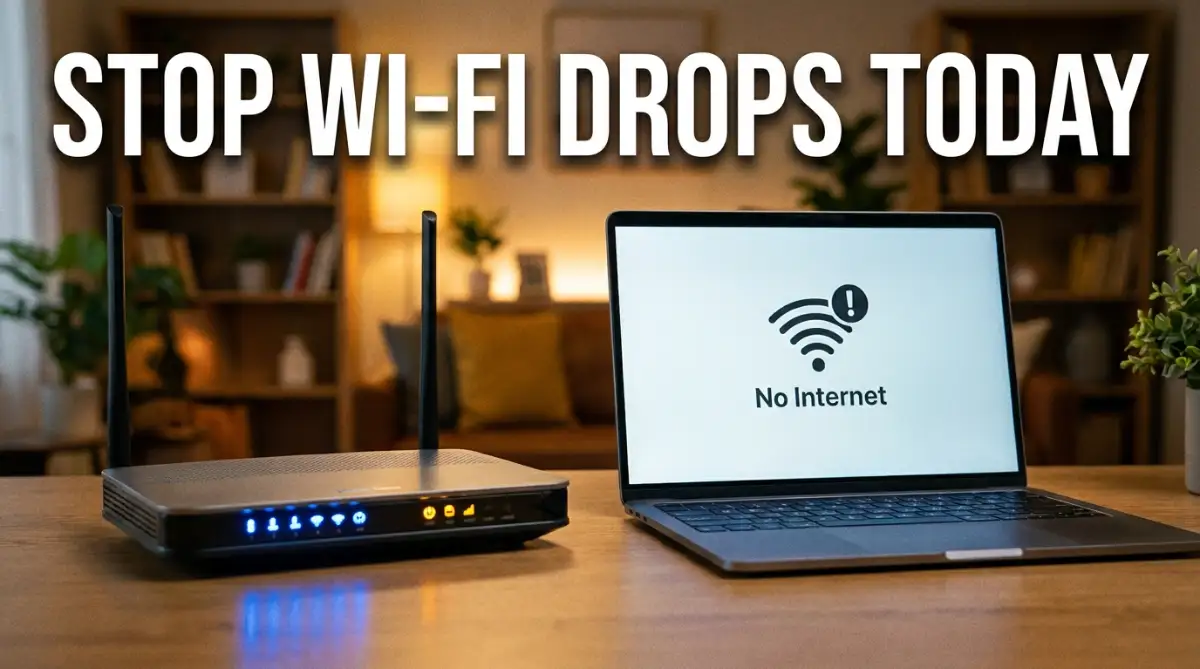
The Step-by-Step Blueprint to Stop Wi-Fi Drops
We are going to fix this problem together. We will start with the easiest, most common physical issues before moving on to the hidden software settings inside your laptop.
By following these specific steps, you will slowly eliminate every possible reason your connection keeps breaking. Let's look at the exact science and logic behind these fixes.
Step 1: Eliminate Invisible Radio Wave Interference
Most people treat Wi-Fi like magic. In reality, Wi-Fi is just a basic radio wave, very similar to the FM radio in your car.
Because it is a radio wave, it can be easily blocked, absorbed, or scrambled by other things in your house. If your laptop Wi-Fi keeps dropping randomly, physical interference is the very first thing you must check.
The Microwave and Bluetooth Problem
Your router likely broadcasts on a 2.4 GHz frequency. Guess what else uses that exact same frequency? Your microwave oven and your Bluetooth devices.
When you turn on the microwave to heat up some food, it leaks a tiny amount of radiation. This radiation operates on the exact same frequency as your Wi-Fi, completely scrambling the signal.
If your laptop is placed between the router and the kitchen, your connection will drop the second someone starts the microwave. Similarly, having a wireless mouse, Bluetooth headphones, and a smartwatch all operating right next to your laptop can create a noisy "cloud" of interference.
The Water and Metal Barrier
Radio waves absolutely hate water and heavy metal. If you have a large fish tank directly between your laptop and your router, the water will literally absorb the Wi-Fi signal.
The same rule applies to heavy metal objects. Many people hide their router behind a massive flat-screen TV to make the living room look clean.
A modern TV is basically a giant metal shield. It will bounce the Wi-Fi signal straight back to the wall, leaving your laptop starving for a solid connection.
The Actionable Fix:
Move your router out into the open. Place it elevated on a shelf, not hidden on the floor or behind a television.
Try turning off your Bluetooth devices for a single day to see if the connection stabilizes. If the drops stop, you know exactly what was causing the invisible traffic jam.
Step 2: Escape the Crowded Neighborhood Channels
Imagine a three-lane highway during rush hour. If thousands of cars try to use the exact same lane at the same time, traffic completely stops.
Wi-Fi networks work in exactly the same way. Your router uses specific "channels" to send internet to your laptop.
The Apartment Complex Nightmare
If you live in a dense apartment building, you are likely surrounded by dozens of other Wi-Fi networks. Your neighbors' routers are constantly shouting over your router.
Most modern routers are set to "Auto" channel selection by default. Sadly, they are not very smart. They often choose Channel 6, which is the most popular and crowded lane on the Wi-Fi highway.
When your laptop gets confused by your neighbor's strong router signal broadcasting on the same channel, it drops your connection for a split second. This split second is enough to kick you out of a game or a video call.
Switching to the 5 GHz Fast Lane
Modern routers broadcast two separate networks: 2.4 GHz and 5 GHz. The 2.4 GHz network is slow but reaches very far through walls.
The 5 GHz network is incredibly fast but has a very short range. However, because it has a short range, your neighbors' 5 GHz signals cannot reach inside your house to interfere with yours.
The 5 GHz band also has significantly more channels available. It is like driving on an empty private highway.
The Actionable Fix:
If your laptop is in the same room as the router, always connect to the 5 GHz network (often named "YourNetwork_5G").
If you must use the 2.4 GHz network, log into your router settings through your web browser. Manually change your Wi-Fi channel to 1, 6, or 11. These three channels do not overlap with each other, giving you the cleanest possible signal.
Step 3: Stop Windows from Putting Your Wi-Fi to Sleep
Here is a quick lesson I learned from my own trial and error: I spent weeks tweaking complex router settings before I checked my Windows power settings. Disabling the option that lets Windows put the Wi-Fi adapter to sleep fixed almost 80% of my sudden connection drops overnight.
This is perhaps the most common software reason why a laptop drops its connection. It is a hidden setting deeply buried inside the Windows operating system.
Microsoft designed Windows laptops to save as much battery power as humanly possible. To do this, the system constantly monitors your hardware to see what it can turn off.
The Power Saving Trap
When you step away from your laptop, or when you are just reading a static webpage, Windows thinks you do not need the internet. To save a tiny bit of battery life, it literally turns off power to your Wi-Fi adapter card.
When you suddenly click a link or try to load a new video, the Wi-Fi card takes a few seconds to wake up. This delay causes your browser to show a "No Internet" dinosaur error.
Sometimes, the Wi-Fi card completely fails to wake up from its sleep state. When this happens, your connection drops entirely, and you are forced to restart your entire laptop just to get the internet working again.
How to Take Back Control
You need to tell Windows to never, under any circumstances, cut the power to your network adapter. This simple settings change solves the dropping issue for thousands of frustrated users.
It does not matter if your laptop is plugged into the wall or running on battery. Stability is much more important than saving two minutes of total battery life over a whole day.
The Actionable Fix:
Right-click on your Windows Start button and select Device Manager. Look through the list and click on Network Adapters to expand the menu.
Find your main Wi-Fi card (it usually has the word "Wireless" or "Wi-Fi" in the name, like Intel Dual Band Wireless or Realtek). Right-click on it and select Properties.
Now, look at the top tabs and click on Power Management. You will see a small checkbox that says, "Allow the computer to turn off this device to save power."
Uncheck that box immediately. Click OK, close the window, and restart your laptop. Your computer is now strictly forbidden from putting your internet connection to sleep.
Step 4: Purge Outdated and Corrupt Network Drivers
Think of a driver as a digital translator. It is a small piece of software that helps your Windows operating system speak the exact same language as your physical Wi-Fi card.
If this translator gets confused, the communication completely breaks down. Your laptop simply forgets how to talk to the router.
How Drivers Get Corrupted
Windows automatically runs updates in the background while you sleep. Most of the time, these updates are highly beneficial.
However, Microsoft sometimes pushes a generic network driver update that is not perfectly matched to your specific laptop motherboard. Suddenly, the new digital translator speaks a slightly different language. Your Wi-Fi card gets confused. It connects for ten minutes, gets a command it does not understand, panics, and shuts down the connection.
The Dangers of Third-Party Software
Many people panic when this happens. They rush to Google and download free "Driver Booster" programs. I strongly advise against this. These programs often scrape the internet for random driver files. They might install a file meant for an entirely different brand of computer.
This creates a massive conflict deep inside your operating system. A bad driver can even cause your laptop to crash completely, resulting in the terrifying blue screen of death.
The Actionable Fix:
Always go directly to the source. Look at the bottom of your laptop to find your exact model number (for example, HP Pavilion 15 or Dell XPS 13).
Visit the official website of your laptop manufacturer. Go to their support page, type in your model number, and find the Network / Wireless Drivers section.
Download the official, tested Wi-Fi driver directly from them. Install it over your current system, and restart your machine. This guarantees that your operating system and your Wi-Fi card are speaking the exact same, correct language.
Deep System Fixes to Guarantee a Bulletproof Connection
Sometimes, simply moving your router or changing a basic power setting is not quite enough. Your laptop might be deeply confused at the core system level. Think of your computer's temporary network memory like a busy doctor's waiting room. If too many old, expired patient records pile up on the desk, the entire office completely stops functioning.
According to Microsoft's official guidance on network connection issues, clearing out these old digital records is often the most effective step. It acts like a refreshing mental wash for your machine, wiping away weeks of digital confusion.
This process is incredibly important if you handle highly sensitive files on a daily basis. If your connection suddenly drops while syncing a large folder, you risk facing severe data corruption.
That is exactly why many professionals rely on secure daily habits to protect their files with end-to-end encryption so a sudden network drop does not destroy their hard work. You must stabilize the connection first before moving big files.
Even networking experts at Cisco strongly recommend performing a complete network reset before you ever think about buying brand-new networking hardware. It is a completely free solution that fixes deeply hidden software conflicts instantly.
Imagine you are a content creator working on a massive project. Nothing is worse than rendering a perfect video only to have the upload fail halfway through, much like how poor video editing strategies can ruin your YouTube revenue before you even hit the publish button.
Flushing Your Digital Address Book (TCP/IP Reset)
If you prefer following along visually, watch this quick step-by-step video to see how to clear your network logs in seconds! Give it a quick watch, then keep reading below for the remaining fixes.
Every time your laptop connects to a website, it saves a tiny digital map of how to get there. Over time, these maps become outdated or completely corrupted.
When your laptop tries to use a broken map to connect to your Wi-Fi router, the connection simply drops. You have to force Windows to throw away all the old maps and build new ones from scratch.
We do this by using a built-in tool called the Command Prompt. Do not worry, this sounds highly technical, but it is actually just typing a few simple words into a black box.
The Simple Command Line Fix
Click on your Windows search bar and type cmd. Right-click on the "Command Prompt" icon and select Run as administrator.
A black window with white text will pop up on your screen. You are now going to type three specific commands, hitting the Enter key after each one.
First, type netsh winsock reset and press Enter. This completely resets the software that handles your internet traffic.
Next, type netsh int ip reset and press Enter. This forces your laptop to ask the router for a brand-new digital address.
Finally, type ipconfig /flushdns and press Enter. This throws away all the broken website maps we talked about earlier. Close the black window, restart your laptop, and enjoy your incredibly stable connection.
Upgrading the Router's Hidden Brain
People often forget that a Wi-Fi router is actually a miniature computer. It has its own processor, its own memory, and its own operating system running quietly in the background.
This operating system is called "firmware." Just like your smartphone needs regular updates to fix bugs, your router desperately needs firmware updates to remain stable.
When you buy a router from the store, it might have been sitting on a shelf for many months. The software inside it is already completely outdated by the time you plug it into your wall.
How Outdated Firmware Causes Drops
Internet service providers constantly change how they send data to your house. If your router is running old software, it might not understand these new data formats.
This creates a massive communication breakdown. The router panics, freezes for a second, and drops the Wi-Fi connection to your laptop to protect itself.
Log into your router's admin page through your web browser. Look for a section called System Tools or Administration, and click on Firmware Update.
Click the button to check for new updates. If an update is available, let the router download and install it, but never unplug the router while this progress bar is moving.
Hunting Down Background Bandwidth Vampires
Sometimes, your laptop is not actually disconnecting from the Wi-Fi. It just feels like it dropped because the internet suddenly became completely unusable.
This happens when a hidden program on your computer decides to secretly download a massive file. I like to call these programs "bandwidth vampires."
While you are trying to enjoy a smooth video call, a gaming platform like Steam might start downloading a massive game update in the background. Your video call freezes completely, making you think the Wi-Fi dropped.
Taking Back Your Network Speed
Cloud storage apps are notorious for this exact behavior. If you drag a large folder into your cloud drive, it will use 100% of your upload speed until the job is finished.
When your upload speed is entirely maxed out, your laptop cannot send simple requests to load web pages. The browser just spins endlessly and eventually shows a network error.
Open your Task Manager by pressing Ctrl + Shift + Esc on your keyboard. Click on the Network column at the top to sort the list and see exactly which app is secretly stealing all your data.
Right-click on the greedy application and select End Task to force it to stop. Your internet speed will instantly return to normal, and the fake dropping issue will completely disappear.

The Biggest Wi-Fi Troubleshooting Traps to Avoid
When people get highly frustrated with their home network, they often make rash decisions. They try to find shortcuts or buy magic solutions that simply do not exist.
Making these common errors will only cost you money and cause significantly more stress. Let us walk through the biggest traps you must avoid to keep your network healthy.
1. Falling for the Cheap Wi-Fi Extender Scam
You have probably seen those tiny white boxes that plug directly into a wall outlet. They promise to instantly boost your Wi-Fi signal to the far corners of your house.
In reality, traditional Wi-Fi extenders are incredibly flawed devices. They work by catching your router's signal and simply shouting it back out into the room.
However, because they have to listen and shout at the exact same time, they instantly cut your internet speed in half. Your laptop will connect to the extender, but the connection will be incredibly weak and drop constantly.
2. Suffocating Your Router with Heat
As we discussed earlier, your router is a fully functioning computer. Computers generate a significant amount of heat when they process data.
Many people hide their router inside a small wooden cabinet or stuff it behind a heavy bookshelf. They think the blinking lights look ugly, so they block all the airflow to the device.
When the router gets too hot, its internal processor automatically slows down to prevent a fire. This thermal throttling causes severe internet lag, random reboots, and continuous connection drops.
3. Wasting Money on Snake Oil Software
There are hundreds of shady websites selling "Internet Booster" or "Ping Reducer" software. They target gamers and frustrated remote workers who are desperate for a stable connection.
These programs are completely useless. You cannot magically change the physical limits of your internet line by installing a random application.
When you stop wasting cash on useless tech gadgets, you keep your personal budget tight. It is just like building a solid financial foundation so you can confidently eliminate your credit card balances instead of buying junk.
4. The "Never Reboot" Habit
You would never leave your car running in the driveway for a whole month. Yet, most people leave their Wi-Fi router plugged in for over a year without ever turning it off.
Over time, the temporary memory inside the router gets completely full of junk data. This is known in the tech world as a "memory leak."
When the memory fills up entirely, the router becomes extremely sluggish and starts dropping connected devices. Simply unplugging the router from the wall for 60 seconds once a month clears this memory entirely.
5. Ignoring Basic Network Security
If your Wi-Fi network does not have a strong password, you are inviting disaster. Neighbors or people parked on your street can easily connect to your open network.
When too many unauthorized devices connect, they hog all your available bandwidth. Your router gets overwhelmed trying to serve ten extra phones, causing your own laptop to drop the connection.
Managing your home network security is basically a form of digital housekeeping. Treating it seriously is just like setting up a reliable system to organize your financial documents properly so nothing important gets stolen or lost.
Always ensure your router security setting is changed to WPA3 or WPA2-AES. Never use the incredibly outdated WEP security option, as a teenager can hack it in less than three minutes.
Reclaim Your Uninterrupted Online Freedom
Fixing a dropped laptop connection is not about possessing magical tech skills. It is simply a process of elimination, moving from the physical environment down to the software settings.
We started by giving your router room to breathe and removing invisible radio interference. Then, we moved on to deeply buried Windows settings that secretly turn off your Wi-Fi card.
Finally, we washed away old digital data by resetting your system traffic logs. Each of these steps acts as a solid building block toward creating an unbreakable home network.
Your Action Plan for Today
Do not try to implement all these fixes at the exact same time. If you do, you will never know which specific step actually solved your dropping issue.
Start with the easiest physical changes right now. Move your router into the open, check for a firmware update, and change your Windows power management settings today.
You deserve to work, play, and connect with your family without the constant fear of a freezing screen. Take back control of your technology today, and enjoy the peace of mind that comes with a truly reliable connection.
Once I went through these simple tweaks, my internet went from being a daily headache to something I do not even have to think about anymore. Try taking just ten minutes today to apply two or three of these fixes—you will finally get your peace of mind back.
Disclaimer: This article is for informational and educational purposes only. While these troubleshooting steps are safe and based on standard tech support procedures, software environments and computer hardware vary. Please back up your important work before making system changes or resetting network settings. If you are uncomfortable changing system files, consider seeking assistance from a certified computer technician.