How to Encrypt Any External Hard Drive (Safe Steps)
If you lose an unencrypted external drive, anyone who finds it can plug it into a laptop and see your tax papers, family photos, or work spreadsheets in seconds. Your standard computer login password will not stop them once the drive is unplugged. In this guide, I will walk you through the exact steps to lock down any portable hard drive or USB stick on Windows, Mac, and Linux without spending a single dollar on extra software.
Physical storage is convenient, but it is also remarkably easy to misplace.
When an unprotected external drive goes missing, anyone who finds it can simply plug the cable into a computer and open your files in seconds. Operating systems read standard storage formats instantly. Standard file permissions do not stop another computer from reading your unencrypted photos, personal letters, or banking receipts.
Scrambling that data with strong encryption turns every file into unreadable gibberish until you enter your secret password. If your drive falls out of your pocket on a bus or gets left behind in a hotel room, your private records stay completely locked away from prying eyes.
Quick Summary: What You Need to Know First
- Built-in tools are completely free: You do not need paid third-party apps. Windows has BitLocker To Go and Mac has native APFS encryption built right in.
- Keep your recovery key offline: If you lose both your password and your 48-digit recovery key, nobody can recover your files—not even professional data recovery centers.
- Cross-platform needs extra care: If you jump between Windows PCs and Macs every day, format your drive with VeraCrypt on an exFAT file system.
- No daily speed penalty: Modern computer processors handle full-disk AES encryption in real time, so you won't experience lag during everyday file transfers.
The Real Risk of Unprotected Portable Storage
Why do so many people avoid setting up drive security? In most cases, users worry that encryption is too technical, costs extra money, or slows down daily file transfers. Others fear that locking a drive will permanently lock them out if a minor system error occurs.
Common Question: Does encrypting an external drive make opening daily files noticeable slower?
Answer: Modern computer processors include dedicated hardware instructions for standard algorithms like AES-256. For normal daily tasks such as copying documents, watching videos, or moving photos, you will rarely notice any speed difference.

How Data Exposure Actually Happens
If someone takes an unencrypted drive, they do not need your computer password or your user account. They can connect the drive to any machine running Windows, macOS, or Linux. The target operating system mounts the file partition immediately, exposing folder structures, cached document previews, and personal media files.
Encrypting the entire storage volume solves this root problem. It scrambles the file tables, the file contents, and even the empty space on the drive. Without the correct password or decryption recovery key, the drive looks like completely random noise.
Core Protection Methods: Step-by-Step Setup
Securing your storage does not require expensive third-party utility software. Both major desktop operating systems include built-in encryption tools that work reliably without subscription fees. Below are the primary methods to secure your files based on the operating system you use every day.
Watch this quick visual walkthrough to see the complete drive locking process in real-time:
Method 1: Windows BitLocker To Go Setup
Windows includes a feature called BitLocker To Go on professional and enterprise editions. This utility lets you lock any USB flash drive or external hard drive with standard AES encryption while remaining fully integrated into Windows File Explorer.
- Connect your external hard drive to an available USB port on your Windows PC.
- Open File Explorer and navigate to This PC.
- Right-click on your external drive icon and select Turn on BitLocker.
- Check the box labeled Use a password to unlock the drive.
- Type a strong, memorable password containing uppercase letters, lowercase letters, numbers, and symbols. Enter it a second time to confirm.
- Choose how to save your recovery key. You can save it to your Microsoft account, save it to a separate local file, or print a physical copy.
- Select Encrypt used disk space only if the drive is brand new, or choose Encrypt entire drive if you have used the drive previously.
- Choose Compatible mode if you plan to plug this drive into older Windows versions, or choose New encryption mode for the strongest protection on modern systems.
- Click Start encrypting and keep the drive plugged in until the progress bar reaches completion.
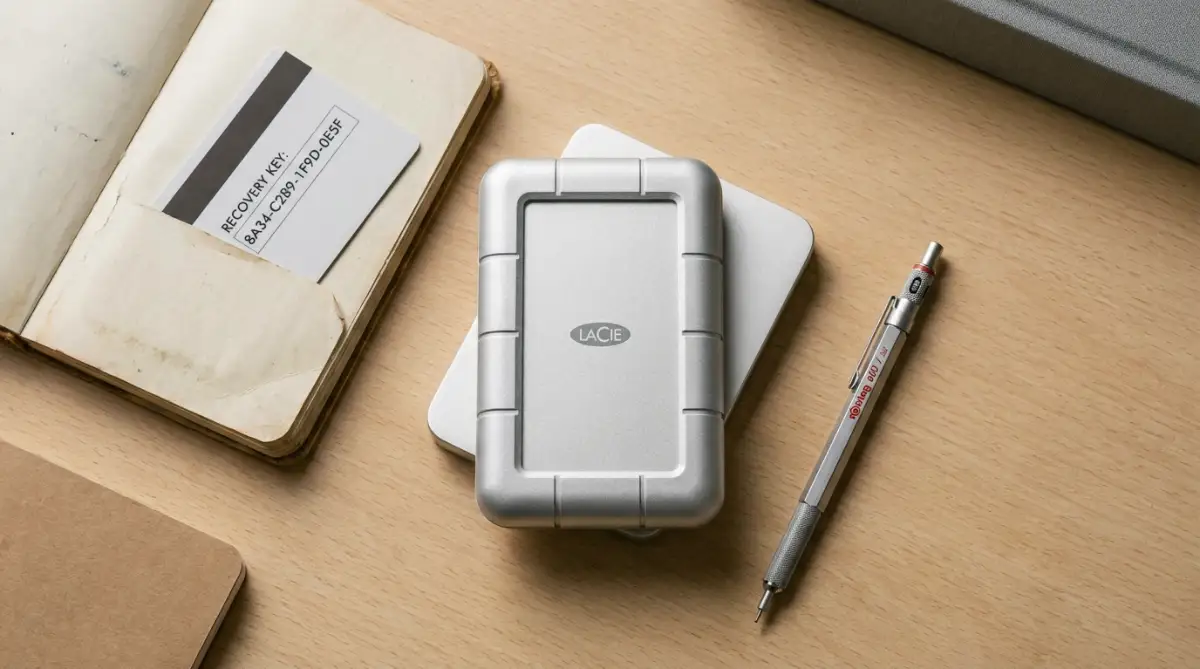
Pro Tip: Never save your BitLocker recovery key text file onto the same external drive you are trying to protect. If you get locked out, your recovery key will be trapped inside the encrypted volume. Print the 48-digit recovery code on paper and store it inside a secure filing cabinet, or paste it directly into an offline password manager vault like Bitwarden or 1Password.
Here is a real-world speed test I ran on a standard Samsung 1TB portable SSD before and after turning on AES-256 hardware encryption:
Method 2: macOS APFS Encrypted Format
If you work strictly within the Apple ecosystem, macOS offers native volume encryption through its modern Apple File System (APFS). This setup delivers fast performance and smooth integration with Finder.
- Back up any existing files on the external drive to your Mac, as this method formats the storage volume.
- Open Disk Utility by pressing Command + Space, typing Disk Utility, and hitting Enter.
- Click the View menu in the top left corner of Disk Utility and select Show All Devices.
- Select the top-level parent name of your external drive from the sidebar on the left.
- Click the Erase button in the top toolbar.
- Set the Scheme dropdown menu to GUID Partition Map.
- In the Format dropdown menu, select APFS (Encrypted).
- A password prompt will appear immediately. Enter a secure password and add a clear password hint to help you recall it later.
- Click Choose, then click Erase to begin formatting and applying the encryption layer.
Quick Reality Check: macOS Encryption Myths
- Myth: Encrypting an external SSD on a Mac will cause it to overheat and drain the MacBook battery quickly.
- Fact: Modern Apple Silicon chips (M1, M2, M3, M4) have hardware-level cryptographic engines built right into the CPU. The drive encryption runs with almost zero battery drain and no extra heat.
- My Personal Advice: If you share files with Windows users, avoid APFS (Encrypted). Windows cannot read APFS drives natively. Use VeraCrypt with exFAT instead.
Method 3: Cross-Platform Encryption with VeraCrypt
When you frequently swap files between Windows, macOS, and Linux, native tools like BitLocker or APFS hit a wall. BitLocker cannot easily be written to on a Mac without paid third-party drivers. APFS drives refuse to open on Windows machines altogether.
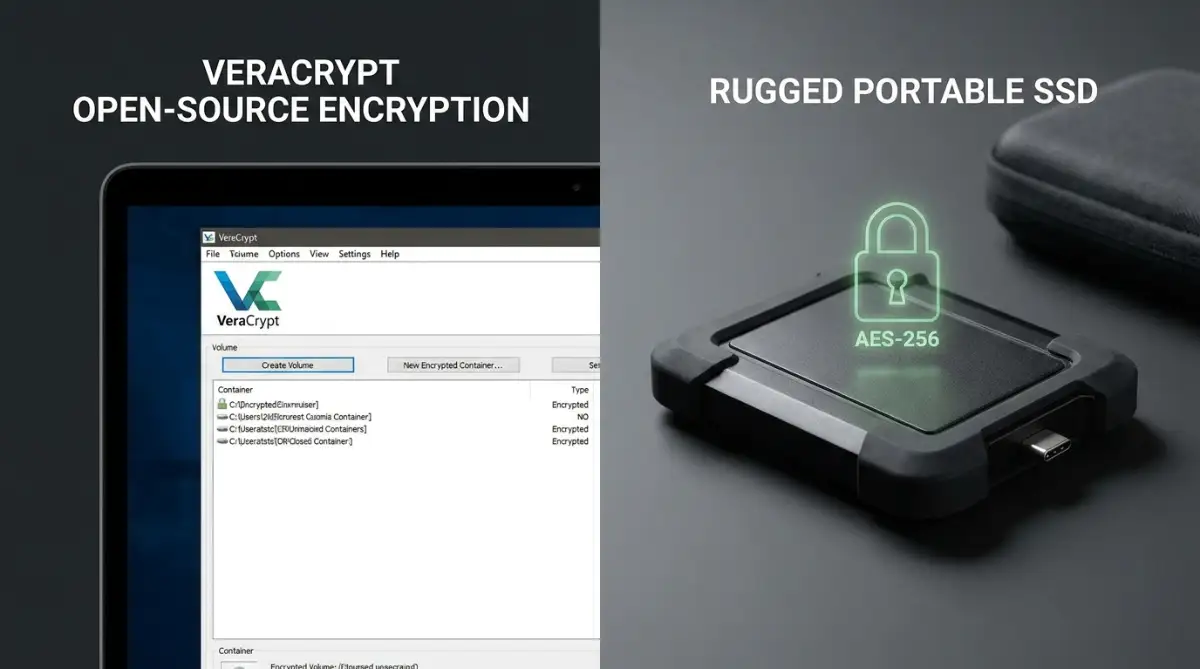
Open-source disk software bridges this gap. The official VeraCrypt documentation explains how you can create an encrypted storage vault that works smoothly on any modern desktop system.
- Download and install VeraCrypt on your computer, making sure you grab the installer matching your operating system.
- Plug your external drive into your computer and launch the VeraCrypt application.
- Click on the Create Volume button in the main window.
- Select Create an encrypted file container if you want to keep other normal files on the drive, or choose Encrypt a non-system partition/drive to lock the entire disk.
- Pick Standard VeraCrypt volume for standard protection.
- Select your external drive location, choose AES as your encryption algorithm, and set SHA-512 as your hash algorithm.
- Enter your desired storage size and set a long, random passphrase.
- Select exFAT as your filesystem format so both Windows and Mac computers can read and write files without friction.
- Move your mouse randomly over the window until the progress bar turns dark green. This randomness generates strong cryptographic keys.
- Click Format and wait for the process to complete before mounting your new drive volume.
Advanced Protection Practices and Emergency Prep
Setting up encryption is only the first part of protecting your mobile storage. Keeping your files safe over several years requires smart habits that prevent accidental lockouts or sudden hardware failures.
Hardware encryption scrambles blocks of raw storage at rest. However, if your external drive drops on the floor or suffers a mechanical breakdown, data recovery centers face extreme challenges recovering scrambled sectors without a working file table.
The Essential Do's and Don'ts of Drive Security
- DO test your backup recovery key immediately after setting up encryption to confirm it actually unlocks the volume.
- DO keep an unencrypted, offline secondary backup in a physical fireproof home safe.
- DO click the Safely Remove or Eject option in your operating system before unplugging the USB cable.
- DON'T store your password on a sticky note attached directly to the hard drive enclosure.
- DON'T force a computer reboot or disconnect the cable while initial drive encryption is in progress.
- DON'T rely on a single encrypted flash drive as the only copy of your essential documents.
Managing Recovery Keys and Hidden Containers
If you lose your primary password, your recovery key serves as your sole emergency passkey. Organizations like the Electronic Frontier Foundation emphasize that strong encryption has zero built-in backdoors. No customer support team or software developer can reset an encrypted volume if you lose both your master password and your recovery key.
For users carrying sensitive research or intellectual property across borders, VeraCrypt offers a feature known as a hidden volume.
This setup places an encrypted vault inside another encrypted container. If you are forced to reveal a password, you provide the outer container password, which only contains decoy files. The inner vault stays hidden and mathematically impossible to prove without the second distinct password.
Safe Formatting and Drive Retirement
When the time comes to sell, donate, or recycle an old external solid-state drive, simple file deletion is not enough. With an encrypted drive, your retirement process becomes much simpler.
You can perform a full cryptographic wipe. According to security guidelines published by the NIST Computer Security Resource Center, destroying the header key of an encrypted volume renders every remaining byte on the drive instantly unrecoverable.
Once the key is gone, recovering raw files requires billions of years of brute-force computing power. After wiping the header, format the drive to a standard partition table, and you can safely give the hardware away. If your computer ever stops recognizing a drive during general use, check our guide on how to recover data from a dead laptop to retrieve your base files before attempting a total disk wipe.
Dangerous Mistakes That Lead to Permanent Lockouts
Human error causes significantly more permanent data loss than malicious hackers. When dealing with encrypted storage, small oversights carry heavy consequences.
Pulling the Plug During Write Cycles
Encrypting a terabyte of existing files takes time. If a user gets impatient and pulls the USB cable halfway through the initial encryption process, the file table can become split between plain text and ciphertext.
This partial state corrupts the volume index. While modern operating systems attempt to build recovery flags, an interrupted encryption run often damages the master boot records. Always let the encryption progress bar reach 100 percent before touching the drive cable.
Ignoring Early Warning Signs of Drive Fatigue
An encrypted drive places continuous read-write demands on storage controllers during file transfers. If your external drive starts clicking, disconnecting randomly, or throwing input-output errors, do not ignore these signs.
When physical flash memory cells or magnetic platters degrade on an unencrypted disk, you might lose only the specific corrupted file. On an encrypted disk, bad sectors occurring directly on the volume header area can lock you out of the entire partition at once. If your drive shows signs of connection drops, test your system ports or review our steps for laptop won't turn on troubleshooting to rule out motherboard power delivery issues.
Your Immediate Next Move
Pick your most frequently used USB flash drive or portable backup drive right now, plug it into your computer, and turn on native volume encryption using the steps outlined above. Once the drive finishes locking, write down your recovery key on paper and tuck it into your home filing drawer before copying any new files.
Frequently Asked Questions
Can I encrypt an external hard drive without wiping existing files?
Yes. Both Windows BitLocker To Go and VeraCrypt allow you to encrypt a storage drive in-place without erasing your existing folders. However, backing up your files to your main computer beforehand is strongly recommended to protect against accidental power interruptions during the process.
What happens if I forget my encryption password?
If you forget your password, you must use the recovery key generated during the initial setup. If you lose both your master password and your recovery key, the data on the drive is permanently lost and cannot be recovered by any software tool.
Will an encrypted drive work on my smart TV or car stereo?
No. Most smart TVs, media players, and vehicle sound systems lack the software necessary to prompt for a password or decrypt volumes. If you need a flash drive for media playback on home appliances, keep that specific drive unencrypted.
Does drive encryption protect against viruses and malware?
No. Encryption only protects your files from unauthorized access when the drive is locked or unplugged. As soon as you unlock the drive on an infected computer, malware can read, modify, or delete your unlocked files just like any normal storage device.
Disclaimer: This guide is provided for educational and data security purposes only. Always maintain separate, redundant backups of important records in a secondary location before modifying disk partitions or applying volume encryption.