The Sudden Jet Engine Roar Inside Your PC
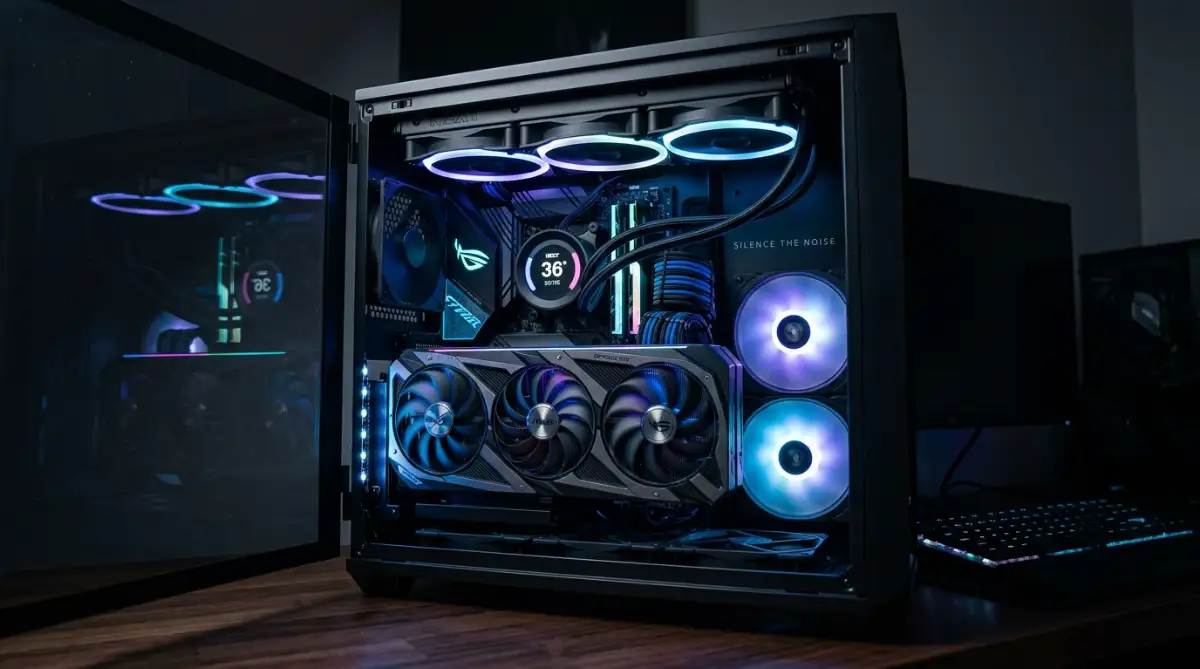
Has your PC suddenly turned into a screaming jet engine? I know exactly how scary that sounds, especially when you think your expensive graphics card is about to fry right in front of you. But before you panic and start shopping for replacement parts, take a deep breath. Usually, it is just a simple software glitch, a bad sensor reading, or a dusty case causing the noise. I will show you exactly how to track down the problem and quiet things down, so you can get back to gaming or working in peace.
The immediate reaction is almost always stress. People wonder if their expensive graphics card is burning up, dying, or preparing to fail completely. You might quickly open the side panel, expecting to see smoke, only to find the fans on your graphics processing unit spinning at maximum speed.
Is the hardware actually damaged? Why does a system that ran silently yesterday suddenly scream today?
Usually, the answer is heavily tied to software miscommunication, thermal sensor spikes, or simple airflow blockages rather than actual hardware death. When a graphics card reaches a specific temperature limit, its internal basic input/output system forces the cooling fans to operate at 100 percent speed to prevent physical melting. We can easily identify and resolve these thermal triggers at home without any special technical background.
Quick Checklist: Why Is Your PC So Loud?
- Check the temps first: Use free software like HWMonitor to see if the card is actually overheating or just confused.
- Tame the fans: You can easily set up a custom fan speed curve so they don't jump to 100% over nothing.
- Kill hidden tasks: Sometimes a random background app is secretly working your card to the max.
- Let it breathe: A dusty case traps heat. Moving your PC away from the wall and blowing out the dust does wonders.
5 Steps to Silence Your Graphics Card (Part 1)
Fixing a loud graphics card requires a systematic approach. We always start with software diagnostics because checking software is free, safe, and highly effective. Opening the computer case and touching hardware should only happen after we rule out basic digital errors. Let us break down the exact process to stabilize your fan speeds.
Step 1: Monitor Real-Time Temperature and Usage
Before changing any settings, you need to understand exactly what the hardware is experiencing. A fan spinning rapidly is a symptom, while excess heat is the underlying disease. We need to verify if the card is actually overheating or if a software bug is simply feeding the fans incorrect instructions.
To get accurate data, download a trusted hardware monitoring tool like HWMonitor, GPU-Z, or HWiNFO. These lightweight programs read the thermal sensors directly from the graphics card motherboard. Open the software and look specifically for the GPU Temperature and GPU Hotspot Temperature metrics.
If your graphics card is sitting at 35 to 45 degrees Celsius while you are simply browsing the web, but the fans are screaming at 3000 revolutions per minute, you have a software control issue. Conversely, if the temperature reads 85 degrees Celsius or higher while idle, you have a physical heat dissipation problem. Gathering this data dictates exactly which path we take next to fix the desktop GPU fan noise permanently.
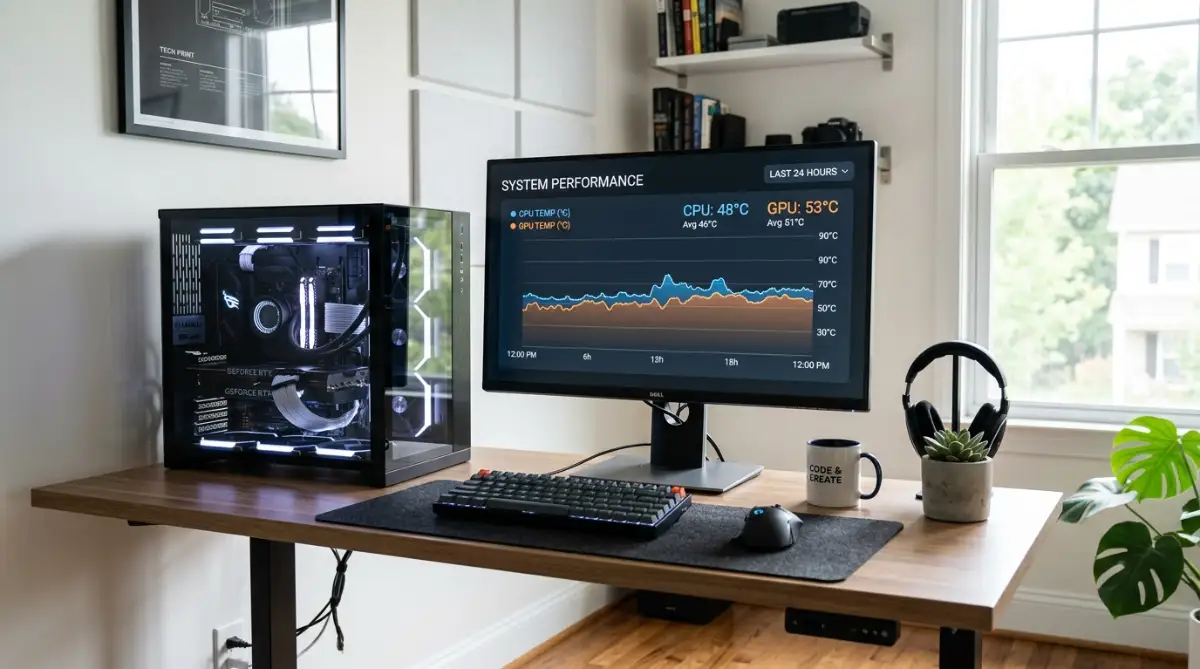
Pro Tip: When analyzing temperature data, always pay close attention to the "Hotspot" temperature reading rather than just the general or edge temperature. Industry data shows that graphics cards like the AMD Radeon RX 7900 XTX can experience severe thermal throttling and extreme fan noise when the hotspot reaches 110 degrees Celsius, even if the general edge temperature reads a completely safe 70 degrees. Identifying this specific delta helps pinpoint dried-out thermal paste faster.
Not sure what numbers are actually dangerous? Here is a quick cheat sheet so you know exactly when to worry and when to relax.
Step 2: Customizing the Fan Curve for Silent Operation
Modern graphics cards use a feature called Pulse Width Modulation to control fan speeds dynamically based on heat. The instructions that tell the fans how fast to spin at any given temperature are called a "fan curve". Many manufacturers ship their cards with extremely aggressive default fan curves designed to keep the card ice-cold, completely ignoring acoustic comfort.
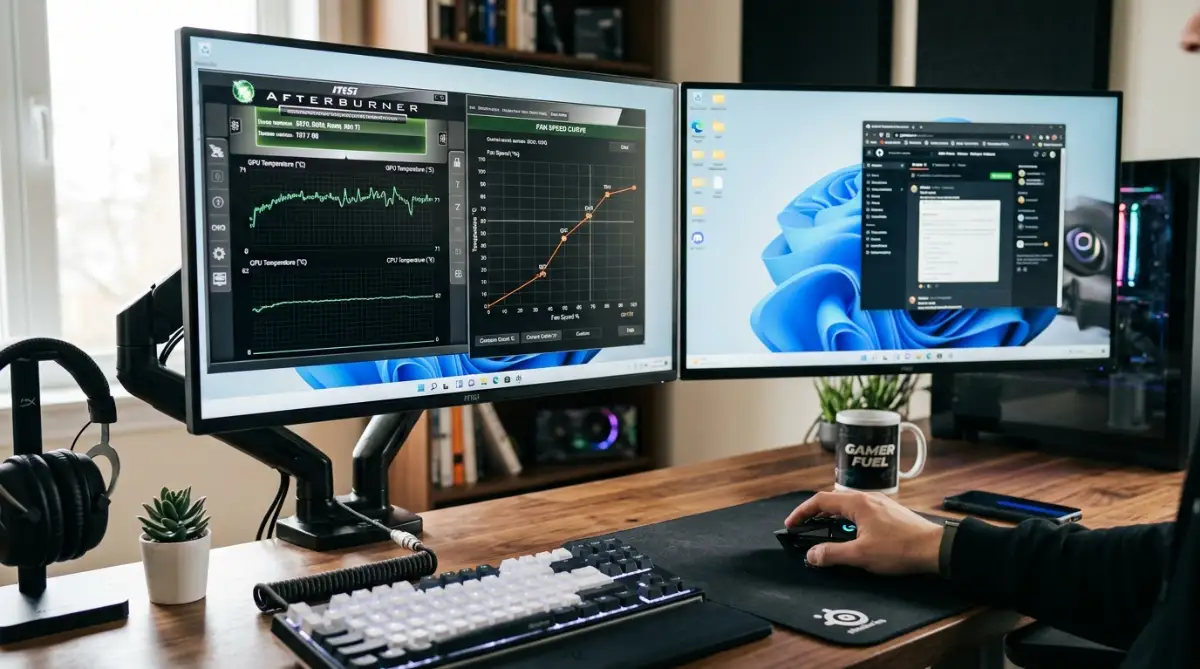
You can take manual control of this curve using software like MSI Afterburner. By creating a custom slope, you train the fans to behave smoothly rather than jumping instantly from a silent 30 percent speed to a loud 80 percent speed the moment a heavy application opens.
Here is a clear comparison showing the difference between a loud factory profile and an optimized silent profile during a heavy workload.
Creating a smooth, gradual incline on the graph prevents the fans from violently ramping up and down. This constant ramping, often called "fan hunting," is usually more annoying to the human ear than a steady, continuous hum.
Step 3: Inspecting Background Processes for Hidden Loads
Sometimes your graphics card is generating massive heat because it is working incredibly hard without your knowledge. You might be staring at an empty desktop screen, but hidden software in the background is utilizing 90 percent of the rendering power.
Crypto-mining malware is a frequent offender. Malicious programs hide deep in the system registry, waiting for the computer to sit idle before silently hijacking the graphics processor to mine digital currency for a third party. This causes a sudden, intense heat load, prompting the fans to spin at maximum velocity to prevent a system crash.
Legitimate software can also cause these spikes. Hardware acceleration in web browsers, poorly optimized game launchers running minimized in the system tray, or uncompressed video recording apps can trap the graphics card in a high-power state.
Open the Windows Task Manager and sort the active processes by GPU utilization. If a random background application is constantly drawing more than 15 percent of the processing power while you are doing nothing, right-click and end the task. Removing these artificial loads is often the fastest way to drop temperatures and force the cooling fans back into their silent idle state.
Watch this comprehensive breakdown of identifying hidden GPU loads and optimizing your background tasks for better thermal performance.
Step 4: Optimizing Internal Airflow and Removing Physical Blockages
If your software settings are perfectly balanced but the graphics card fans still sound like a wind tunnel, we must look at physical heat trapping. A computer case is an enclosed ecosystem. If cool air cannot easily enter the system and hot air cannot quickly exhaust, the graphics card will constantly choke on its own recycled heat.
Airflow is invisible. The heat it carries is not. When a heavy rendering task pushes the internal case temperature up, the cooling fans have to spin twice as fast just to maintain basic safety limits.
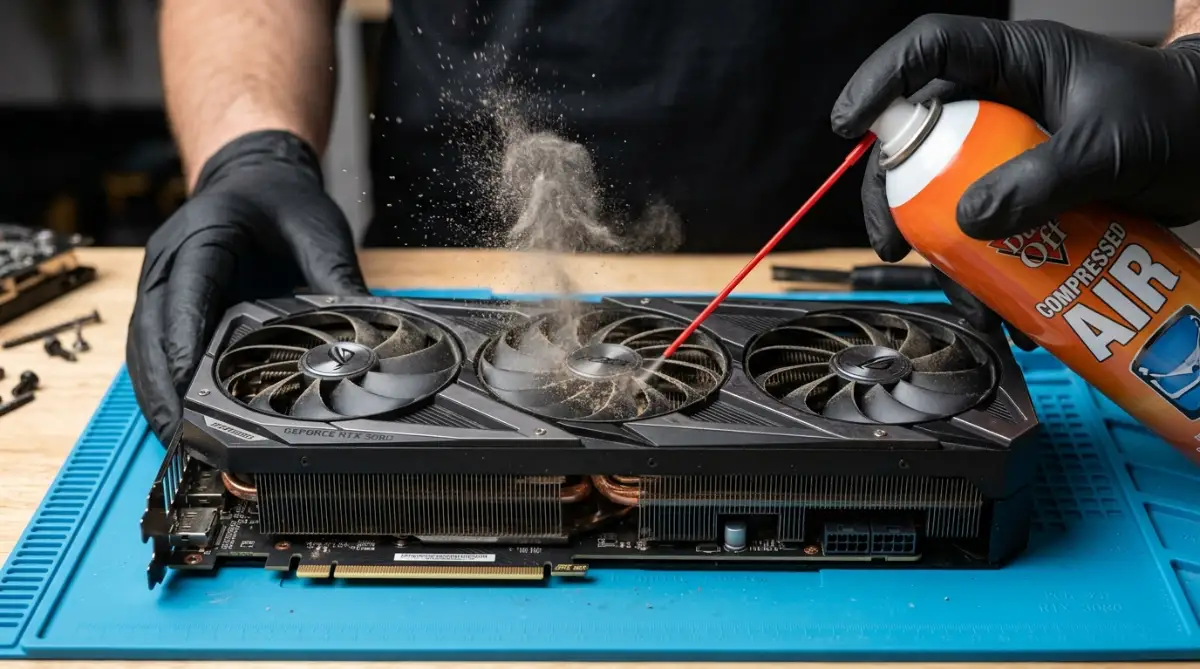
Start by inspecting the front intake fans and rear exhaust fans. Many users push their desktop towers completely flush against a wall or hide them inside a solid wooden desk cabinet. This entirely suffocates the exhaust system. Pull the PC out by at least six inches. Next, power down the system and use a flashlight to examine the dust filters covering the intake vents. A thick layer of grey dust acts exactly like a winter blanket, trapping dense heat inside the metal chassis.
To understand how a choked case affects your hardware, just look at modern thermal testing. Independent reviewers consistently show that terrible airflow easily pushes your graphics card temperatures up by a massive 15 to 20 degrees Celsius. Honestly, simply pulling your PC out of that tight desk cabinet and wiping down the front dust filter can drop your fan noise instantly.
Do's vs. Don'ts of Physical Case Maintenance
Do: Use short, controlled bursts of compressed air to clear the dense aluminum fins on the graphics card heatsink while holding the fan blades still.
Do: Ensure you have more intake fans than exhaust fans to create positive air pressure, which naturally pushes dust out of small cracks.
Don't: Never use a household vacuum cleaner directly on the motherboard or graphics card. The static electricity generated by the plastic nozzle can permanently short-circuit sensitive microchips.
Don't: Never let compressed air spin the cooling fans freely. Spinning fans manually at high speeds can generate a reverse electrical charge that damages the fan motor.
Step 5: The Thermal Paste Replacement Strategy
Sometimes the fan noise problem requires a slightly more hands-on approach. If your desktop is a few years old and the fans are constantly ramping up to 100 percent speed even under light loads, the thermal interface material has likely failed.
Between the actual silicon graphics processor chip and the large metal heatsink sits a thin layer of thermal paste. This paste is designed to transfer extreme heat away from the sensitive silicon. Over time, constant heating and cooling cycles cause this liquid paste to dry out, crack, and turn into chalk.
When the paste cracks, tiny air pockets form. Air is a terrible conductor of heat. The chip suddenly spikes in temperature, the sensors panic, and the system forces the cooling fans to maximum speed to stop a total meltdown. Research on thermal interface materials published by the IEEE Components, Packaging and Manufacturing Technology Society shows that standard factory thermal pastes heavily degrade after heavy, sustained usage cycles, losing a massive amount of their heat transfer efficiency.
Fixing this requires you to unscrew the heatsink, clean off the old grey chalk using 99 percent isopropyl alcohol, and apply a fresh drop of premium thermal compound. While this sounds intimidating, it is a highly effective procedure. If you are experiencing similar heat spikes on a portable machine, the underlying physics are identical. You can apply these exact same thermal principles when you diagnose and fix overheating issues in high performance laptops. Refreshing the thermal paste usually drops the core temperature by up to 15 degrees Celsius, returning the fans to total silence.
I hear a lot of wild theories about thermal paste online. Let's clear up some common misunderstandings right now.
The Most Expensive Troubleshooting Mistakes
When a desktop suddenly roars to life with intense fan noise, the immediate psychological response is usually panic. Hardware anxiety forces people into making quick, very expensive decisions without looking at the underlying data.
The most common trap is the immediate hardware replacement reflex. A user hears grinding or loud whirring from their system and immediately orders a brand-new graphics card online. They assume the hardware is completely dead. This is essentially buying a new car just because the current one has a flat tire. In most cases, if your PC still turns on and displays an image on the monitor, the core silicon is perfectly fine. It is often just a localized cooling issue or a completely unrelated power delivery fault. Before throwing away expensive hardware, always run basic checks, just like you would if a laptop won't turn on before throwing it in the trash.
Another incredibly dangerous mistake is artificially forcing the fans to run silently without fixing the heat source. Users will open MSI Afterburner and lock the fan speed to 20 percent so they do not have to hear the noise. This is a massive risk.
If you mute the warning siren without putting out the fire, the hardware will literally cook itself. The graphics card will quickly hit its maximum thermal junction limit. At this point, the safety systems designed by companies like AMD or Nvidia will forcefully shut down your computer mid-task to prevent the internal silicon solder from melting. Always fix the heat source first, and the fans will naturally quiet down on their own.
Your Immediate Hardware Action Plan
Stop guessing and start measuring your system right now. Download a free hardware monitoring tool, leave it running on your desktop, and play your favorite game for twenty minutes. Look strictly at the peak hotspot temperature recorded in the software to immediately determine if you need to adjust a digital fan curve or order a can of compressed air for physical cleaning.
Frequently Asked Questions About GPU Noise
Why does my GPU fan get so loud suddenly?
Your graphics card fans suddenly ramp up because the internal thermal sensors detect a rapid spike in core temperature. This can be caused by opening a heavy application, poor case airflow, or a sudden background process hijacking your rendering power.
Is a loud graphics card dangerous?
The noise itself is not dangerous at all. In fact, a loud fan means the safety cooling mechanisms are working perfectly to protect your hardware from heat damage. However, the excessive heat causing the fans to spin that fast should be investigated.
Can I limit my GPU fan speed permanently?
You can limit the fan speed using custom software curves, but doing so without improving airflow is highly risky. If you force the fans to stay quiet while the card is generating massive heat, you risk aggressive thermal throttling or permanent hardware damage.
Disclaimer: The hardware troubleshooting steps and thermal maintenance strategies provided in this article are for informational purposes only. Modifying computer hardware, removing heatsinks, or altering factory software parameters carries inherent risks. Always consult with a certified technician or refer to your manufacturer's warranty guidelines before opening internal electronic components.