The Hidden Frustration of Restricted Virtual Reality
When I first bought my standalone VR headset, I was beyond excited to jump into new worlds. But after spending a few weeks looking through the official store, I felt totally stuck by the high prices and small game selection. I almost regretted buying the device until I figured out how to safely access hundreds of hidden indie games myself.
Imagine spending hundreds of dollars on a brand-new standalone virtual reality headset. You unbox it with excitement, put it on, and immediately visit the official app store to find some amazing games.
At first, everything seems completely magical. You download a few popular titles and spend hours lost in entirely new digital worlds. But after a few weeks, you start to notice a big problem that nobody warned you about.
The official store feels surprisingly limited, and many of the best games are incredibly expensive. You start reading online forums and find out about hundreds of amazing, free indie games. Sadly, they are not available in the main store, leaving you feeling completely stuck.
This invisible wall makes everyday users feel like they are locked out of their own expensive devices.
When people try to find a way around this, they often end up completely confused. The internet is full of bad advice that creates even bigger problems for normal users:
- Outdated video tutorials that show menus and buttons that no longer exist on your current device.
- Highly technical forums filled with coding language that makes normal people feel totally lost.
- Scam websites that promise easy one-click installs but secretly hide harmful files.
- Confusing software requirements that demand high-end computers, which most casual players do not own.
These roadblocks completely destroy the fun of virtual reality. Instead of enjoying your weekend playing new games, you spend hours feeling stressed and overwhelmed.
- You lose confidence in your technical skills, thinking you are simply not smart enough to figure it out.
- You fear breaking your device, constantly worrying that one wrong click will permanently damage your headset.
- You feel a deep sense of buyer's remorse, wondering if you wasted your money on a device that restricts your freedom.
This emotional drain is completely understandable. You just want to play games, not become a professional software engineer.
Luckily, learning to safely sideload games is much easier than you think. You just need a clear, friendly guide that explains everything in plain English. For additional safety tips on getting started with your device, reputable technology guides from Wired often highlight the importance of understanding your headset's basic functions first.
By the end of this guide, you will feel completely confident. You will finally have the power to install amazing hidden games and get the most out of your standalone headset.
How to Easily Unlock Your Headset's True Potential
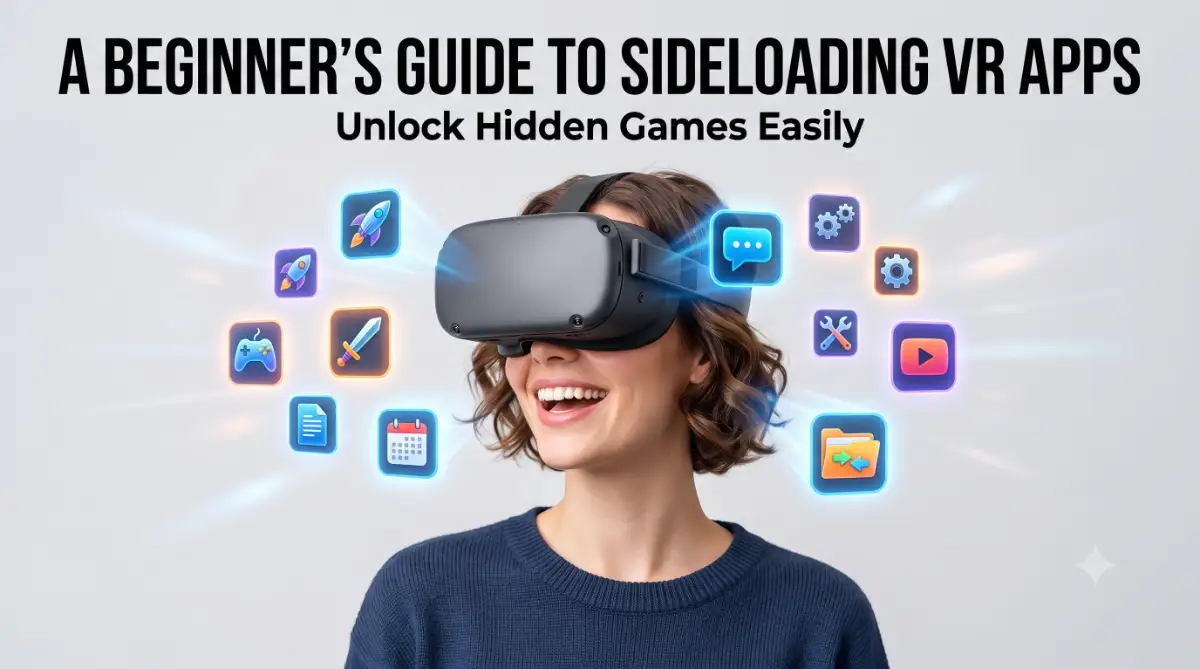
Before we jump into the technical steps, let us understand what sideloading actually means. It is simply the process of installing an application directly from your computer or phone, rather than using the official app store.
Think of your headset like a big, beautiful house. The official app store is the front door, where everything is heavily guarded and checked. Sideloading is simply using the side door to bring in your own custom furniture.
It is completely legal, heavily supported by developers, and totally safe if you follow the right instructions. In fact, understanding the basics of an Android application package (APK) is a great way to learn how your headset actually processes files. Let us break the entire process down into three incredibly easy steps.
Step 1: Becoming a Registered Developer
Your headset comes from the factory with a special safety lock turned on. This lock prevents unauthorized apps from installing themselves by accident. To install custom games, we need to tell your headset that you are a creator.
You do not need to know any code to do this. You simply need to visit the official developer dashboard for your specific headset brand on your smartphone or computer.
Once there, you will log in with the same account you use on your headset. The website will ask you to create an "Organization." Do not let this word scare you away.
You can literally name this organization anything you want. You could name it "My Awesome VR Games" or just use your first name. Once you accept the terms and conditions, you instantly become a registered developer in their system.
Now, open the companion app on your smartphone that is connected to your headset. Go into the headset settings, find the "Developer Mode" toggle, and turn it on.
Just like that, you have successfully unlocked the side door. Your headset is now ready to accept completely new and unapproved games.
Step 2: Setting Up the Magic Bridge Software
Now that your headset is ready, you need a way to move the game files from your computer to your device. You cannot just drag and drop these files like a regular USB flash drive.
You need a dedicated sideloading program installed on your PC or Mac. There are several highly trusted, free programs designed exactly for this purpose.
Download the official software from a trusted community source. Once the software is installed on your computer, open it up. Now, take the USB cable that came with your headset.
Plug one end into your computer and the other end directly into your headset. Put your headset on your face for a brief moment. You will see a small pop-up window asking if you want to "Allow USB Debugging."
This sounds like a scary computer term, but it just means "Do you trust this computer?" Check the box that says "Always allow from this computer" and click OK.
If you prefer a quick visual guide to see where to click and how to allow USB debugging on your device, watch this simple walkthrough video before moving to the next step!
Now, look back at your computer screen. The sideloading software should show a green light or a connected status in the top corner. This means the magic bridge between your PC and your headset is completely active.
If your laptop gets very warm while running these programs, do not panic. However, it is always smart to know how to diagnose and fix overheating issues in high-performance laptops to keep your devices running smoothly.
Step 3: Finding and Installing Your First Game
With the bridge connected, the fun finally begins. Your sideloading software will likely have its own built-in store filled with hundreds of indie games.
These are games made by single developers, small teams, or massive fan projects that are not yet allowed on the main store. Browse through the categories and find a game that looks interesting to you.
When you find one, simply click the "Download" or "Install to Headset" button right there on your computer screen. The software will do all the heavy lifting for you.
It downloads the file, unzips it, and pushes it across the USB cable straight into your headset. You will see a small progress bar on your screen. Once it says "Success," you can unplug your headset.
Now, put your headset back on and go to your app library. You will not see the game right away. You need to look for a specific drop-down menu in your library called "Unknown Sources."
Click on that filter, and boom! Your newly installed game will be sitting right there, waiting for you to play. You have officially installed your very first custom application.
This simple action opens up a completely new world of entertainment. You no longer have to wait for major studio releases to have fun. You can play experimental games, unique puzzle rooms, and amazing creative tools.
If you are a creative person, you might even install apps that help you generate high-quality conceptual art using AI right inside a virtual environment. The possibilities are truly endless once you know how to use this tool.
Taking Your Virtual Experience to the Next Level
Now that you know the basic steps, you are already ahead of most standalone headset owners. But if you want to truly master your device, you need to learn a few advanced techniques.
These extra tips will keep your device running smoothly and ensure you never lose your saved game progress. Learning these professional secrets will make your daily gaming sessions much more enjoyable.
Keeping Your Applications Fresh and Updated
Unlike the official app store, sideloaded games do not update themselves automatically in the background. When an indie developer releases a new level or fixes a bug, you have to update the game manually.
This sounds like a huge pain, but it is actually very simple. You just need to connect your headset back to your computer and open your sideloading software.
Find the game you want to update in the software's library and hit the install button again. Do not delete the old version of the game first.
Here is a quick tip from my own silly mistake: never delete your old game file when you want to update it! I once wiped out twenty hours of hard-earned game progress because I uninstalled the old version first. Just install the new file right over the old one, and your saved progress will stay completely safe.
If you simply install the new version directly over the old one, it will update the game while keeping all your save files perfectly safe. If you delete the game first, you will lose all your hard-earned high scores.
Make it a habit to plug your headset into your computer once a month. Doing a routine check for updates is just as important as knowing photography drone calibration tips to avoid costly repairs. Regular maintenance always pays off in the long run.
Mastering Storage Space Management
Standalone headsets usually come with limited internal storage space. Because sideloaded games are often experimental, they can take up a lot of room very quickly.
You need to keep a close eye on your storage capacity. If your headset gets completely full, it will start lagging, freezing, and behaving very strangely.
Always try to keep at least five gigabytes of free space on your device at all times. This gives your headset enough "breathing room" to process complex graphics without stuttering.
Your sideloading software on your computer has a special tool to manage your installed apps. You can use it to completely uninstall games you no longer play, clearing up massive amounts of space in seconds.
Installing Custom Mods and Environments
Did you know that you are not just limited to installing games? You can also install custom modifications for games you already own.
For example, you can download custom songs for popular rhythm games directly through your computer. You can also completely change your headset's home environment.
Instead of sitting in the default virtual living room, you could sit in a cyberpunk city or a relaxing forest. The sideloading community creates these incredible custom spaces for free.
Just like bad visuals can hurt a video, which you can learn about in guides on how bad video editing is secretly killing your youtube money, a boring virtual environment can ruin your gaming mood. Customizing your space makes the headset feel truly yours.
Dangerous Pitfalls Every Beginner Must Avoid
While exploring this new freedom is incredibly exciting, there are a few dark corners you need to avoid. Many beginners make simple mistakes that end up causing massive headaches.
By knowing exactly what these traps look like, you can protect your device and your personal data. Here are the five biggest mistakes to watch out for.
1. Downloading Files from Sketchy Websites
This is the number one reason people ruin their devices. You should only ever download installation files from trusted, well-known community hubs.
If a random YouTube comment tells you to click a strange link for a "free premium game," do not click it. Pirated games often contain hidden malware that can steal your account information or permanently lock your headset. Stick to the official indie developer platforms to stay completely safe.
2. Giving Permissions Blindly
When you open a newly installed custom app for the first time, it will ask for certain permissions. It might ask to use your microphone, see your storage, or track your location.
Always pause and think before clicking "Allow." A virtual ping-pong game needs to access your storage to save your score, but it definitely does not need to record your audio. If an app asks for strange permissions, simply click "Deny" to protect your privacy.
3. Ignoring Battery Levels During Installation
Never start transferring large files to your headset if your battery is flashing red. If your device dies exactly in the middle of writing a new file, it can corrupt your system.
Always make sure your headset is charged to at least fifty percent before plugging it into your computer. This small precaution will save you from a potential system crash.
4. Overloading the Home Screen
When you first discover how easy this is, you will be tempted to download fifty games in one day. This is a very bad idea.
Having too many custom apps in your "Unknown Sources" folder makes it incredibly difficult to find what you want. It also slows down the headset's main menu. Download two or three games, play them, and delete the ones you do not like before getting more.
5. Forgetting to Backup Save Files
If you ever need to factory reset your headset, you will lose all your custom games and their save data. The official cloud backup system does not save data for unapproved applications.
Thankfully, most PC sideloading software has a built-in backup tool. Take five minutes every month to backup your favorite game saves directly to your computer's hard drive.
Your Next Steps to Ultimate Gaming Freedom
You now have all the knowledge you need to completely transform your virtual reality experience. What once felt like a restricted, locked-down device is now an open playground for endless entertainment.
You know exactly how to activate the necessary developer settings without any confusion. You understand how to connect the software bridge safely. Most importantly, you know how to avoid the dangerous traps that catch most beginners.
You no longer have to wait for official store sales or spend a fortune to have fun. There is a massive community of passionate indie developers out there waiting for you to test their amazing creations.
Start small today. Follow the steps to set up your developer account first. Then, find just one free indie game that catches your eye.
Once you see that custom game running flawlessly on your own device, you will feel a massive sense of accomplishment. Grab your headset, connect that cable, and start enjoying the absolute freedom you truly deserve!
Learning how to do this completely changed how I use my VR headset every single day. Trust me, if a non-technical person like me can figure this out in ten minutes, you can too. Grab your cable, pick one fun game, and give it a try today—you will be so glad you did!
Disclaimer: Sideloading applications and enabling developer mode are standard features provided by major VR headset manufacturers. However, installing files from unknown or unverified third-party websites can pose security risks. Always download indie games and software from official, trusted community platforms. The author and website are not responsible for any issues resulting from unsafe file downloads or improper software modifications.