The Sudden Black Screen: Why Short VR Playtime Ruins the Magic
Imagine this scenario. You are right in the middle of an intense, heart-pounding virtual reality game. You have finally reached the final boss, and your adrenaline is absolutely pumping.
Suddenly, your screen goes pitch black. The dreaded low-battery warning you ignored ten minutes ago has finally claimed its victim. Your standalone VR headset is completely dead.
I still remember the time I was one hit away from beating a tough boss level, only for my screen to turn black without warning. I sat there in the dark, sweating and beyond frustrated, wondering why I spent so much money for barely an hour of playtime. That terrible night pushed me to test every setting possible until I finally figured out how to double my battery life without ruining the fun.
This extremely frustrating experience is something almost every virtual reality enthusiast faces daily. Standalone headsets are amazing because they do not require messy cables. However, running an entire digital universe on a tiny internal battery comes with huge limitations.
According to deep research on lithium-ion battery care, treating your portable electronics poorly leads to rapid power drain. Sadly, many gamers do not understand the basic science behind their devices. They keep searching for quick fixes but often end up finding terrible advice online.
When people follow the wrong information, things only get worse. Here is why bad advice is actively hurting your gaming gear:
- Downloading sketchy power-saving apps: Many third-party apps claim to save battery but actually run constantly in the background. This completely drains your system memory and kills the battery faster.
- Following extreme charging myths: Some online forums tell users to completely drain their headset to zero before charging. This outdated advice physically damages modern lithium-ion cells.
- Ignoring regular hardware care: Just as you might focus on calibrating a photography drone to prevent costly damage, your VR headset requires similar technical care. Ignoring basic software updates makes the system run inefficiently.
- Messing with developer settings blindly: Turning off essential tracking features to save juice can completely ruin your gameplay experience, making the device useless.
This constant struggle with short playtime takes a heavy emotional toll on users. It completely shatters the immersive experience that virtual reality promises. Let us look at how this directly impacts your peace of mind:
- Constant battery anxiety: Instead of enjoying the game, you are constantly checking the battery percentage. This completely destroys your focus and mental relaxation.
- Loss of social connection: Multiplayer games require dedication. Dropping out of a team match because your headset died makes you look unreliable to your friends.
- Wasted free time: We all have busy lives. Waiting two hours for a headset to recharge means your only free gaming window for the day is completely gone.
- Buyer’s remorse: Spending hundreds of dollars on a device only to get a measly two hours of use makes people regret their expensive purchase.
The truth is, you do not have to live with battery anxiety. The power to fix this issue is literally in your hands. Understanding how your device consumes energy is the first big step toward freedom.
Every feature on your headset, from the cameras tracking your hands to the Wi-Fi searching for updates, asks the battery for a small drop of energy. Over an hour, those tiny drops turn into a massive leak.
Many high-end tech reviews, like those found on popular tech portals like The Verge, constantly mention battery life as the biggest hurdle for modern VR. But you can easily outsmart the default settings.
By taking control of these invisible power drains, you can easily squeeze extra hours of life out of your device. You just need a proper, scientific, and practical approach to manage your power consumption.
Dimming the Virtual Sun: Mastering Display Settings for Longer Play
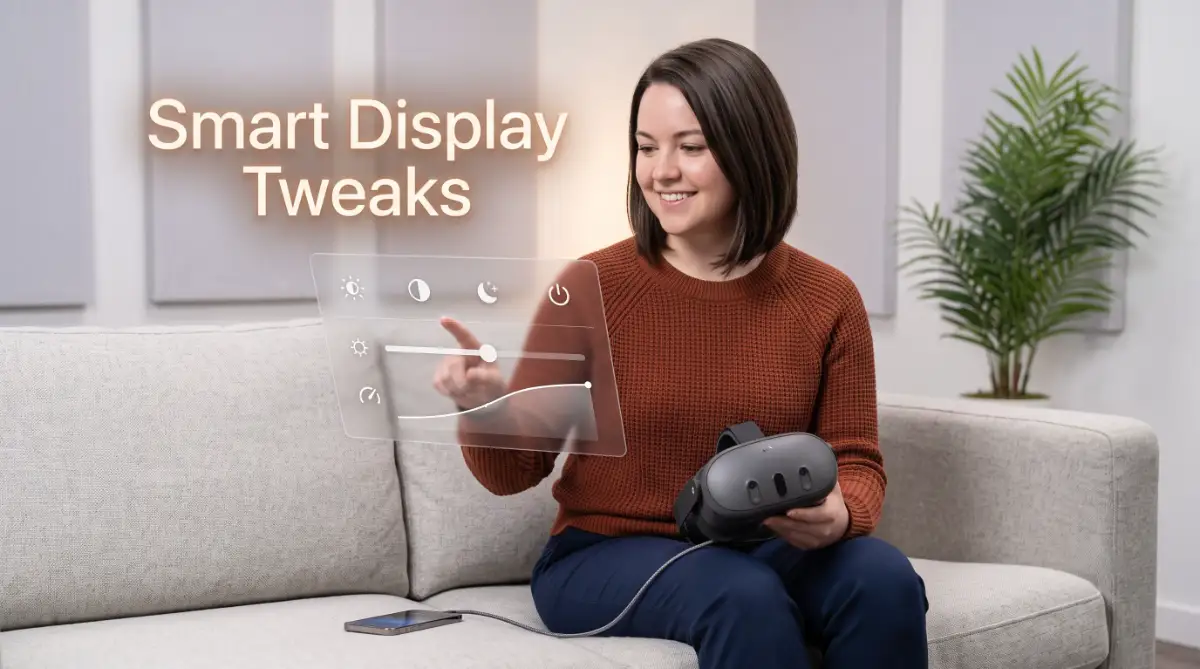
The biggest energy consumer on any standalone VR headset is the screen itself. You are essentially strapping two incredibly high-resolution monitors directly to your face. These screens require a massive amount of power to push millions of pixels every single second.
Think of your headset like a powerful flashlight. The brighter the bulb shines, the faster the batteries die. Your first scientific step is to manually adjust the brightness levels.
Most standalone headsets come out of the box with the brightness set to maximum. This looks amazing in the store, but it is completely unnecessary for your living room. Try lowering the display brightness to around fifty or sixty percent.
You will likely notice that your eyes adjust to the new lighting within seconds. The virtual world still looks beautiful, but your battery will thank you immediately. This single adjustment can easily add twenty to thirty minutes to your gaming session.
Next, you need to understand the concept of Refresh Rate. Refresh rate simply means how many times the screen updates its image per second. Higher refresh rates make games feel incredibly smooth.
Many headsets allow you to push the refresh rate up to 120Hz. However, rendering graphics at this speed forces the internal processor to work overtime. When the headset renders high-end graphics, it works as hard as software trying to generate high-quality conceptual art using AI algorithms, pulling massive amounts of energy.
Unless you are playing a highly competitive, fast-action shooter, you simply do not need 120Hz. Dropping your refresh rate down to 90Hz or even 72Hz is a incredibly smart move.
For relaxing puzzle games or watching movies, 72Hz is more than enough for a comfortable experience. Your processor will relax, the device will stay cooler, and your battery gauge will drop much slower.
Cutting the Invisible Cords: Managing Wi-Fi and Background Processing
Your standalone VR headset is essentially a powerful smartphone you wear on your head. Even when you are deep into a single-player game, the device is constantly talking to the outside world. This silent communication is a massive battery drain.
Whenever your Wi-Fi is turned on, the headset constantly scans for new networks. It also checks for system updates, game patches, and social media notifications. This background activity silently steals power while you are completely unaware.
If you are playing a game that does not require an active internet connection, simply turn off the Wi-Fi. It is exactly like putting your smartphone into airplane mode. You will instantly stop the device from working behind the scenes.
Running multiple background apps drains power quickly. This is much like how inefficient workflows and bad video editing habits can secretly ruin your online gaming or YouTube channel revenue by wasting processing power. Close down all browser windows and social apps before launching a heavy game.
Another massive hidden drain is the Passthrough Camera feature. Standalone headsets use external cameras to show you your real-world surroundings. Some gamers leave the "double-tap for passthrough" setting highly sensitive.
If the cameras accidentally activate, or if you use passthrough mode frequently, the battery drains aggressively. Limit your use of the mixed-reality features if your main goal is simply playing a standard virtual reality game.
Even the hand-tracking feature uses more power than standard controllers. The headset has to constantly run its cameras and use complex algorithms to figure out where your fingers are moving. If you want maximum battery life, stick to using the physical controllers.
The Power of Rest: Configuring Auto-Sleep and Standby Modes
How many times have you taken off your headset to grab a glass of water, only to get distracted by a phone call? You come back thirty minutes later, and the headset is almost dead. This is a very common scenario for casual players.
By default, many VR headsets wait quite a while before putting themselves to sleep. They stay awake, keeping the screens on and the processor running, just waiting for you to put them back on. This is like leaving your car engine idling in the driveway.
You need to dive into the power management settings immediately. Look for the Auto-Sleep or Display Off timer. Change this setting to the shortest possible time, usually around one or two minutes.
As soon as you take the device off your head, the proximity sensor will notice you are gone. With a short auto-sleep timer, the screens will shut down almost instantly. This traps the remaining battery power inside the device instead of wasting it on an empty room.
Another great habit is completely powering down the device when you are done playing for the day. Many users just tap the power button once, putting the headset into standby mode. Standby mode still uses a tiny bit of battery power to keep the memory active.
If you know you are not going to play again until tomorrow, hold the power button down. Select the option to completely shut off the device. You will wake up to the exact same battery percentage you left it with.
These practical, real-world steps do not require any technical background. They are simple, logical adjustments that anyone can make right now. By treating your energy like a precious resource, you take control of your virtual adventures.
Leveling Up: Pro-Level Hardware Secrets for Endless Immersion
Now that we have optimized the internal software settings, it is time to look at the physical hardware. Sometimes, software tweaks are just not enough for hardcore gamers who want to play for four or five hours straight. This is where smart hardware accessories come into the picture.
The most popular and effective way to double your playtime is by using an external power bank. Instead of relying solely on the tiny battery inside the headset, you connect a massive reserve tank of energy. This is a complete game changer for dedicated players.
You can easily slip a high-capacity power bank into your pocket and run a long USB-C cable up your back to the headset. As you play, the external battery feeds power directly into the device. The internal battery barely has to work at all.
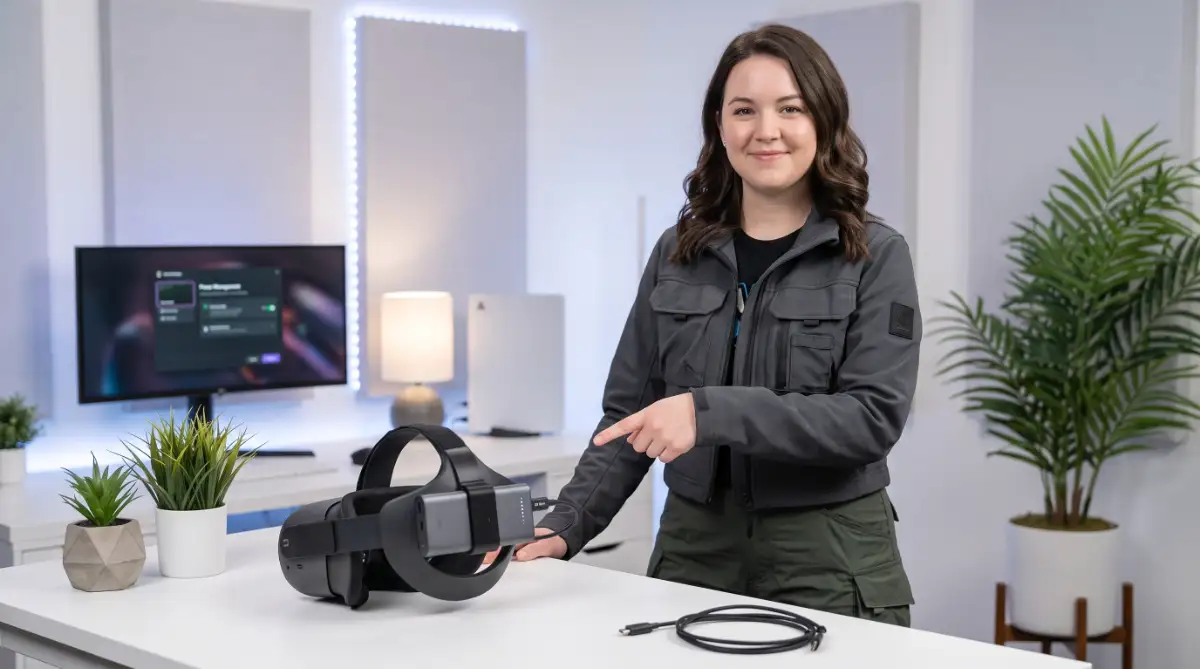
However, having a long cable dangling down your back can break immersion. A much better solution is to attach a small power bank directly to the back of the headset strap. You can use simple velcro straps or buy a specially designed 3D-printed mount.
Placing a battery pack on the back of the strap offers a massive hidden benefit. Standalone headsets are naturally front-heavy, which puts a lot of pressure on your cheekbones and forehead. The battery pack acts as a perfect counterweight.
Suddenly, the headset feels perfectly balanced on your head. You get double the battery life and a massive upgrade in physical comfort at the same time. Many third-party companies even sell "Elite Straps" with batteries already built directly into the plastic frame.
Want to see how an external battery strap looks and works on a real setup? Watch this quick video to see how simple it is to double your gaming time while making your headset way more comfortable!
When buying a power bank or battery strap, you must pay attention to the output wattage. Standard standalone headsets require at least a 15W or 18W output to charge while playing. If you buy a cheap power bank with a low output, the headset will still lose battery, just at a slightly slower rate.
The 20-80 Rule: Training Your Battery for a Long Life
Extending your battery life is not just about getting more hours today. It is also about ensuring the physical battery remains healthy for months and years down the line. Lithium-ion batteries degrade naturally over time, but your charging habits dictate how fast that happens.
Think of your battery like a human stomach. It does not like to be completely empty, and it hates being stuffed absolutely full. The scientific sweet spot for lithium-ion health is keeping the charge between 20 percent and 80 percent.
You should avoid letting your headset die completely until it shuts off automatically. Deep discharging puts massive chemical stress on the battery cells. As soon as you see the 15 or 20 percent warning, it is time to take a break and plug it in.
On the flip side, leaving your headset plugged in at 100 percent for days is also harmful. Once it reaches a full charge, the device stops taking power. However, as soon as it drops to 99 percent, the charger forces another tiny bit of energy into it.
This constant "trickle charging" creates heat and stress inside the battery housing. Heat is a battery killer. Similar to diagnosing and fixing overheating problems in high-performance laptops, keeping your VR device cool extends its lifespan.
Here is a big mistake I made for months: I used to leave my headset plugged into the wall overnight, assuming it was harmless. Once I stopped doing that and kept my charge level between 20% and 80%, my device stopped getting hot and started lasting much longer during my gaming sessions.
If you want to be a true hardware professional, unplug the headset once the green light shows it is fully charged. Store it in a cool, dry place. Taking this small extra step guarantees your headset will hold a strong charge long into the future.
Silent Killers: 5 Everyday Habits Destroying Your VR Battery
Even with the best settings and accessories, human error is always the biggest threat to electronics. People often develop lazy habits because they simply do not know any better. Let us examine the top five common mistakes that are secretly destroying your VR power capacity.
1. Playing Demanding Games While Charging from the Wall
It is incredibly tempting to plug your headset directly into a wall outlet when the battery gets low mid-game. However, doing this creates an enormous amount of internal heat. The processor is working hard to render the game, and the battery is generating heat by absorbing wall power. This double dose of heat literally cooks the battery chemicals, permanently lowering your total capacity.
2. Storing the Headset in a Hot Environment
Many users toss their headset onto the dashboard of their car or leave it sitting on a sunny window sill. Direct sunlight is the ultimate enemy of VR gear. Not only will the sun permanently burn the sensitive internal lenses, but the extreme heat will warp the battery cells. Always store your device in a dark, cool, and protective carrying case.
3. Using Cheap, Uncertified Charging Cables
Losing the original charging cable is annoying, but buying a two-dollar replacement from a gas station is a terrible idea. Cheap cables do not have the proper smart chips to regulate electricity flow. They can easily send random voltage spikes into your headset. These spikes can fry the charging port or slowly damage the internal battery management system.
4. Leaving the Device Unused for Months at Zero Percent
Sometimes life gets busy, and you stop playing VR for a few months. If you toss the headset into a closet while the battery is completely dead, you might ruin it forever. Lithium-ion batteries need a small amount of voltage to keep their protection circuits alive. If the voltage drops too low during long storage, the battery will refuse to accept a charge ever again. Always store it at around fifty percent power.
5. Ignoring System Software Updates
When a new software update notification pops up, it is easy to click "ignore" so you can jump straight into a game. But hardware developers constantly release software patches specifically designed to optimize power consumption. By ignoring these updates, you are forcing your headset to run on older, less efficient code. Taking five minutes to update can easily earn you ten extra minutes of daily playtime.
Your Next Move for Uninterrupted Virtual Adventures
Managing your standalone VR headset battery does not have to be a frustrating chore. It is simply about understanding how the machine works and making a few smart, logical adjustments. You have invested good money into experiencing the magic of virtual reality, and you deserve to enjoy it without constant interruptions.
Start today by going into your settings menu and lowering that display brightness. Turn off the background Wi-Fi when you do not need it, and set your auto-sleep timer to one minute. These tiny software changes take less than two minutes to complete, but the results are immediate and highly satisfying.
If you are a heavy user, strongly consider investing in a high-quality external battery strap. It balances the weight on your head and completely eliminates battery anxiety from your mind. Remember to treat the physical battery with respect by keeping it away from extreme heat and avoiding deep discharges.
You now possess the knowledge of a true hardware expert. You understand the science behind power management and know exactly which common mistakes to avoid.
It is time to strap on your headset, launch your favorite virtual world, and play with absolute confidence. Your battery is optimized, your hardware is safe, and your immersive adventures can now last longer than ever before. Go ahead and enjoy the endless possibilities waiting for you in the virtual realm.
Taking control of your VR battery completely changes how much you enjoy your gaming time. Tweak those simple settings today, protect your device, and step back into your favorite games without ever worrying about a sudden black screen again!
Disclaimer: The information provided in this article is for educational and informational purposes only. Battery performance and hardware results may vary depending on your specific VR headset model, age, and individual usage patterns. Always consult your device manufacturer's safety guidelines and user manual before modifying hardware or power settings.