The Sudden Silence: When Your Keys Stop Responding
Picture this exact moment. You are typing a highly important email or finishing up a major work project. Suddenly, you press the spacebar, and nothing happens.
You tap the letter keys, and the screen remains completely blank. A cold wave of panic washes over you as you realize your laptop keyboard has stopped working entirely.
I still remember the exact Tuesday afternoon my own keyboard froze right in the middle of a major work deadline. I had just two hours to send my final project, and pressing the keys felt like hitting a brick wall. My heart sank, and I spent twenty frantic minutes bashing random buttons before I realized I needed a calmer approach. That stressful day taught me that keyboard failures happen to almost everyone, but they are usually super easy to fix if you stay calm.
When your main typing tool fails, your entire workflow instantly crashes. You might try restarting the machine in a panic, but the keys stay dead. If you want to dive deeper into official hardware protocols, you can always check the Microsoft hardware troubleshooting guidelines.
However, official manuals can sometimes feel incredibly complex. Often, the solutions are much simpler than you think. You do not always need to rush to a repair shop or consult DIY electronic repair communities like iFixit right away.
This unexpected hardware failure creates massive frustration for everyday users. Let us look at why finding the right solution is often so difficult and why bad advice makes things worse.
Why General Users Struggle to Find Real Solutions:
- Information Overload: A quick internet search gives you thousands of conflicting solutions, leaving you completely confused.
- Fear of Damage: Many people are terrified of clicking the wrong button or opening the laptop, fearing they might break it permanently.
- Outdated Advice: Many online forums suggest software fixes that simply do not work on modern operating systems.
- Financial Worry: The immediate thought is always about money. People assume they need to buy a brand new machine.
If you rely on your computer for creative work, a broken keyboard is a total nightmare. For example, if you are a content creator, you already know how bad video editing is secretly killing your YouTube money, and how a faulty keyboard completely ruins your editing shortcuts.
This unexpected issue goes far beyond just missing a few keystrokes. It directly attacks your mental peace and daily confidence.
How This Problem Destroys Your Peace of Mind:
- Missed Deadlines: You live in constant fear of missing a project submission because your gear failed you at the last minute.
- Communication Breakdown: You cannot reply to urgent messages, making you look unprofessional to clients or bosses.
- Loss of Control: Not being able to use your own expensive device makes you feel completely helpless and frustrated.
- Budget Anxiety: The fear of a massive repair bill can keep you awake at night, ruining your financial planning.
We totally understand this frustration. That is exactly why we are going to walk you through the safest, most effective ways to bring your keyboard back to life.
The Ultimate Rescue Plan: Fixing Your Unresponsive Keys
Before you panic and take your laptop to an expensive technician, you need to test a few things at home. Think of this process like checking the oil in your car before replacing the engine.
Sometimes, fixing a hardware issue feels as complex as a drone setup. But just like learning drone calibration tips to avoid costly repairs, learning basic laptop maintenance saves you a lot of money.
We will start with the easiest, least invasive methods and work our way up. Here is your step-by-step action plan.
1. The Software vs. Hardware Test
The very first thing you must do is figure out if the problem is physical or digital. Sometimes, your laptop is perfectly fine physically, but the software brain is just confused.
Start by restarting your machine. We know this sounds incredibly basic, but a simple restart clears out temporary system glitches. When your computer boots up again, try typing in a simple notepad file.
If it still does not work, it is time to use the On-Screen Keyboard. In Windows, you can find this in the accessibility settings using your mouse. On a Mac, look for the Accessibility Keyboard in your system preferences.
Using the on-screen keyboard allows you to keep working temporarily. More importantly, it proves that the computer can still process text. If the virtual keyboard works but the physical one does not, we have successfully isolated the issue.
2.The Deep Clean Strategy
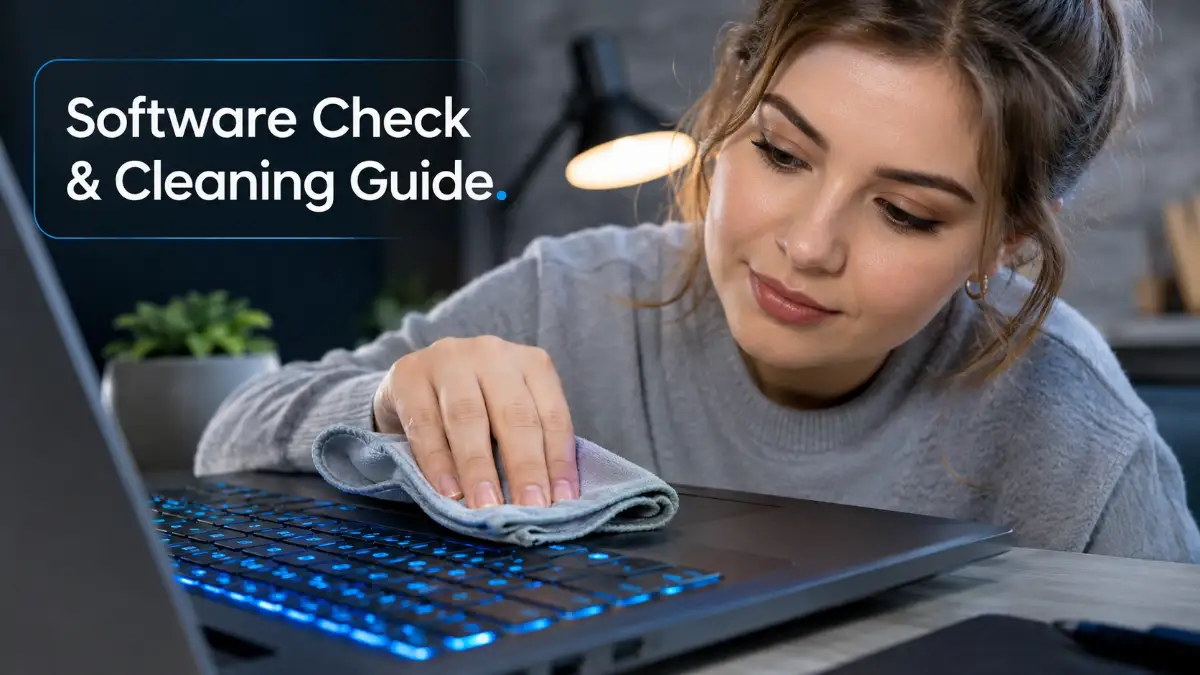
Laptops live busy lives. We eat over them, drink coffee near them, and carry them everywhere. Over time, dust, crumbs, and microscopic debris get trapped underneath the keys.
When dirt blocks the connection pad under a key, the computer cannot register your press. To fix this, you need a can of compressed air. Do not blow on the keyboard with your mouth, as human breath contains moisture that can damage electronics.
Turn your laptop off completely and unplug it from the charger. Hold the laptop gently upside down or at a sharp 75-degree angle. Spray the compressed air in short, controlled bursts across the keyboard.
Here is a mistake I learned the hard way: never try to blow dust out of your keys using your mouth! A few years back, I tried blowing away crumbs myself, only to trap tiny water droplets inside and ruin two keys for good. Now, I always keep a cheap can of compressed air near my desk because it safely cleans out hidden debris without risking any liquid damage.
Move from left to right, and then top to bottom. This specific angle forces the heavy crumbs to fall out naturally using gravity. After blowing out the dust, gently wipe the surface with a clean, dry microfiber cloth.
3. The Driver Refresh Method
If cleaning did not help, your software drivers might be corrupted. A driver is basically a translator between your physical keyboard and your operating system.
If that translator forgets how to speak, the keys become useless. To fix this, right-click on your Start menu and open the Device Manager. Scroll down until you see the section labeled "Keyboards" and click the little arrow to expand it.
You will likely see a device named "Standard PS/2 Keyboard" or something similar. Right-click on that name and select Uninstall Device. Do not worry, you are not deleting anything permanently.
Once you click uninstall, restart your laptop immediately. During the reboot process, your operating system will realize the driver is missing and automatically install a fresh, clean version. For many users, this single step brings the keyboard back to life instantly.
Want to see these exact steps in action? Watch this quick visual guide to see how easy it is to refresh your keyboard, then keep reading below for advanced tricks to save your machine!
Going Deeper: Next-Level Troubleshooting Tactics
If you have tried the basic steps and your keyboard is still acting stubborn, we need to bring out the advanced tools. Do not worry, these steps are still completely safe for you to do at home.
You do not need an engineering degree to perform these checks. You just need a bit of patience and a logical approach.
4. The External Connection Test
We need to know for sure if the motherboard is recognizing keyboard inputs. Grab a basic USB wired keyboard or a Bluetooth keyboard if you have one lying around.
Plug the external keyboard into an empty USB port on your laptop. Give it a few seconds to connect, and then try typing. If the external keyboard works perfectly, you have just gathered highly valuable information.
This test proves that your laptop's core system is working flawlessly. The issue is heavily isolated to the built-in laptop keyboard itself. If you have to pay for a professional repair later, this knowledge prevents technicians from overcharging you for motherboard repairs.
This kind of smart testing protects your budget. It is especially helpful if you are actively trying to say goodbye to credit card balances by avoiding unexpected tech expenses.
4. The BIOS Diagnostic Trick
This is a secret trick that IT professionals use all the time. Your operating system (like Windows or macOS) loads up after the laptop turns on. But there is a basic system underneath called the BIOS.
Restart your laptop and repeatedly press the BIOS key before the logo appears. For most machines, this is the F2, F12, or the Delete key.
Once you are in the BIOS menu, try using your arrow keys to navigate up and down. If the arrow keys work perfectly in this menu, your hardware is 100% fine. This means a recent software update or a nasty virus is blocking the keyboard in your main operating system.
If the keys do not work in the BIOS menu, you are definitely dealing with a physical hardware failure. The internal ribbon cable connecting the keyboard to the motherboard might be loose or damaged.

The Danger Zone: Major Troubleshooting Traps to Dodge
When tech stops working, people often panic and do things they later regret. Trying to force a quick fix can turn a small glitch into a massive disaster.
To protect your expensive machine, you must absolutely avoid these common blunders.
- Mistake 1: Ripping Off Keycaps Blindly: Laptop keys use delicate, tiny plastic clips called scissor switches. If you try to pull a key off with your fingernails or a butter knife, you will snap the plastic. Once the clip breaks, you cannot pop the key back on, and you will have to replace the whole board.
- Mistake 2: Spraying Liquid Cleaners Directly: Never spray water, glass cleaner, or rubbing alcohol directly onto the keys. The liquid will easily seep down into the electrical contacts and short-circuit the motherboard. Always spray a tiny amount onto a cloth first, then gently wipe.
- Mistake 3: Ignoring a Swollen Battery: If your trackpad or keyboard feels raised, stiff, or bulging, stop typing immediately. A failing lithium-ion battery can expand and push up against the keyboard from the inside. This is a severe fire hazard and needs professional removal right away.
- Mistake 4: Downloading Sketchy Driver Updaters: When searching for solutions, you might see ads for "Free Driver Updater" software. These are almost always scams or malware designed to steal your data. Always let your official operating system handle driver updates.
- Mistake 5: Rushing to Buy a New Laptop: A dead keyboard does not mean a dead laptop. Even if the built-in keyboard is completely ruined, you can still use the machine perfectly with an affordable wireless keyboard. Do not throw away a good computer over a single broken part.
Avoiding these traps saves you from unnecessary stress. It also ensures you do not waste your hard-earned money on fake solutions.
Your Next Steps to a Flawless Typing Experience
Dealing with a sudden tech failure is never fun. It disrupts your day, stresses you out, and forces you to pause your important work.
However, as we have explored today, a broken laptop keyboard is rarely the end of the world. By taking a deep breath and following a logical path, you can solve most of these issues right from your desk.
Start with a simple restart, give your machine a gentle cleaning, and refresh your system drivers. More often than not, these simple actions will have you typing away smoothly in no time.
If it turns out you do need a hardware replacement, treat it as a normal part of owning technology. Keep any repair receipts safe and well-documented. You should organize your financial documents like a pro so you can easily track your tech expenses for future tax deductions or warranties.
Stay calm, trust the troubleshooting process, and remember that every tech problem has a logical solution. You now have the exact knowledge and steps to take control of the situation. Happy typing, and do not let a small glitch slow down your incredible progress!
Whenever my tech glitches now, I take a deep breath and work through the problem step by step. Give these simple tricks a try today, and you will get your typing speed back without spending a single dollar at a repair shop. You have totally got this!
Disclaimer: The troubleshooting steps provided in "What to Do When Your Laptop Keyboard Stops Working Suddenly (Easy Fixes)" are for informational and educational purposes only. While these basic methods are safe for general maintenance, always handle your electronic devices carefully. If your computer is still under warranty or shows severe physical damage, please consult a certified repair professional or your device manufacturer.