
The Heavy Weight of Digital Clutter
You wake up, grab your phone, and open your mail app.
A tiny red bubble stares back at you. It says you've got 3,412 unread messages.
Your heart sinks a little bit.
Before you've even had your first sip of coffee, you're already behind on your day.
Every single notification feels like a tiny demand on your attention, pulling you away from the actual work you need to do. We spend hours sorting through marketing blasts, CC'd threads, and passive-aggressive follow-ups.
It's exhausting.
Most people just accept this as a normal part of being a professional. They let the unread count grow until they eventually declare "email bankruptcy" and hit delete on everything.
But there's a much better way to handle this mess.
You don't need to manually read and sort every single message. You just need a proper system to do the heavy lifting for you.
When you set up a smart zero inbox strategy, the software does the sorting before you even log in.
It's that simple.
The Zero Inbox Quick Summary
If you're short on time, here's a rapid breakdown of what we're building today:
- Stop using your inbox as a to-do list.
- Archive old messages ruthlessly.
- Set up automated filters for newsletters and receipts.
- Touch every new message exactly one time.
- Batch process your responses instead of reacting instantly.
- Reclaim those lost hours for deep, focused work.
The Great Purge: Resetting the Baseline
Here's the truth about getting to a clean slate.
You can't organize thousands of old messages one by one. If you try, you'll give up after twenty minutes.
We need to clear the board entirely.
Think about your physical mailbox at home. If it gets stuffed with weeks of junk mail, bills, and flyers, you don't carefully file every single coupon into a cabinet.
You toss the junk and keep the essentials.
We apply the exact same logic here. The first major step is what I like to call "The Great Purge."
Don't panic. We aren't deleting anything permanently.
Instead, we're going to use the power of the Archive button. Archiving simply moves a message out of your main view while keeping it fully searchable.
If an email is older than thirty days, you don't need it in front of your face right now.
Select everything older than a month and hit Archive.
Boom. Gone.
If you ever need to find that old invoice or client request, you can just use the search bar. Modern search functions are incredibly powerful. They make complex folder structures completely obsolete.
This single action immediately removes the visual anxiety of a cluttered screen.
You're left with only recent, relevant conversations.
Manual Chaos vs. Automated Calm
Once the backlog is cleared, we have to stop the flood from happening again.
If we don't build a dam, the water will just rush right back in. This is where most people fail. They clean things out, feel great for two days, and then let the mess rebuild.
Let's look at how normal people handle incoming messages versus how a highly optimized system handles them.
Notice the difference?
The old way requires constant human energy. The new way relies on cold, hard rules.
Building Your First Line of Defense
Now we get to the fun part.
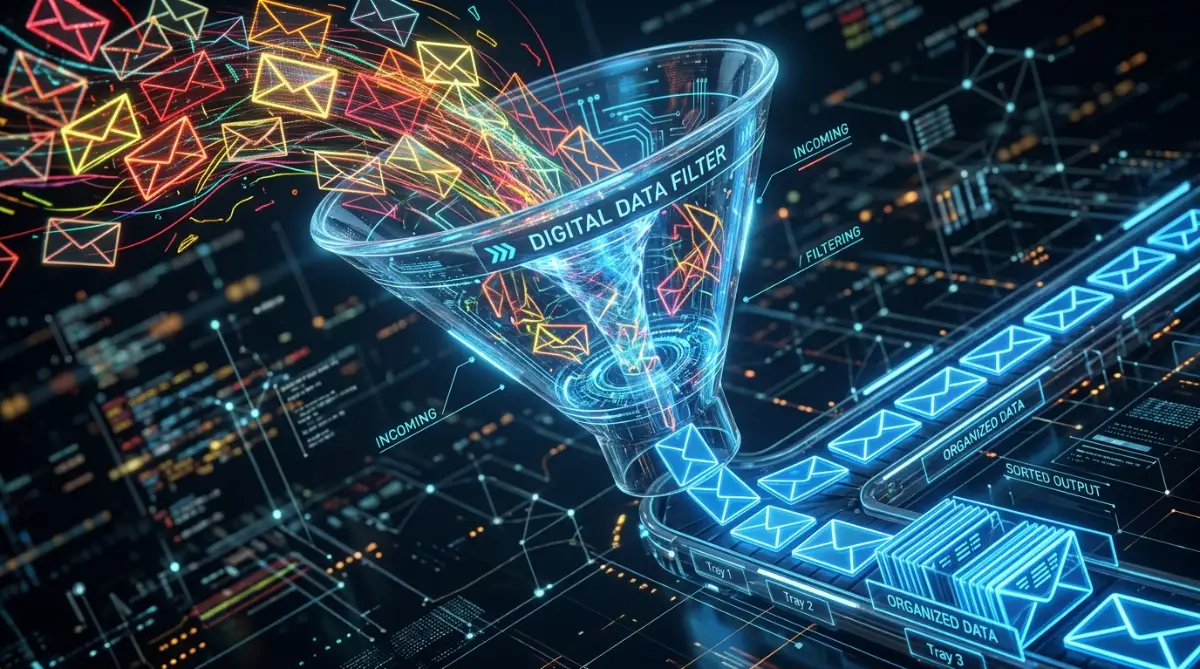
We're going to set up automated filters. Filters are just basic instructions you give to your software.
You tell it: "When X happens, do Y."
Think of filters as your personal digital bouncer. They stand at the door and decide who gets VIP access to your attention and who gets sent to the waiting room.
The biggest offenders in your inbox right now are probably promotional emails and newsletters. You signed up for them, you might even want to read them, but they don't belong in your main workspace.
Here is exactly how you handle them.
You create a rule that looks for the word "Unsubscribe" in the body of the text. Almost every single automated blast has this word at the bottom by law.
When your software sees that word, it should automatically apply a label called "Newsletters" and skip the main view entirely.
It happens instantly.
You'll never see those marketing blasts interrupt your important client conversations again.
Pro Tip: Set aside thirty minutes on Friday afternoons to casually browse your "Newsletters" folder. It turns annoying interruptions into a relaxing weekend reading session.
Managing Financial Receipts Automatically
Let's tackle another huge source of clutter.
Every time you buy a software subscription, order lunch, or pay a utility bill, you get a digital receipt.
These are important for your taxes or company expenses, so we can't delete them. But they clog up your daily view and cause unnecessary friction.
We can automate this process in seconds.
Find a receipt from a service you use often, like your phone carrier or your lunch delivery app.
Create a filter based on that specific sender address.
Tell the system to automatically apply a "Receipts" label and archive it immediately.
When tax season rolls around, you won't have to spend hours digging through a year of random conversations. You just click your specific label, and everything is sitting there perfectly organized.
It's a massive relief.
You've just saved your future self a massive headache.
If you want a visual walkthrough of setting up these specific rules, check out this quick tutorial on filter mechanics.
The "Touch It Once" Philosophy
Filters handle the robots, but you still have to deal with real human beings.
Your clients, your boss, and your team members will still send you messages that require actual thought.
This brings us to the core behavioral change you need to adopt. It's called the "Touch It Once" rule.
When you open a message, you must make a decision about it right then and there.
Most people open a message, read it, feel slightly overwhelmed, and leave it sitting there to handle later.
That is a trap.
When you do that, you end up re-reading the exact same message five different times throughout the week. You're wasting precious mental energy on a loop.
Stop doing that.
When you click on a conversation, you have three options.
First, if it takes less than two minutes to answer, just reply immediately and archive it.
Second, if it requires deeper work or research, add it to your actual task manager and archive the email.
Third, if it's just information you need to know but doesn't require a reply, read it and archive it.
Notice a pattern?
Every single path ends with the message leaving your main view. Your inbox is a sorting facility, not a permanent storage unit.
Once you adopt this habit, the fear of opening your app completely vanishes.
You're no longer reacting to a chaotic mess. You're simply processing incoming data and moving on with your life.
Platform-Specific Automation Playbooks
Every app works differently.
You can't apply a generic strategy and expect perfect results across the board. The buttons are different, the rules behave differently, and the built-in tools vary wildly.
Here's exactly how to force your specific provider to do the heavy lifting for you.
Mastering Gmail Workflows
If you're using Google's ecosystem, you have access to the most powerful search operators on the market.
Stop clicking through pages to find old messages.
Instead, go to the search bar and type older_than:30d. Hit enter. You'll instantly see every single conversation older than a month. Select all, and archive them in one massive sweep.
You can also use the "Multiple Inboxes" setting.
This lets you create a split screen. One side shows unread messages from actual humans, and the other side shows your automated "Read Later" labels.
It keeps the noise completely separated from your actual work.
Microsoft Outlook "Sweep" Tactics
Corporate professionals usually live in Outlook.
Your secret weapon here is the "Sweep" function. It's incredibly aggressive and saves massive amounts of time.
Select a promotional message from a sender who emails you way too much. Click "Sweep" in the top menu.
You can tell Outlook to automatically delete all incoming messages from that sender, or automatically move anything older than ten days into the archive.
Set it once, and the software handles it forever.
You should also set up "Quick Steps." These are custom keyboard shortcuts that combine multiple actions.
You can create a Quick Step that replies "Got it, thanks!", marks the conversation as read, and moves it to the archive, all with a single click.
Apple Mail iOS Gestures
For Mac and iPhone users, the focus is on speed and visibility.
Apple Mail's strongest feature is the "VIP" list. You can mark specific clients, family members, or your boss as a VIP.
Then, you change your smartphone notification settings so that only VIP messages actually buzz your phone.
Everything else quietly waits for you to check the app manually.
You also need to customize your swipe gestures on iOS. Go to your settings and change the right-swipe action to "Archive."
Now, when you're waiting in line for coffee, you can clear out twenty messages in five seconds just by swiping your thumb.

The "Damage Control" Auto-Responder
Sometimes, life happens.
You get sick, you take a vacation, or you're stuck in a massive project sprint for three days. You open your app and see four hundred unread messages.
Don't panic and try to answer them all.
You need to reset expectations immediately. If you try to power through, you'll burn out and make careless mistakes. A recent University of California, Irvine workplace study found that constant context switching destroys your focus for up to twenty-three minutes at a time.
Instead, send a massive batch reply or set up a temporary auto-responder.
Here's a highly effective, professional template you can steal right now to buy yourself some breathing room.
Subject: Catching up on emails (Delayed response)
Hi everyone,
I've recently returned from time away and I'm currently sorting through a heavy backlog of messages.
If your request is highly urgent and needs my attention today, please reply to this email with "URGENT" in the subject line. Otherwise, please expect a slight delay as I work through my inbox.
Thanks for your patience!
It's polite. It sets boundaries.
More importantly, it puts the responsibility back on the sender to tell you if something is actually on fire.
Most things aren't.
Do's and Don'ts of Digital Cleanliness
To keep your system running smoothly, you need to follow a few hard rules.
Here is a quick breakdown of what works and what completely fails.
The Hidden Traps Sabotaging Your Efforts
People love to overcomplicate things.
When they try to organize their digital life, they often build systems that require too much manual maintenance.
The most common trap is the "folder hierarchy" delusion. You create a folder for Client A, a sub-folder for 2023 Projects, and a sub-sub-folder for Invoices.
This is a terrible idea.
Every time you process a message, you have to click four times just to file it away. That mental friction guarantees you'll eventually stop doing it. Just use the general Archive and rely on the search bar.
Another massive trap is using your inbox as a task manager.
Leaving a message unread because it contains a task is dangerous. It pushes the message down the list as new mail arrives, and you will absolutely forget about it.
Always extract the task.
Write it down in your actual planner or project management software, and then archive the original message. Keeping unread messages creates visual stress, and according to the American Psychological Association, chronic digital stress severely impacts sleep and cognitive function.
Security is another factor people ignore when hoarding old messages.
When you keep thousands of random links and attachments sitting in your main view, you increase your risk of clicking something malicious. If you aren't paying attention, missing overlooked phishing signs becomes much easier when you're overwhelmed by sheer volume.
The Cybersecurity and Infrastructure Security Agency consistently warns that cluttered, unmanaged accounts are prime targets for credential theft.
Archive heavily. Keep your active workspace clean.
If you also struggle with digital hoarding on your phone, you might want to take five minutes to clear cache and free up space there as well. A clean environment builds momentum.
And remember, archiving isn't deleting.
If you're terrified of losing a specific attachment, download it to a secure drive. Just make sure you back up that drive, because sudden cloud data loss is a very real headache you don't want to deal with later.
Your Next 15 Minutes
Don't just read this and move on.
Open your mail app right now, select everything older than thirty days, and hit the archive button. You'll instantly feel a massive weight lift off your shoulders, and you'll be ready to start fresh tomorrow.
Frequently Asked Questions About Email Automation
What if I accidentally archive an important email?
Archived messages are never deleted. They simply move out of your primary view and sit safely in your "All Mail" or "Archive" folder. You can always find them again instantly by typing the sender's name or a keyword into the main search bar.
How often should I check my inbox during the day?
Turn off your desktop and phone notifications entirely. Instead, intentionally open your app two or three times a day for dedicated twenty-minute processing blocks. This stops constant interruptions and allows you to actually focus on deep work.
Does this strategy work for personal accounts too?
Absolutely. Personal accounts are usually even worse because they are flooded with shopping discounts, social media alerts, and random newsletters. Setting up automated filters for the word "unsubscribe" wil