The Hidden Threat Inside Your Computer
Have you ever noticed your super-fast computer slowly turning into a sluggish machine over the months? I used to think it was just normal wear and tear. But it turns out, the way we use our computers daily is quietly killing our storage drives. Let me show you exactly what is draining your SSD's life and how I fixed my own laptop before it was too late.
But beneath that smooth performance, a silent countdown is happening right inside your machine.
In the older days of computing, traditional hard drives gave you clear warning signs before they failed. You would hear loud clicking noises, strange grinding sounds, or notice a sudden, massive drop in reading speed. It gave you enough time to back up your family photos and important work documents.
Solid state drives operate completely differently. They have no moving parts, which makes them incredibly fast and silent. But that silence is exactly what makes them dangerous when things go wrong. When they fail, they usually do so without a single sound or warning message. One morning, the computer simply refuses to recognize the drive, and your data is trapped.
Many people unknowingly speed up this exact failure process through everyday habits. You might be making small, seemingly harmless choices that force your storage hardware to work twice as hard as it needs to.
Let us break down exactly what is happening inside your hardware and how you can stop the invisible damage.
📌 What You Will Learn Today
- Why keeping your SSD at 100% capacity silently destroys its lifespan.
- The exact reason you should never use old defragmentation tools on modern flash memory.
- How hidden background tasks and heavy browser tabs secretly write gigabytes of data daily.
- Quick, actionable ways to lower your hardware temperatures and stop sudden lag.

Core Maintenance: Protecting Your Flash Memory
Every solid state drive comes from the factory with a specific expiration limit built into its technology. Manufacturers measure this limit in something called Terabytes Written, or TBW.
This metric represents the total amount of data you can write, erase, and rewrite to the drive before the memory cells begin to physically degrade. Think of a memory cell like a sheet of paper. You can write on it with a pencil and erase it many times. Eventually, the paper becomes thin and tears.
Your goal is to avoid wasting your precious erase cycles on background tasks and poor storage management.
Mistake 1: Filling Your Storage to Maximum Capacity
This is perhaps the most common error computer users make. You buy a drive with 500 gigabytes of space, and naturally, you want to use every single megabyte you paid for.
However, running your storage drive at full capacity forces the hardware into a highly stressful state. Solid state drives rely on a background process called wear leveling. Because each memory cell can only be written to a limited number of times, the drive constantly moves your data around behind the scenes. This ensures that all cells wear out evenly, rather than letting one section burn out completely.
When your drive is 95% full, the internal controller has almost no empty space to shuffle this data around.
The drive suddenly has to work incredibly hard to find tiny, scattered blocks of free space just to save a simple text file. This causes a serious issue known in the tech industry as write amplification. To save one small file, the drive might have to erase and rewrite multiple blocks of surrounding data, wasting a huge portion of your TBW limit.
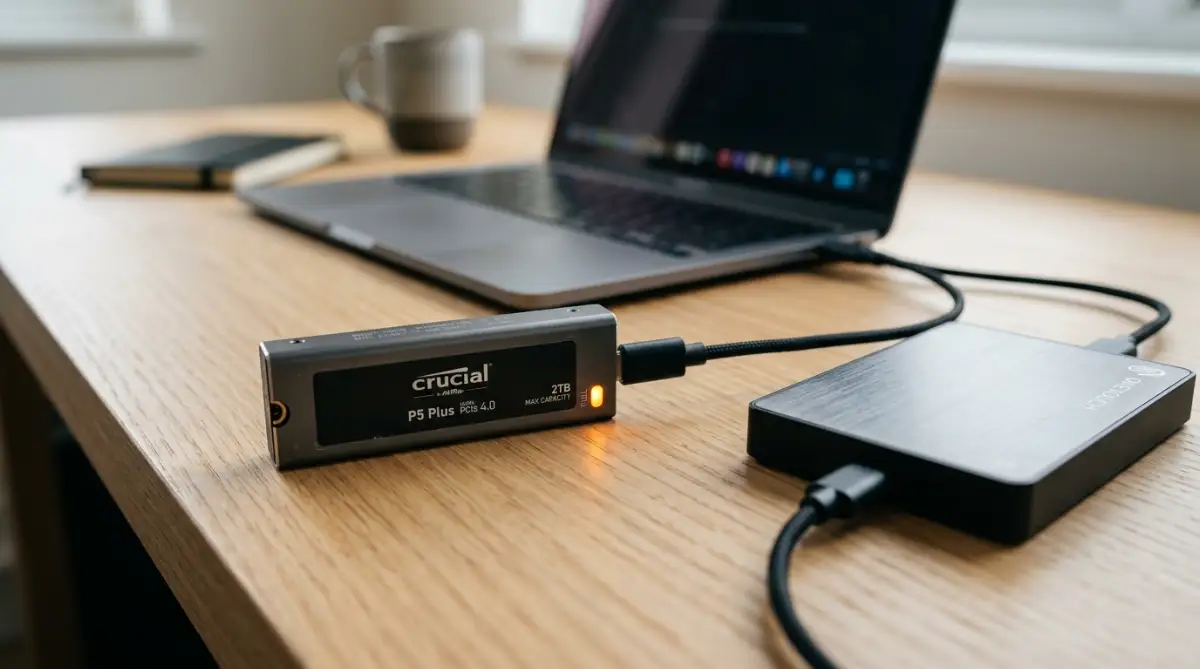
To keep your system running smoothly, you should always leave a portion of your storage completely empty. If you are a heavy user, consider keeping larger files like movies or old backups on an external drive.
Mistake 2: Leaving Legacy Defragmentation Tools Active
Many users still carry this habit today, completely unaware that it actively damages modern storage technology.
Solid state drives do not have a mechanical reading arm. They access data electronically, meaning it takes the exact same amount of time to read a file whether it is stored in one neat block or scattered across fifty different memory cells. Defragmenting does absolutely nothing to improve your speed.
Instead, defragmentation forces your computer to pick up massive amounts of data, erase the old locations, and rewrite everything into new, organized blocks. You are burning through your hardware lifespan for zero performance gain.
Why forcing a manual disk defragmentation destroys your flash memory:
Modern operating systems are generally smart enough to recognize your hardware type. Instead of a harmful defrag, Windows uses a command called TRIM. TRIM simply tells the drive to wipe completely deleted files in the background, keeping the drive fast and healthy.
The Pro Tip: When configuring a new operating system, hardware experts recommend verifying that the automatic disk optimization tool is set strictly to run a TRIM command rather than a full defragmentation pass. Manually disabling defragmentation prevents thousands of unnecessary erase cycles over the life of the machine.

Mistake 3: Ignoring High-Volume Background Writes
You might think your storage drive only works when you are actively saving a file or installing a new game. In reality, your computer is constantly writing data to your drive in the background, even when you step away for a cup of coffee.
One major culprit is system memory management. Your computer uses Random Access Memory (RAM) to handle active tasks like having thirty browser tabs open. If you only have a small amount of RAM, your system quickly runs out of active memory.
To keep from crashing, the computer takes the data from your older, unused browser tabs and secretly writes it directly to your solid state drive. This process uses a hidden system file called a page file.
When you click back to an old tab, the computer reads it from the drive and writes a different tab to the storage. This constant swapping can write gigabytes of hidden data to your drive every single day, slowly eating away at your health limit.
Another hidden drain is the Windows hibernation feature. When you put your computer into hibernation, it takes everything currently active in your RAM and writes it into a massive file on your drive before powering down. If you have 16 gigabytes of RAM, hibernating your PC writes up to 16 gigabytes of data to your storage every single time you close your laptop lid.
If you use your computer at a desk and rarely need to save battery for long periods, simply using the standard "Sleep" function is much better. Sleep keeps the data in your RAM and puts the computer in a low-power state, completely saving your storage drive from unnecessary wear.
Here is a quick breakdown of the most common storage myths I hear from people every single day:
Step 4: Mastering Thermal Management and Hardware Stress
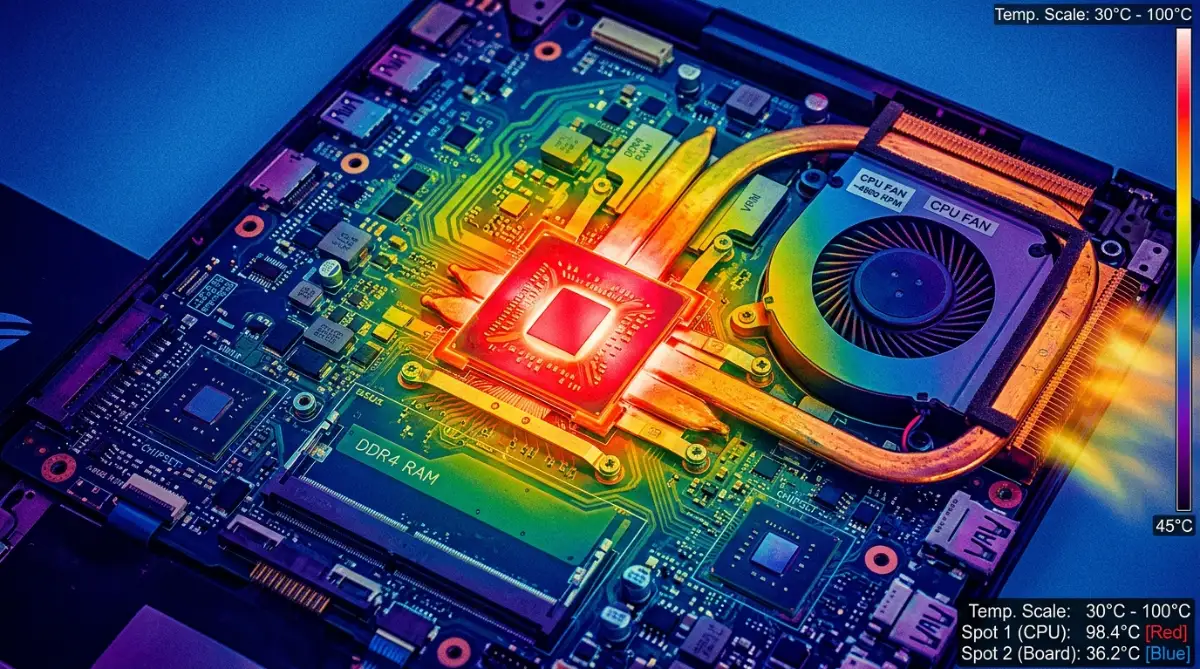
Heat is the absolute worst enemy of any electronic device. When your system runs at maximum capacity, the internal components generate a massive amount of heat. If this heat cannot escape, the processor forces itself to slow down to prevent physical damage. This automatic safety feature is called thermal throttling. You might notice your system suddenly freezing or lagging during heavy tasks. This happens because the internal temperature has reached a dangerous limit.
To fix this long-term, you need to understand how airflow works in modern electronics. Most people place their devices on soft surfaces like beds or couches. These materials block the intake vents entirely. Instead, always use a hard, flat surface. For desktop systems, keep the computer tower at least six inches away from the wall.
You also need to monitor what runs in the background. Software directly impacts hardware temperature. If ten different applications run silently, the processor never gets a chance to rest. You can easily spot these hidden power drains by checking your system monitor. If you notice your fans spinning loudly even when you are just reading an article, you have a software issue forcing the hardware to overwork. For a deeper breakdown of this specific issue, you can check our guide on how to diagnose and fix overheating issues in high performance laptops.
Do's vs. Don'ts: Thermal Management
Do: Keep your device on a hard, solid desk.
Do: Clean the exhaust vents every three months using a soft brush.
Don't: Run heavy applications while resting the device on your lap or a blanket.
Don't: Ignore a cooling fan that suddenly starts making grinding or clicking noises.
Step 5: Advanced Software Diagnostic Methods
Think of the event log like a medical chart. It tells you exactly what failed and when. If your system randomly restarts, the log will show if it was a memory failure, a power loss, or a driver crashing. Many people simply reinstall the entire operating system when things get tough. That is a massive waste of time. Instead, learn to read the basic error codes.
Network issues are another massive headache. People often blame their internet service provider when the actual problem sits inside the device's wireless card. Wireless signals suffer from invisible interference caused by microwaves, Bluetooth devices, and even thick walls. The Federal Communications Commission (FCC) provides excellent public resources explaining exactly how household appliances disrupt wireless frequencies. If your connection keeps timing out, you should read our specific troubleshooting steps on why your laptop wi-fi keeps dropping connection and how to fix it.
The Most Expensive Mistakes People Make (And How to Skip Them)
People often destroy their own devices while trying to fix them. A little bit of wrong information can cause hundreds of dollars in damage. Let us look at the most common hidden traps that catch ordinary users off guard.
The biggest mistake happens during cleaning. Many users buy a can of compressed air to clean out dust. They point the nozzle directly at the cooling fan and blast it. The strong air forces the fan to spin at incredibly high speeds. Because a fan is essentially an electric motor, spinning it manually generates an electrical current. This current travels backward into the motherboard and instantly fries delicate power components. Always hold the fan blades completely still with a plastic toothpick before you blow air into the system.
Another massive trap is poor battery management. Many users leave their devices plugged into the wall 24 hours a day. Lithium-ion batteries degrade heavily when held at 100% charge for weeks at a time. The chemical cells experience high stress. Eventually, the battery loses its capacity, or worse, begins to swell up like a balloon. To avoid replacing your power cells every year, read the exact methods to stop ruining your laptop battery proven steps for maximum life.
Finally, never buy cheap replacement chargers from unknown online sellers. A proper charger contains complex circuitry that communicates with your device to deliver the exact voltage needed. Cheap chargers skip these safety chips to save money. They can easily send a massive power spike directly into your machine, causing a permanent short circuit. The Consumer Product Safety Commission (CPSC) frequently issues warnings about unregulated electrical accessories causing residential fires and permanent hardware death. Always buy certified power adapters.
Your Immediate Action Plan
Right now, open your task manager or activity monitor and completely disable three background applications you do not need. Next, flip your device over and use a simple flashlight to inspect the main exhaust vents for dust buildup. Taking these two simple steps today will instantly lower your system temperature and give your processor room to breathe.
Frequently Asked Questions About System Longevity
Why does my device shut down randomly without any warning?
Sudden shutdowns usually happen because the processor reaches its absolute maximum temperature limit. The system kills the power instantly to prevent the silicon chips from melting or catching fire. Cleaning the internal fans and applying fresh thermal paste usually solves this entirely.
Does leaving my device plugged in all the time ruin the battery?
Yes, keeping a lithium-ion battery at maximum charge creates high chemical stress inside the cells. Over time, this drastically reduces how much power the battery can hold. You should try to keep the charge between 20% and 80% for maximum lifespan.
How often should I perform deep maintenance on my system?
You should blow out the dust and clean the external vents every three to four months. For internal maintenance like reinstalling the operating system or replacing thermal paste, doing it once every two years keeps everything running like brand new.
Why does my screen sometimes show a faint outline of a previous app?
This is known as image retention or burn-in, which happens when a static image stays on the screen for too long. Lowering your brightness and setting a screen timeout usually stops this from becoming permanent.
Disclaimer: The information provided in this article is for educational and general troubleshooting purposes only. Attempting advanced hardware repairs can void your manufacturer warranty. Always consult with a certified technician or professional repair service before opening your device or altering sensitive electrical components.