
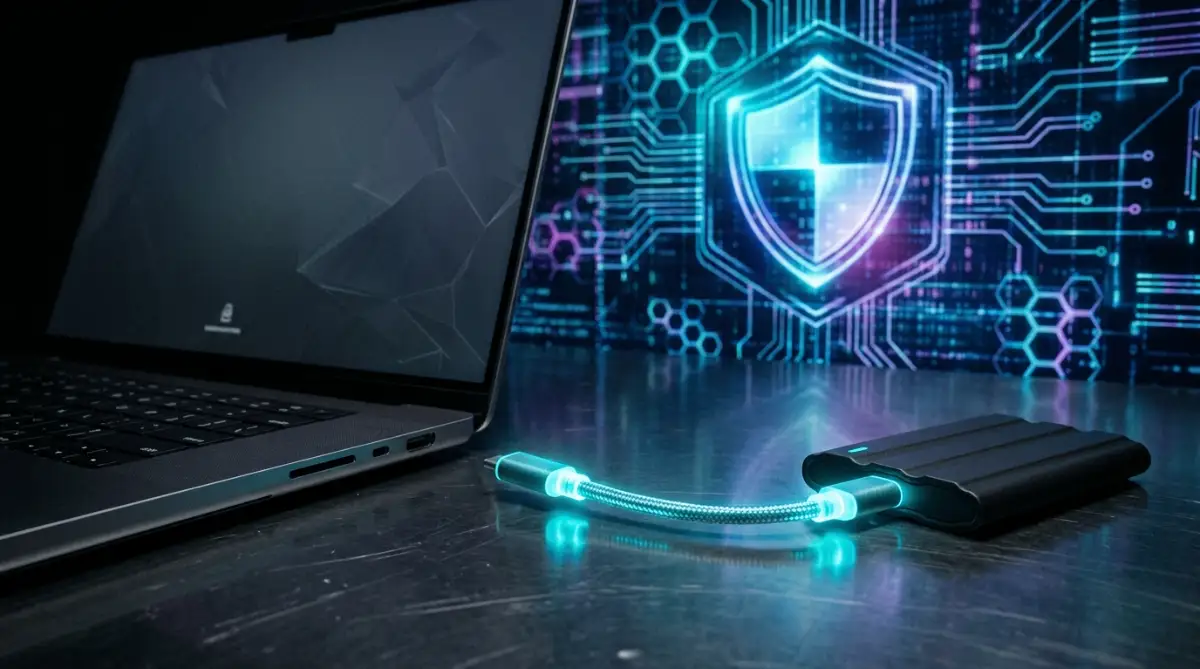
Why Most People Lose Everything When Ransomware Strikes
Picture this ordinary Tuesday morning. You grab your coffee, sit at your desk, and double-click your project folder. Suddenly, a cold sweat hits your chest.
Your screen fills with a harsh red warning text. Every single file extension has changed to a gibberish string of letters. Your irreplaceable family photos, tax records, and client contracts are locked tight behind an unbreakable digital vault.
The hackers want a ransom paid in crypto, and they want it by midnight.
Here’s the terrifying truth. If your backup drive stays plugged into your computer all day long, the malware won't just encrypt your main drive. It will hunt down your connected backup partition, crawl through the file paths, and destroy your safety net too.
Most folks think plugging in an external drive means they're safe. They aren't.
The Offline Backup Routine Quick Summary
- The Core Threat: Modern ransomware doesn't just target your operating system; it actively seeks out and corrupts any permanently connected storage device.
- The Golden Rule: If a drive isn't physically unplugged from your machine, it's not a true backup—it's just a second copy waiting to be destroyed.
- The Solution: We'll build an automated, air-gapped offline backup routine that keeps your data locked away safely out of a hacker's reach.

The Flawed Logic of "Always-Connected" Backups
Think about how you usually back up your computer. You probably bought a sleek two-terabyte external hard drive, plugged it into a USB port behind your tower, and left it there.
It’s convenient, right? You don't have to think about it. The system software copies your new files quietly in the background every single night.
Except, convenience is a hacker's best friend.
When a rogue script infiltrates your system through a sketchy download or an unpatched browser flaw, it doesn't rush. It spends days quietly mapping your system. It finds your local drives, your network shares, and yes, that permanently attached USB backup drive sitting right there on your desk.
When the trigger date arrives, the malware executes across every mounted volume simultaneously. Your live files vanish, and your backup files vanish right alongside them.
You're left with zero leverage.
Pro Tip: Never trust a backup drive that shares a continuous physical connection with your operating system. If electricity flows through the cable, ransomware can cross that bridge.
Understanding the Air-Gapped Advantage
Let's talk about the only wall that actually works against modern cyber extortionists. It's called an air gap.
Don't let the fancy tech term scare you. It simply means physical separation.
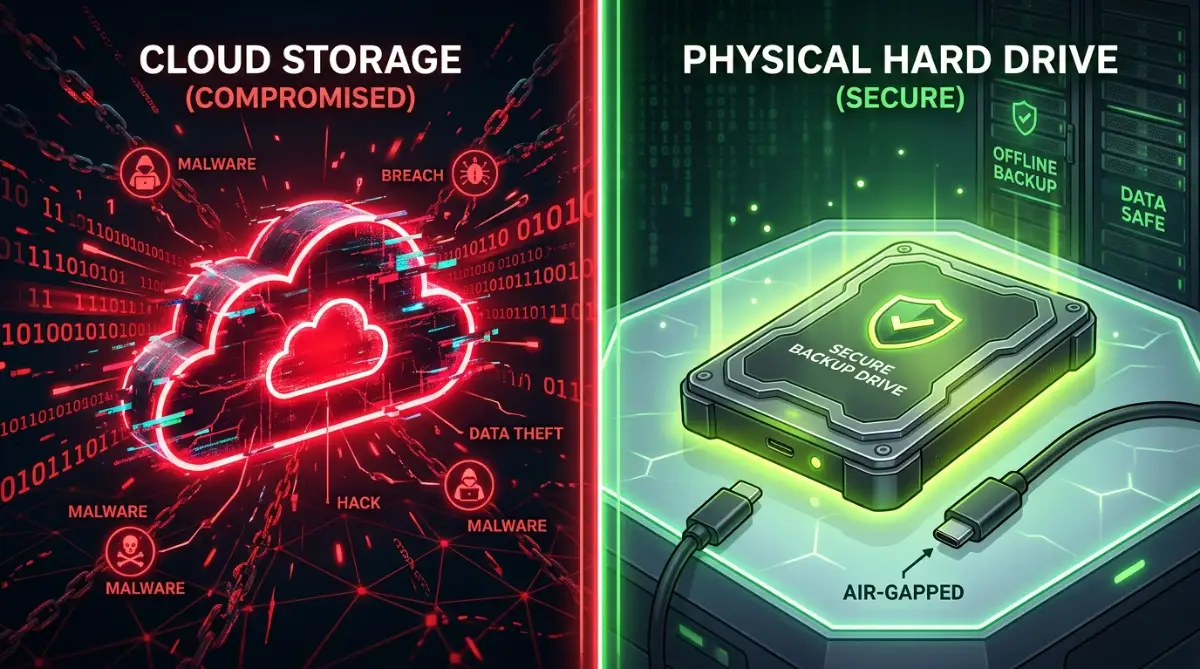
An air-gapped system or storage drive has zero physical, wireless, or network connection to the internet or your main computer when it's not actively writing data. If a hacker doesn't have physical access to your office to plug a cable into a disconnected drive sitting in your desk drawer, they can't encrypt it.
It's that simple.
We need to shift our mindset from passive, lazy backups to an active, disciplined routine. You wouldn't leave your front door wide open while you're on vacation just because it's convenient to walk back inside, would you?
Applying that same logic to your hard drive changes everything.
Designing Your Bulletproof 3-2-1 Offline Routine
To build a fortress around your digital life, we'll lean on a modified version of the golden industry standard. We call it the 3-2-1 strategy, but with a heavy emphasis on the "offline" part.
You need three total copies of your data. You want those copies spread across two different types of media. And critically, at least one copy must stay completely offline.
Most people mess up the third rule. They keep their third copy in a live cloud folder that syncs instantly. If ransomware infects your local files, that infection syncs straight to the cloud in real-time, overwriting your clean cloud history before you even notice.
Here is how you fix that workflow starting today.
You keep your primary working files on your computer. You keep a secondary local archive on a network-attached storage or local secondary drive for quick recovery from hardware failures.
Then, you introduce the star of the show: the offline rotation drive.
This drive lives in a drawer. You pull it out once a week, plug it in, run your sync tool, verify the transfer, and physically yank the cable out.
Watch this quick visual breakdown on how to safely handle physical media isolation without corrupting your file structures:
Now that you grasp why staying permanently plugged in spells disaster, let's look at how to structure your weekly schedule so this routine feels like second nature instead of an annoying chore.
Executing the Air-Gapped Copy on Windows and Mac
Now that you've got your physical drive ready, let's look at how to run the backup safely.
Windows users can rely on built-in tools like File History, but you shouldn't leave the destination folder mapped as a permanent drive letter. Map it only during the sync window, then unmount it immediately.
Mac users have Time Machine, which works brilliantly. Yet, leaving your Time Machine drive plugged in 24/7 ruins the whole point of our setup.
Here's a better routine. Set a calendar reminder every Sunday night. Plug in your external drive, let Time Machine or your preferred Windows cloning utility finish its job, and then manually drag the external drive icon to the trash bin or safely eject it.
Disconnect the USB cable and put the drive inside a desk drawer.
If your computer suddenly acts weird or shows overlooked phishing signs during the week, your weekly offline archive remains safe and untouched.
Platform-Specific Playbooks for Total System Resilience
Different operating systems require different tactics to keep malicious scripts from jumping onto your backup volumes.
If you're running Windows, disable AutoRun and AutoPlay completely via your system settings. Ransomware often exploits these features to execute background payloads the second an external storage device mounts.
For macOS users, encrypt your backup volume using native disk utility settings with a strong password stored offline on a physical piece of paper. If an attacker manages to compromise your primary machine, they can't read your physical backup files without that encryption key.
If you manage cloud backups alongside your physical routine to prevent sudden cloud data loss, make sure your cloud provider keeps version history enabled for at least thirty days. This allows you to roll back infected files before they overwrite your clean history.
OS Deep Clean and Ransomware Prevention Checklist
Before you run your next offline backup, you want to make sure you aren't backing up active malware payload files.
Run this quick manual checklist before plugging in your external drive:
- Open your task manager or activity monitor and check for unknown background processes eating up unusual amounts of CPU power.
- Clear out temporary browser files and local cache folders where malicious scripts love to hide.
- Ensure your operating system security patches are fully updated, addressing vulnerabilities reported by agencies like CISA.
- Verify that your primary antivirus definitions are completely up-to-date.
- Run a full system offline scan before connecting your physical backup hardware.
Costly Pitfalls and Critical Traps to Avoid
People love taking shortcuts when it comes to data protection, and those shortcuts usually end in total data disaster.
One common trap is assuming RAID arrays protect you from ransomware. They don't. RAID arrays protect against hardware failure, not file encryption.
If malware hits your primary drive, a RAID setup mirrors those newly encrypted, garbage files across your secondary drives in milliseconds. You haven't backed anything up; you've just accelerated the damage.
Another dangerous myth is that you don't need offline backups if you use enterprise cloud storage. While cloud providers offer decent security, account credential stuffing attacks can give hackers full access to delete your cloud recycling bin and your live files at the same time.
You need an absolute physical break in the data chain.
Your Immediate Next Step
Stop reading right now, grab an old external hard drive you aren't using, and copy your most precious family photos and financial documents onto it manually.
Unplug the cable the second the transfer finishes, and walk over to place that drive in a drawer across the room. You've just beaten the primary attack vector used by modern cybercriminals.
High-Converting FAQ Section
### How often should I update my offline backup?
Aim for a weekly sync routine if you create new files daily. If your data doesn't change often, a monthly routine works fine as long as you update it immediately after major life events or tax filings.
### Can ransomware jump from my computer to a disconnected USB drive?
No. If the drive has no physical cable connection, no electrical current, and no wireless link to your machine, malware cannot travel across empty air to infect it.
### Do I need expensive software to run an offline backup routine?
Not at all. Native tools like Windows Backup, File History, or Mac Time Machine work perfectly fine as long as you pract