
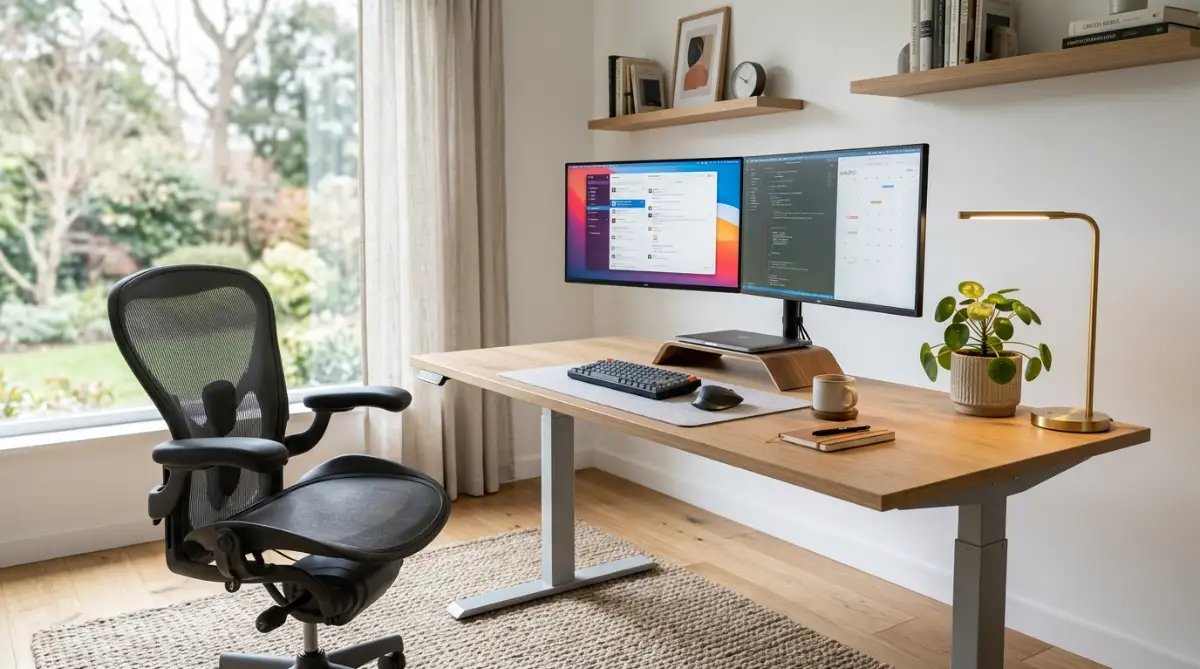
Why Your Work-From-Home Desk is Secretly Ruining Your Back
Your lower back aches right now, doesn't it?
Maybe it's that subtle pinch in your neck when you turn your head to check your phone. Or perhaps it's that dull, annoying throb in your shoulders after a long afternoon of video calls.
Most remote workers just brush this off as normal fatigue. It isn't.
You're probably hunching over a laptop at a kitchen island right now. Or maybe you're sinking into a soft couch that offers absolutely zero lumbar support. We convince ourselves that working from home means we can work from anywhere.
That mindset is a direct ticket to chronic pain.
Your workspace shouldn't physically hurt you. Period. Setting up an ergonomic home office isn't just about buying incredibly expensive gear or copying flashy setups from social media. It's about geometry.
It's about aligning your body properly so your muscles don't have to work overtime just to keep you upright.
When your desk setup forces your body into unnatural angles, your muscles tense up to compensate. You hold that tension for eight hours a day, five days a week. Eventually, your body screams for help through stiffness, headaches, and nerve pain.
Let's fix that right now. We're going to rebuild your workspace from the ground up.
The Ergonomic Workspace Quick Summary
- Keep monitors at true eye level: The top third of your screen should align perfectly with your natural, resting gaze.
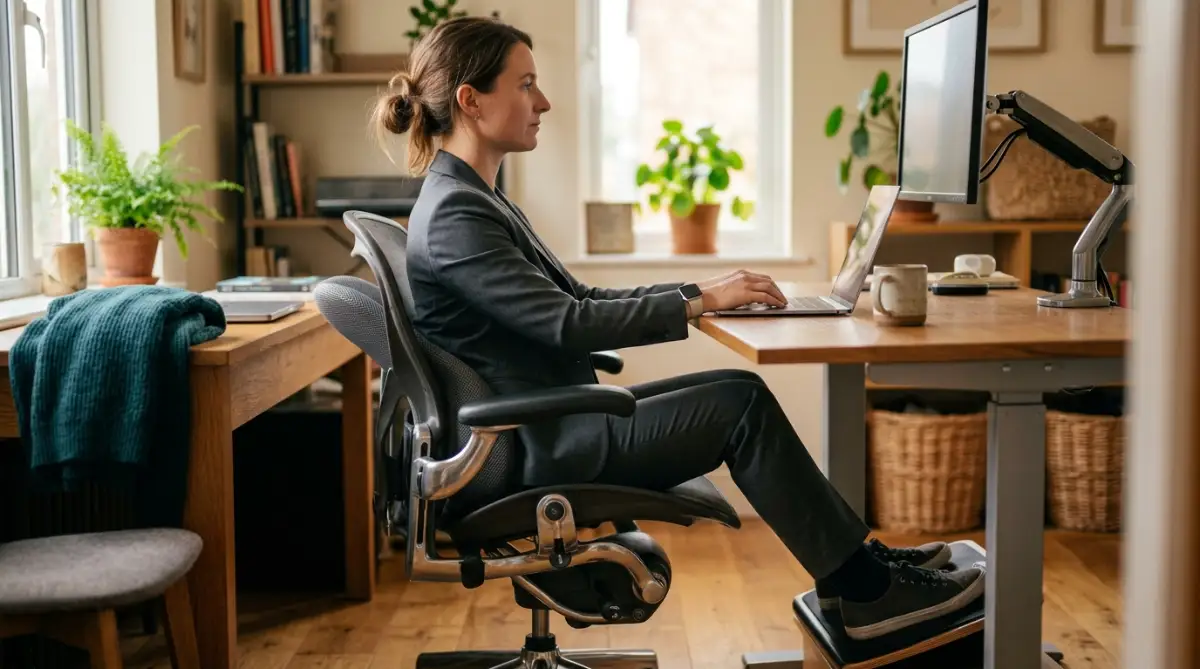
- Respect the 90-degree rule: Your elbows, hips, and knees should all rest at roughly 90-degree angles while working.
- Plant your feet flat: Never let your legs dangle. Use a sturdy footrest if your desk is too high for you.
- Lumbar support is non-negotiable: Your chair must support the inward curve of your lower spine to prevent disc compression.
- Separate your inputs: Always use an external keyboard and mouse if you rely on a laptop for daily tasks.
The Ground Floor: Fixing Your Seating Geometry
We spend about a third of our lives sitting down.
Yet, most of us give way more thought to the mattress we sleep on than the chair we sit in for eight long hours a day. Think about it. We sit on hard dining chairs, stiff stools, or soft recliners, expecting our bodies to just adapt.
When you sit on a regular, flat dining chair, your pelvis naturally tilts backward.
This backward tilt immediately flattens the natural C-curve of your lower spine. Over the course of a few hours, this puts immense, crushing pressure on your lower spinal discs. That's exactly where that sharp, persistent lower back pain originates.
You need a seating setup that forces your body back into a neutral, relaxed position.
Stop Falling for "Gaming" Chairs
Don't fall for those flashy gaming chairs with aggressive bucket seats and bright racing stripes. You aren't driving a sports car at high speeds.
You're working on spreadsheets and answering emails.
Those heavily bolstered seats often push your shoulders forward, actively encouraging a rounded, hunched posture. What you actually need is extensive ergonomic adjustability.
First, check your basic seat height. When you sit all the way back against the lumbar support, your feet must plant entirely flat on the floor.
If your heels are lifting even slightly, your chair is simply too high. If your knees are raised sharply above your hips, the chair is too low. Both of these scenarios restrict healthy blood flow to your legs and put extra strain on your lower back.
Then, you need to check the seat pan depth.
When sitting back, you should have roughly two to three fingers of space between the back of your knees and the front edge of the seat cushion. If the seat pad digs directly into your calves, it cuts off circulation. If it's too short, it doesn't support your thighs properly.
Pro Tip: If you can't afford a high-end ergonomic chair right now, buy a memory foam lumbar pillow. Strap it to the back of your current chair, positioned just above your belt line. It instantly forces your pelvis forward and relieves lower back pressure for a fraction of the cost.
The Desk Height Myth Most People Believe
Let's talk about the desk itself.
Most standard office and home desks are manufactured at a fixed height of roughly 29 to 30 inches. That's a massive, hidden problem for most people.
Unless you're over six feet tall, a standard desk is likely way too high for you.
When your desk sits too high, you subconsciously shrug your shoulders upward just to reach your keyboard. You hold that intense muscular tension in your neck and shoulders for hours on end without even realizing it.
By the end of the day, your neck feels like it's made of solid, aching concrete.
If you can't install an adjustable standing desk at the moment, you need to hack your current environment. Start by raising your chair height until your arms rest comfortably at a 90-degree angle on the desk surface.
But wait, now your feet aren't touching the floor, right?
That's where a simple footrest comes in. Grab a dedicated ergonomic footrest, or even tape a stack of heavy, old books together. Just give your feet a solid, flat foundation to rest on.
The Screen Strategy: Saving Your Neck
Laptops are incredibly convenient, but they are an absolute disaster for human posture.
They force a terrible physical compromise on your body. If you put the laptop on your desk so the keyboard is at the right height for your hands, the screen sits entirely too low for your eyes.
If you prop the laptop up so the screen is at eye level, you're suddenly reaching up like a T-Rex just to type an email.
You simply can't win this battle.
The only acceptable way to use a laptop for full-time remote work is to elevate it on a sturdy stand and treat it strictly as a monitor. Then, connect external peripherals to do the actual work.
Finding Your True Eye Level
Your head is surprisingly heavy. It weighs roughly 10 to 12 pounds on average.
When you sit up straight, your spinal column easily balances and supports that weight. But the moment you tilt your head forward to stare down at a small laptop screen, the physics change dramatically.
A slight 15-degree forward tilt makes your head feel like it weighs 27 pounds to the muscles in your neck.
Tilt it down 45 degrees, and your neck is suddenly struggling to support nearly 50 pounds of pressure. Every single workday.
No wonder you need pain medication by Friday evening.
You must elevate your primary screen immediately. The very top edge of your monitor should sit exactly parallel to your horizontal eye level. When you sit back and look straight ahead, you should be able to comfortably read your browser's address bar without dropping your chin.
If you use dual monitors, position the one you use the most directly in front of your face.
If you split your time equally between two screens, place them in a tight V-shape directly in front of you. Don't force yourself to constantly twist your neck to one side for hours on end.
Check out this quick visual guide on setting up your monitor height to instantly relieve neck tension.
The Peripheral Trap: Keyboards and Mice
Most standard, cheap keyboards force your wrists into an unnatural, perfectly flat angle.
Because your shoulders are wider than the keyboard, you have to bend your hands sharply outward just to align your fingers with the keys. This puts continuous, unhealthy strain on your carpal tunnel.
Over months of repetitive typing, this strain manifests as a sharp pain or a numb, tingling sensation in your fingers.
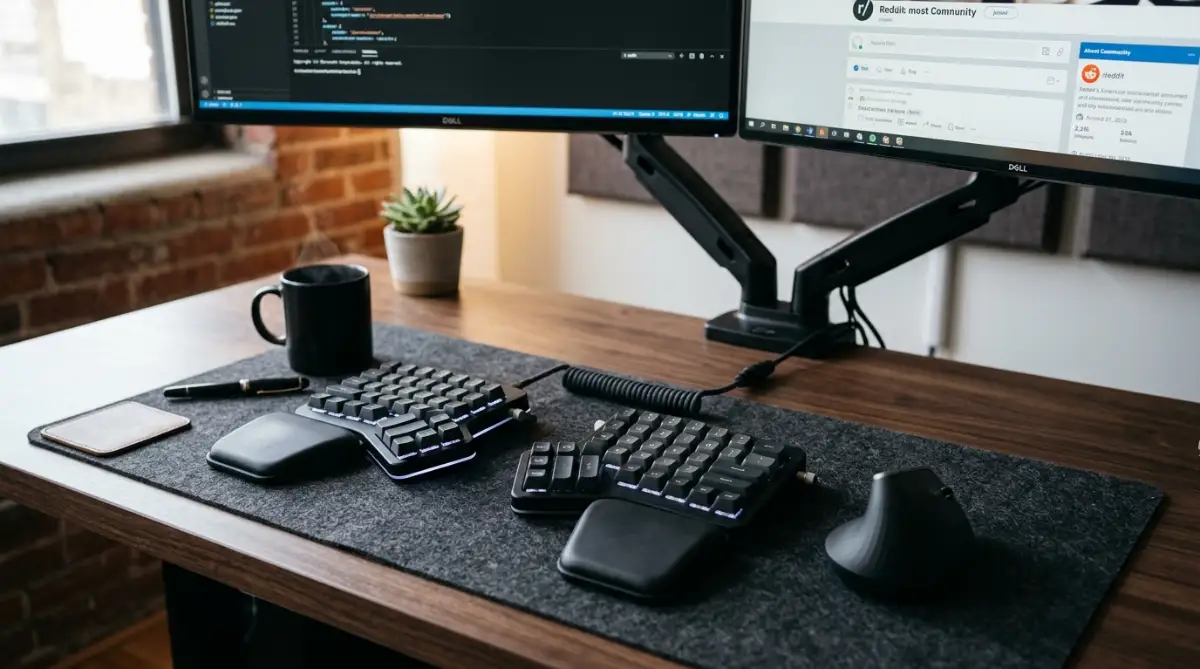
Consider switching to a split ergonomic keyboard.
They look a bit strange and intimidating at first glance. However, they allow your hands to rest naturally at shoulder width, keeping your wrists perfectly straight.
The exact same logic applies to your mouse. A standard flat mouse forces you to twist your forearm bones over one another just to grip it.
A vertical mouse completely fixes this. It places your hand in a natural, relaxed handshake position. It immediately removes the twisting tension from your forearm and wrist. It feels a bit awkward for the first day or two, and then you'll realize you can never go back to a flat mouse again.
The Invisible Posture Killers & Software Fixes
We've fixed your chair, your desk, and your hardware.
But there's an invisible trap that completely destroys your posture, even if you own a thousand-dollar chair. It's your software.
When your screen settings are wrong, your body naturally compensates.
If your text is too small, what do you do? You subconsciously lean forward. You pull your neck out of neutral alignment and jut your chin toward the screen.
Physical therapists call this the "turtle neck" posture. It completely negates your lumbar support because your back isn't even touching the chair anymore.
You need to fix your software scaling right now.
The Platform-Specific Eye Strain Playbook
Different operating systems handle screen scaling very differently.
If you use a high-resolution monitor (like a 4K display), the default settings often make text impossibly tiny. You end up squinting all day.
If you're constantly rubbing your eyes by 3 PM, you need to protect your vision from screen fatigue by adjusting your system preferences immediately.
For Windows Users:
Windows struggles with aggressive scaling, especially on multiple monitors.
Right-click your desktop and select 'Display settings'. Scroll down to 'Scale and layout'.
If it's set to 100% on a 4K monitor, you are torturing your eyes. Bump it up to 125% or even 150%. Your goal is to comfortably read small menu text while sitting perfectly upright against your backrest.
For Mac Users (macOS):
Apple handles scaling much smoother, but the default "Default for display" setting isn't always right for your physical distance from the screen.
Go to System Settings, then click on 'Displays'.
Instead of the default, select the option for "Larger Text". This isn't just for older folks. It's a strategic move to keep your spine glued to your ergonomic chair.
When you don't have to strain to read, you stop leaning forward. It's that simple.
The 5-Minute Ergonomic Reset Checklist
Over the course of a busy workweek, your perfect setup slowly falls apart.
Monitors get pushed back. Keyboards drift to the side. Cables get tangled around your feet, forcing you to sit in a weird, twisted position.
You need a weekly reset routine. Treat your home office like a professional workshop.
Here is your end-of-week "Damage Control" checklist to reset your physical geometry:
- Center your primary tools: Pull your keyboard and mouse back to the absolute edge of your desk. Don't reach for them.
- Clear the foot zone: Remove any boxes, trash cans, or stray cables from under your desk. Your feet need empty space to plant flat or rest on your footstool.
- Wipe your mouse sensor: A dusty mouse sensor makes the cursor jumpy. This forces your wrist to make tight, tense micro-corrections, leading to rapid wrist fatigue.
- Check the monitor arm tension: Gravity slowly pulls mechanical monitor arms down over time. Push your monitors back up to true eye level.
Do's vs. Don'ts: Workspace Geometry
Sometimes you just need a clear, hard line on what works and what hurts.
Keep these rules in the back of your mind before you buy another random office accessory online.