Why Your Lightning-Fast Internet Suddenly Feels Like Dial-Up
You pay for top-tier internet speeds. Your router shows solid green lights. Your Wi-Fi signal is completely full.
Yet, trying to load a simple web page feels like you're stuck in the dark ages of dial-up internet.
The loading circle just spins. Images load halfway and stop. Sometimes, the browser just gives up entirely and throws an annoying error message on your screen. It's incredibly frustrating.
Your first instinct is probably to reboot the router. When that doesn't work, you might even call your internet service provider.
After waiting on hold forever, they run a remote test and swear everything looks perfectly fine on their end.
Here's the thing. They aren't lying to you.
The problem isn't the connection coming into your house. The invisible speed bump is actually hiding deep inside your own computer.
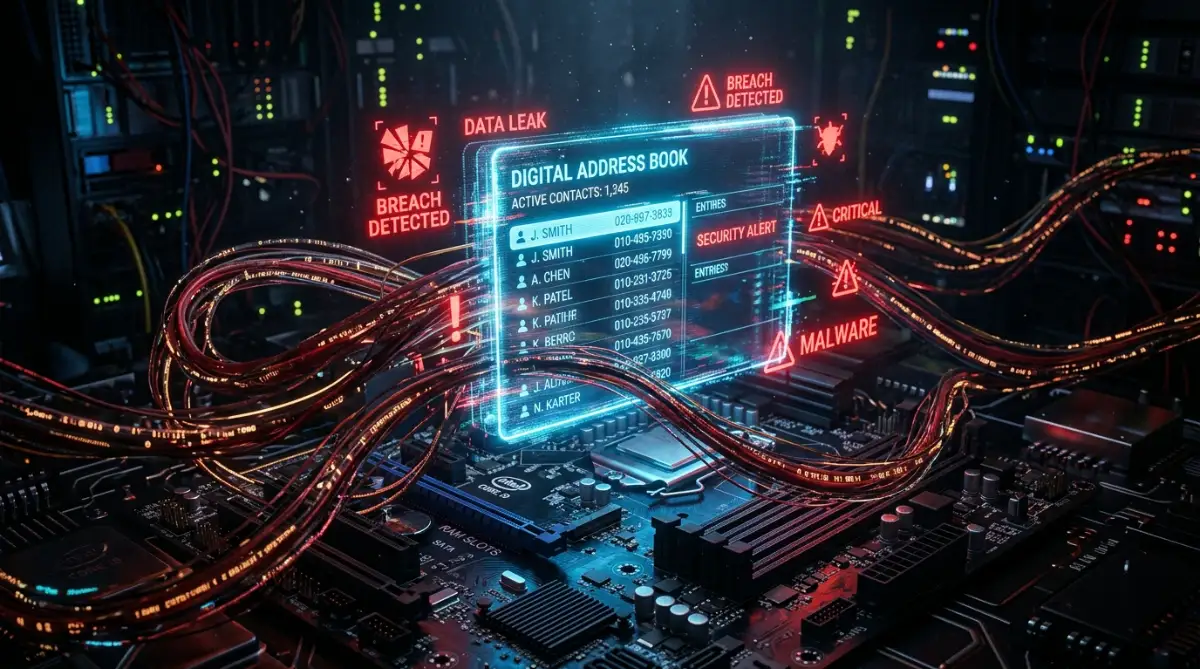
More specifically, it's a tiny, hidden storage file called the DNS cache. When this invisible file gets confused, corrupted, or overloaded, your entire browsing experience falls apart.
The DNS Cache Slow Browsing Quick Summary
- The Root Cause: Your computer saves website IP addresses in a local "phonebook" (DNS cache) to load pages faster.
- The Problem: If a website changes its server address, your outdated cache keeps sending your browser to the wrong, dead-end location.
- The Symptoms: Endless loading screens, partial page loads, or "Server Not Found" errors despite having a strong internet connection.
- The Solution: You need to forcefully clear (flush) this hidden cache so your computer is forced to look up the fresh, correct addresses.
- The Next Step: Changing your default DNS provider to a faster, more reliable public option can prevent this from happening again.

The Hidden Address Book Dictating Your Internet Speed
To understand why your browsing grinds to a halt, we need to talk about how your computer actually finds websites.
Computers don't understand domain names. They only understand numbers.
When you type a website name into your search bar, your computer has absolutely no idea where that is on the internet. It needs directions.
Think about it like wanting to visit a friend's house. You know their name, but you can't drive there until you know their exact street address.
The Domain Name System acts exactly like the internet's master phonebook. It translates the human-friendly website name into a machine-friendly string of numbers called an IP address.
Without this translation process, the internet as we know it simply wouldn't function.
But looking up that address every single time you click a link takes a fraction of a second. That might not sound like much.
However, modern websites are heavily complex. A single page might pull images, fonts, and scripts from dozens of different servers all at once.
If your computer had to ask the master phonebook for directions for every single piece of data, your browsing speed would naturally suffer.
To solve this delay, your operating system does something incredibly clever.
It keeps a private, temporary copy of the directions.
Once your computer looks up a website's IP address for the first time, it saves that exact location in a hidden file right on your hard drive.
This local file is your DNS cache.
The next time you visit that same website, your browser doesn't have to ask the internet for directions. It just checks your local cache, grabs the saved address, and loads the page instantly.
When it works, it's brilliant. It saves bandwidth and shaves precious milliseconds off your load times.
But when it fails, the results are completely disastrous for your internet speed.
The Silent Corruption: When Caches Go Bad
So, what exactly goes wrong? Why does this helpful little system suddenly turn against you?
The internet is not a static place. It's constantly shifting and changing.
Websites upgrade their servers. Companies switch hosting providers to handle more traffic. Security systems reroute traffic to block cyber attacks.
When these massive background shifts happen, a website's underlying IP address changes.
Now, the global internet phonebook updates these changes very quickly. But your computer's local, hidden cache doesn't always get the memo.
Your computer stubbornly holds onto the old, outdated address.
Imagine your friend moves to a new city, but you keep driving to their old, empty apartment. You knock on the door, wait for an answer, and eventually give up.
That is exactly what your browser is doing.
It tries to connect to the outdated IP address saved in your local cache. It waits for a response from a server that isn't there anymore.
This waiting period is exactly why you see that endlessly spinning loading wheel.
Your browser is stuck in a loop, knocking on a digital door that nobody is ever going to answer. Eventually, the connection times out, and the page fails to load.
Sometimes, the cache doesn't just hold outdated information. It actually becomes physically corrupted.
Sudden power outages, unexpected system crashes, or aggressive third-party antivirus software can scramble the data inside the cache file.
When the cache file gets scrambled, your browser can't read the directions at all. It gets stuck trying to decipher broken code.
Pro Tip: Before diving into complex network settings, temporarily turn off any active VPN or proxy services you're running. Sometimes, a poorly configured VPN creates an artificial bottleneck that mimics a corrupted local cache. If the internet speeds up immediately after disabling the VPN, you've found your culprit.
How Background Clutter Chokes Your Connection
There's another layer to this problem that most people never consider.
Your cache doesn't just save the addresses of websites you actively visit. It saves the addresses of every single background service your computer connects to.
Weather widgets, software update checkers, background syncing apps, and email clients are constantly requesting server locations.
Over time, this hidden file becomes massively bloated.
It gets filled with thousands of entries for servers you haven't connected to in months.
When the file gets too large, your computer actually struggles to read it quickly. Instead of speeding up your browsing, parsing through that massive list slows the entire system down.
Your operating system is supposed to clean this file out automatically based on a timer.
This timer is called the Time to Live value.
But operating systems aren't perfect. Sometimes, they fail to run their internal cleaning routines.
When the automatic garbage collection fails, the bad data just sits there, slowly choking your network connection.
This is why restarting your browser doesn't fix the problem. The bad data isn't in your browser.
It's buried deep inside your operating system's core networking files.
To get your lightning-fast internet speeds back, you have to take manual control. You have to force the system to dump the bad data and start completely fresh.
Advanced Strategies and Platform-Specific Playbooks
We've covered exactly why your system's hidden address book gets clogged up. Now it's time to take out the digital trash.
Flushing this hidden data forces your machine to build a brand new, error-free map of the internet.
It's completely safe. You won't lose your passwords, your browsing history, or your bookmarks.
We're simply clearing the traffic jam. Here's exactly how to do it across your different devices.
The Windows Network Reset
Microsoft hides this feature behind a text-based interface. Don't let that intimidate you.
First, click your Start menu and type the letters cmd. You'll see the Command Prompt app appear in the search results.
Don't just click it normally. You need administrator privileges to make deep system changes.
Right-click the app icon and select "Run as administrator". A black window with white text will pop up on your screen.
Now, type this exact phrase without any quotation marks: ipconfig /flushdns
Hit your Enter key. Within a second, you'll see a success message confirming the resolver cache is cleared.
Close the window and restart your browser. Your pages should load instantly now.
Clearing the Path on macOS
Apple computers handle background networking differently than Windows machines.
To clear out the bad data on a Mac, you'll use an app called Terminal.
Press the Command key and the Spacebar at the same time to open your Spotlight search. Type Terminal and hit Enter.
You need to type a specific command to clear the local directory. Type sudo dscacheutil -flushcache and then hit Enter.
Your Mac will ask for your administrator password.
When you type your password, no characters or stars will show up on the screen. It looks like your keyboard is broken.
It isn't broken. Apple hides the characters entirely for security reasons. Just type the password blindly and hit Enter again.
Mobile Devices: iOS and Android
Your smartphone holds onto outdated IP addresses too.
For an iPhone, the absolute fastest way to clear this data is by using Airplane mode.
Swipe down to open your Control Center and tap the airplane icon. Leave it on for exactly fifteen seconds, then turn it off.
This severs the connection to your cell tower and forces your iPhone to ask for fresh network routing directions.
Android devices require a bit more digging.
If your Android phone is struggling to load sites, you often need to focus on how to clear cache and free up space on your smartphone instantly. Wiping the browser's storage through your app settings usually triggers a fresh DNS lookup.
The OS Deep Clean Checklist
Sometimes, a single flush doesn't completely solve the problem. If you're still seeing endless loading screens, follow this aggressive reset sequence.
- Close every single open browser window completely.
- Disconnect your device from the current Wi-Fi network.
- Run the specific flush command for your operating system.
- Power cycle your router by unplugging it for thirty seconds.
- Reconnect your device to the network and test a broken web page.

Costly Pitfalls & Critical Traps to Avoid
When the internet stops working properly, people panic. We rely on these connections for work, banking, and entertainment.
This panic leads to incredibly expensive mistakes.
The most common trap is calling your internet service provider to upgrade your data plan.
Sales reps love this. They'll convince you that a faster tier will solve your loading issues.
It won't. If your local routing file is corrupted, upgrading to gigabit speeds is like putting a massive engine in a car with no steering wheel.
According to the FCC's consumer broadband speed guidelines, even basic internet tiers have more than enough bandwidth to load standard web pages instantly if the network path is perfectly clear.
The second trap is assuming your hardware is permanently damaged.
People frequently throw away perfectly good laptops because they think the wireless card is fried.
Before you spend hundreds of dollars on a replacement, you must figure out why your laptop Wi-Fi keeps dropping connection.
Most of the time, it's just a software conflict.
The final and most dangerous trap involves downloading optimization tools.
Desperate users search for quick fixes and download unverified registry cleaners or network boosters. These programs are notoriously dangerous.
Cybersecurity experts at CISA consistently recommend completely avoiding these fake optimization tools because they often bundle hidden malware that steals your personal data.
You don't need a shady program to fix a software glitch.
You just need to rely on simple tricks to fix a slow laptop quickly using the tools already built into your operating system.
In fact, the network troubleshooting documentation from MIT frequently notes that resetting local software parameters fixes a massive percentage of connection timeouts without any extra software.
Your Immediate Next Step
Open your command terminal right now and run the flush command for your specific operating system.
Once the cache is totally cleared, restart your browser and test that frustrating website again.
High-Converting FAQ Section
Does clearing my DNS cache delete my saved passwords or history?
No, it doesn't touch your personal data at all. It only deletes the invisible, temporary list of server IP addresses stored in the background of your operating system. Your bookmarks, passwords, and browsing history are completely safe.
How often should I manually clear this network data?
You don't need to do this on a regular schedule. You should only flush the system when you experience sudden loading issues, "Server Not Found" errors, or unexpected network slowdowns.
Will changing my default DNS provider make my internet faster?
Yes, it often makes a massive difference. Switching from your ISP's default servers to a reliable public option like Google (8.8.8.8) or Cloudflare (1.1.1.1) significantly reduces the time it takes to look up website addresses.
Why does my phone load websites perfectly while my laptop struggles on the same Wi-Fi?
This happens because your phone and your laptop maintain totally separate local network caches. If your laptop's hidden file gets corrupted, it will fail to load pages even while your phone sails through perfectly on the exact same wireless network.
Disclaimer: This guide is provided for educational and informational purposes only. Modifying network settings or running command-line prompts can affect your device's connectivity. Always ensure you follow system-specific instructions carefully and consult with an IT professional if you're unsure about making administrative changes to your operating system.