
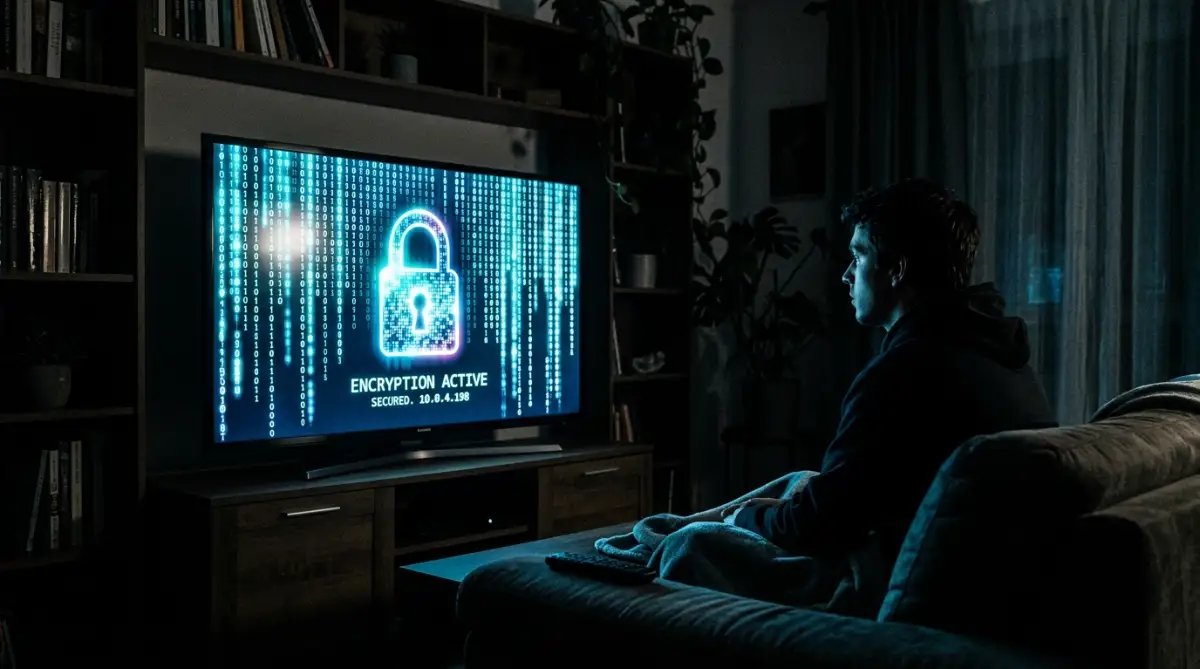
Why Your Living Room Screen is Quietly Watching You Back
You bought a beautiful 4K screen for movie nights. You mounted it on the wall, connected the Wi-Fi, and hit play.
You probably assume you're the audience.
But here's the uncomfortable truth.
While you watch your favorite shows, that sleek piece of hardware is busy watching you.
Modern televisions don't just stream video anymore. They actively log everything happening on the screen.
They know what commercials you skip, what video games you play, and what streaming apps you binge on a lazy Sunday.
Think about it. Have you ever wondered why massive, high-definition screens are so incredibly cheap these days?
It's because hardware isn't the main product anymore.
Your household data is the real product. Manufacturers sell these units at rock-bottom prices because they make up the difference by selling your viewing habits to advertisers.
It feels a bit creepy, doesn't it?
The good news is you don't have to tolerate this silent surveillance. You can absolutely take back control of your living room.
The Smart TV Privacy Quick Summary
- Identify the culprit: Look for settings named ACR, Viewing Information, or Sync Plus.
- Reject the legal jargon: You don't have to accept every privacy policy to use basic TV functions.
- Disconnect when possible: If you use a dedicated streaming stick like an Apple TV, disconnect your actual TV from the Wi-Fi entirely.
- Reset your advertising ID: Just like smartphones, TVs have ad profiles. Reset yours frequently to break the data chain.

The Hidden Mechanics of Automatic Content Recognition
To stop the tracking, we first need to understand how the machine actually works.
The core technology driving this data harvesting is called Automatic Content Recognition, or ACR for short.
This isn't just basic data collection. It's incredibly aggressive.
ACR technology works by taking digital fingerprints of whatever is playing on your screen.
It doesn't matter if you're watching cable, streaming a movie, or playing a Blu-ray disc.
The software constantly samples tiny blocks of pixels and audio snippets.
It then compares these snippets against a massive, real-time database of known media.
Once it finds a match, the system logs exactly what you watched and for how long.
Why do they go through all this trouble?
Because hyper-targeted advertising is a multi-billion dollar industry.
If an advertiser knows you just watched a pizza commercial on live television, they can immediately push a discount code for that exact pizza to your smartphone.
They achieve this by linking your TV's IP address to your phone's IP address.
It's completely seamless, entirely invisible, and happens in the blink of an eye.
The Illusion of Consent in the Setup Menu
Now, manufacturers will argue that you gave them permission to do this.
And technically, they're right.
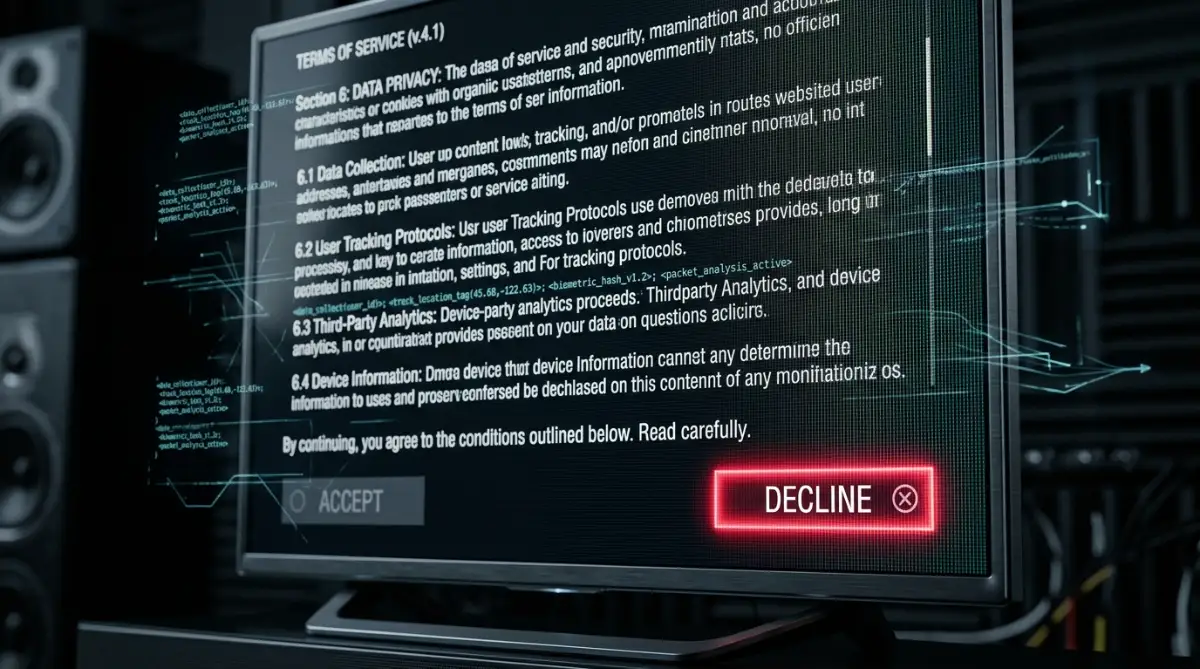
When you first unbox the TV and turn it on, you're hit with a barrage of legal agreements.
Most people are just excited to watch Netflix. They blindly click "Agree to All" just to make the boring setup screens disappear.
That single button press is exactly what activates the ACR tracking pipelines.
The menus are designed intentionally to be confusing. They use friendly-sounding terms like "Enhanced Viewing Experience" or "Smart Interactivity."
Who wouldn't want an enhanced experience?
But behind those polite marketing phrases is a complex web of third-party data brokers quietly taking notes on your lifestyle.
Pro Tip: If you're setting up a brand new screen, never select "Agree to All." Take the extra two minutes to manually check the boxes. You only need to accept the basic Terms of Service to use the TV. You can safely leave all the privacy and viewing information policies unchecked.
If you want a visual walkthrough of where these sneaky menus are hidden, this quick guide breaks it down perfectly.
Breaking the Cross-Device Tracking Chain
Let's look at a real-world scenario so you can see just how deep this goes.
Imagine you're watching a popular travel documentary about hiking in the Alps.
Your television's ACR system identifies the show instantly.
It sends a signal back to a central server logging your interest in outdoor travel.
Within minutes, you open Instagram on your phone.
Suddenly, your feed is flooded with ads for hiking boots, discounted flights to Europe, and expensive winter jackets.
You haven't searched for any of these things on your phone.
So how did the advertiser know?
It's all about your home Wi-Fi network.
Since your phone and your television share the same internet connection, data brokers connect the dots.
They build a comprehensive "household identity."
If one person in the house watches a specific show, everyone connected to that Wi-Fi router gets targeted with related advertisements.
It completely destroys any sense of digital boundaries within your own home.
To stop this cross-device contamination, you can't just rely on ad-blockers on your laptop.
You have to cut off the source of the data leak at the hardware level.
The "Dumb TV" Strategy
One of the most effective ways to protect your privacy is to simply strip the TV of its smart capabilities.
We call this the "Dumb TV" method.
Smart interfaces built directly into televisions are notoriously slow, clunky, and packed with tracking software.
Instead of dealing with that mess, just disconnect the television from your home Wi-Fi entirely.
If it doesn't have an internet connection, it can't transmit the ACR data back to the manufacturer.
But how do you watch your streaming apps?
You simply plug in a dedicated, external streaming device.
Devices like an Apple TV or a Roku stick handle the streaming, while your actual television just acts as a monitor.
While external streaming sticks aren't perfect, they generally have much clearer, easier-to-manage privacy controls than the TVs themselves.
Apple, for instance, has built its entire modern brand around user privacy.
By offloading the smart features to an external box, you drastically reduce the surface area for sneaky data collection.
It's a simple, elegant solution for people who don't want to dig through fifty layers of hidden settings menus.
But if you prefer to use the built-in apps, you're going to have to roll up your sleeves.
You'll need to dive deep into the specific settings of your TV brand to shut down the tracking manually.
It's a bit tedious, but totally worth the effort for your peace of mind.
Step 4: Platform-Specific Playbooks to Kill ACR Manually
So, you decided to keep the TV connected to your home network.
Maybe you don't want to buy an external streaming stick. That's completely fine.
But if you rely on the built-in apps, you have to play defense. Every manufacturer hides their tracking features under different, confusing names.
They do this on purpose. If it's hard to find, you'll probably give up.
Don't let them win. Grab your remote, hit the main settings gear, and let's dig into the exact menus for the biggest television brands.
Samsung Smart TVs: Disabling "Viewing Information Services"
Samsung makes fantastic displays, but their data collection is incredibly aggressive.
They bury the Automatic Content Recognition settings deep inside the terms and conditions.
Press the Home button and navigate to Settings. Scroll all the way down to Support.
From there, look for Terms & Privacy, and then select Privacy Choices.
You're looking for an option called "Viewing Information Services." Uncheck it immediately.
Next, find "Interest-Based Advertising" right below it and disable that too.
You might also see an option for Voice Recognition. If you don't use voice commands, shut it down. It prevents your remote from randomly analyzing background chatter.
LG Smart TVs: Shutting Down "Live Plus"
LG televisions run on webOS, which uses a tracking system they vaguely call "Live Plus."
It sounds like a premium channel, right? It's not.
Live Plus is simply LG's branded version of ACR screen tracking.
To stop it, open All Settings on your LG remote. Go down to General, then select System.
Look for Additional Settings. Here, you'll find the Live Plus toggle. Switch it off.
While you're in the General menu, you also need to find the Advertisements section.
Turn on the setting called "Limit AD Tracking." This stops LG from attaching a permanent digital fingerprint to your household.
Roku TVs: Opting Out of the "Smart Experience"
Roku powers millions of budget-friendly televisions, and their business model relies heavily on targeted ads.
They try to frame their tracking as a way to give you better show recommendations.
Go to your Roku Home screen and select Settings.
Scroll down to Privacy, and then click on Smart TV Experience.
Uncheck the box labeled "Use Info from TV Inputs." This is their ACR system.
By disabling this, Roku will no longer scan the HDMI ports to see what video games or Blu-rays you're playing.
After that, go back one step to the Advertising menu and select "Limit ad tracking."
Vizio SmartCast: Stopping "Viewing Data"
Vizio actually got into massive legal trouble with the Federal Trade Commission a while back for silently tracking users without clear permission.
They've since updated their menus, but the tracking is still there by default.
Open the main Vizio menu and select System.
Navigate down to Reset & Admin.
You will see a setting literally called "Viewing Data." Highlight it and turn it to Off.
It takes less than ten seconds, but it instantly cuts off their main data harvesting pipeline.
The Ultimate Network-Level Deep Clean Checklist
Sometimes, trusting the TV's menu isn't enough.
Manufacturers frequently push software updates that mysteriously reset your privacy preferences back to the factory defaults.
If you want an ironclad solution, you have to block the trackers at your home router.
This takes a bit more technical effort, but it's the ultimate way to eliminate smart home privacy risks permanently.
Here is your OS-level deep clean checklist for network privacy:
- Change your Default DNS: Stop using your internet provider's default DNS. Switch your router to a privacy-focused DNS like NextDNS or Quad9.
- Enable DNS Ad-Blocking: Services like NextDNS let you block known tracking servers at the root. If your TV tries to ping a Samsung ad server, the router just silently drops the connection.
- Create a Guest Network: Put all your smart home devices and TVs on a separate Wi-Fi guest network. This isolates them from your personal laptops and smartphones.
- Check Router Logs: Every few months, log into your router's admin panel. Look at which devices are using the most background bandwidth while turned off.
When devices constantly hunt for a connection, you might even notice other network issues. This is often why your laptop Wi-Fi keeps dropping connection unexpectedly. Bandwidth hogs cause interference.
Smart TV Privacy: Do's vs. Don'ts
The Biggest Privacy Traps You Might Fall Into
Even after tweaking your settings, there are still a few massive traps waiting for you.
Many people read a quick tech tip online and think they're completely secure.
But modern surveillance capitalism is tricky.
Let's look at the most common misconceptions people have about living room privacy.
Trap 1: The VPN False Sense of Security
People often ask if installing a Virtual Private Network (VPN) on their router stops TV tracking.
Here's the harsh reality.
A VPN encrypts your web traffic and hides your location from your internet service provider.
But it does absolutely nothing to stop Automatic Content Recognition.
Remember how ACR works. It captures the pixels directly on your screen.
It builds a profile based on your screen data, packages it up, and sends it directly to the manufacturer's server.
Even if that data packet is encrypted by a VPN, it still reaches the manufacturer. According to research from consumer advocacy groups, the TV company still gets your exact viewing history.
A VPN hides you from outside snoops, but the TV itself is an inside job.
Trap 2: Blindly Accepting Software Updates
This is the most frustrating trap of all.
You spend twenty minutes digging through hidden menus to secure your privacy.
Three months later, a giant pop-up appears on your screen demanding you update the firmware.
You click "Update Now" and go make a sandwich.
When the TV restarts, a new user agreement screen flashes by. You click "Agree" just to get back to your show.
Guess what? You just legally opted back into the data collection.
Manufacturers constantly rewrite their terms of service. Every time they push a major update, they intentionally force you to accept the new terms to continue using smart features.
Always read the