
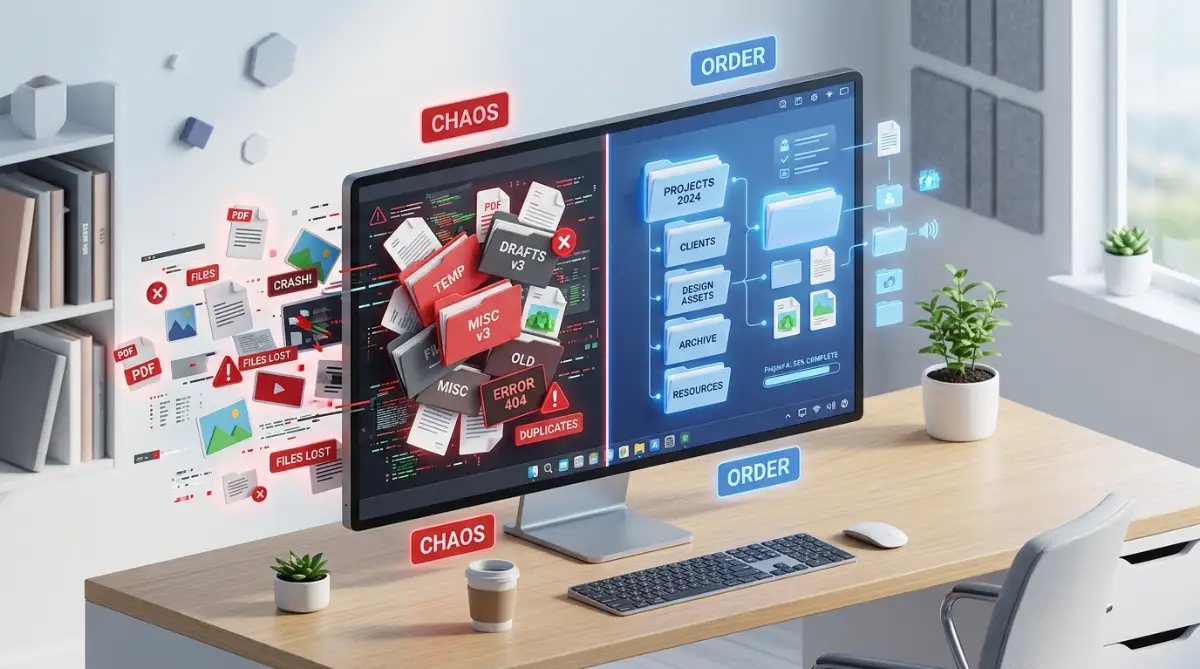
The Silent Productivity Killer Inside Your Marketing Team
Your designer is asleep in another time zone.
You need the transparent version of your company's new logo for an urgent pitch deck. The client is waiting. You open the team's shared drive, type "new logo" into the search bar, and your heart sinks.
There are fifty results.
You see "logo_final.png", "logo_really_final.png", and "logo_use_this_one_v3.jpg". Which one is actually the right one? You don't know. You end up guessing, pulling an outdated graphic, and looking completely unprofessional in front of a major client.
That right there is the reality of working without a system.
When your marketing team operates remotely, physical distance amplifies organizational chaos. You can't just tap someone on the shoulder and ask where a specific brand asset lives. Everything relies on your digital infrastructure.
If your shared drive looks like a digital junk drawer, you're bleeding money.
Every minute your content writers, social media managers, and graphic designers spend hunting down the right banner ad or video snippet is wasted time. It kills momentum. It drains creative energy.
We need to fix this right now.
You don't necessarily need to spend thousands of dollars on enterprise software immediately. What you actually need is a core strategy. A set of logical rules everyone agrees to follow.
The Digital Asset Management Quick Summary
Short on time? Here is exactly what we are going to build to get your remote team perfectly aligned:
- The Big Clean-Up: Ruthlessly auditing your existing mess and separating active projects from dead archives.
- The Universal Folder Skeleton: Creating a logic-based folder structure (taxonomy) that doesn't rely on individual employees' habits.
- Bulletproof Naming Conventions: Implementing a strict formula for naming files so a search bar actually works.
- Access Control: Setting up user permissions so freelancers don't accidentally delete your master files.
- The Single Source of Truth: Establishing one central hub where all approved, final brand assets live permanently.

Building the Foundation of a Clutter-Free Asset Library
You can't just buy a shiny new software tool, dump your messy files into it, and expect miracles. A bad system transferred to a faster server is still a bad system.
We have to start with the unglamorous work.
Think of this like cleaning out your garage. You have to take everything out onto the driveway before you can put it back on neat shelves.
The first step in your new digital asset management strategy is the content audit. Right now, your team's files are likely scattered across personal hard drives, private Slack messages, email threads, and multiple different cloud accounts.
It's a complete nightmare for onboarding new hires.
When a new remote marketer joins your team, they shouldn't have to ask ten different people for access to campaign photos.
Start by gathering your core team on a quick video call. Ask everyone where they currently store their working files. You will probably be shocked by the answers.
Once you identify where the assets live, you need to draw a hard line between "Working Files" and "Final Assets". This is the biggest mistake remote agencies make.
They mix messy drafts with finalized deliverables.
Your social media manager shouldn't have to wade through a designer's twenty layered Photoshop drafts just to find the final JPEG to post on Instagram. Keep the kitchen separate from the dining room.
Designing a Bulletproof Folder Taxonomy
Now we need a logical skeleton for your shared drive.
Taxonomy is just a fancy word for how you categorize information. Most teams organize folders by the names of their employees. You might see a folder named "David's Stuff" or "Sarah's Designs".
This is a terrible idea.
What happens when David leaves the company? His folder becomes a digital graveyard that nobody else understands. You spend hours opening files one by one trying to figure out what they are.
Instead, structure your main folders by function, campaign, or client. It has to make sense to a total stranger on their first day of work.
Here is a quick look at why structure matters so much.
A logical structure removes the guesswork.
When your copywriter finishes a blog post, they know exactly which sub-folder it belongs in. The friction is completely gone.
Pro Tip: Keep your folder nesting shallow. Never go more than three folders deep. If a team member has to click five times to reach a file, they will get lazy and just save it on their desktop instead.
The Art of Naming Files So They Are Actually Searchable
Let's talk about the search bar.
Whether you use Google Drive, Dropbox, or a dedicated platform, the search bar is the most powerful tool your remote team has. But it only works if your team speaks the same language.
Computers are incredibly dumb.
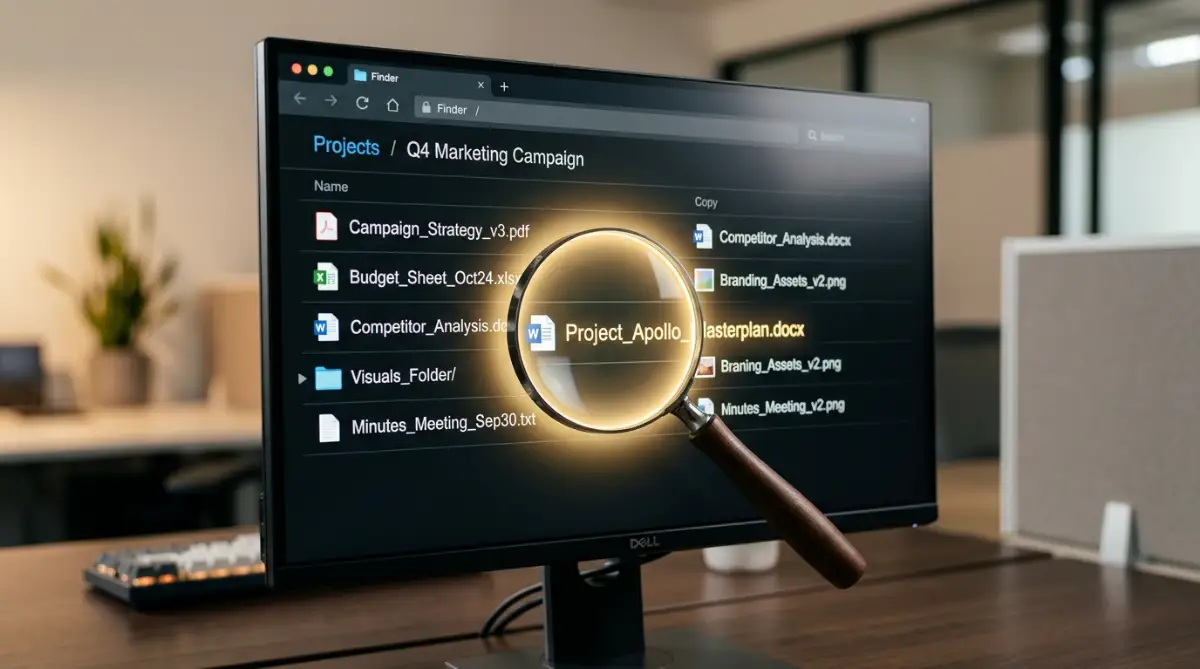
If you search for "Blue Campaign Header", the computer won't find a file named "website_pic_2_final.png", even if that picture is a blue header.
You have to implement a strict naming convention. This is a non-negotiable rule for your entire marketing department. It feels tedious at first, but it saves hundreds of hours of frustration down the road.
Create a standard formula for every single file.
A great formula usually looks like this: Date_ClientName_ProjectName_AssetType_Version.
So, instead of naming a file "banner_ad_final", your designer will name it "0915_AcmeCorp_FallSale_BannerAd_V1".
It tells you everything you need to know without even opening the file. You know when it was made, who it's for, what the project is, and what version you're looking at.
Think about it.
If a remote manager in London wakes up and checks the folder, they instantly know that "V1" is an old draft, and "V3" is the final ready to go. No emails needed. No waiting for someone in New York to wake up and confirm.
Check out this quick breakdown on how visual organization directly speeds up team content creation.
Controlling Access and Protecting Brand Integrity
Organizing your files is only half the battle.
Protecting them is the other half. When you run a remote team, you likely work with a mix of full-time employees, part-time contractors, and temporary freelancers.
They shouldn't all have the same keys to the castle.
I've seen agencies lose entire archives of high-value video footage because a new freelancer accidentally dragged a master folder into their own private trash bin. It's a stomach-dropping feeling.
You need strict access control.
Set up permission levels across your digital asset management strategy. The core leadership team gets "Admin" rights to edit, move, and delete anything.
Your regular content creators get "Contributor" rights. They can upload new drafts and edit specific folders they are assigned to, but they can't delete main directory folders.
External freelancers get "View Only" or restricted folder access.
They get a specific link where they can upload their finished work, but they can't poke around in your company's internal strategy documents or other clients' assets.
This isn't about lacking trust. It's about minimizing human error.
Mistakes happen. People click the wrong buttons, especially when rushing to meet a deadline from a busy coffee shop. By limiting access, you build a safety net under your entire marketing operation.
When your files are logically structured, predictably named, and safely guarded, the heavy lifting is done. Your remote team can finally stop searching and start creating.
They feel empowered.
But setting up the folders is just the start. Getting humans to actually use the system every single day requires a completely different psychological approach.
Advanced Synchronization & Platform-Specific Playbooks
Getting your remote marketing team on the exact same page means fighting against their hardware.
People have incredibly strong preferences about their devices. Your lead designer probably uses a fully maxed-out Mac, while your content writer swears by a customized Windows machine.
When you force everyone into one universal cloud system, you inevitably hit frustrating sync issues. Here's exactly how to handle the most common platform clashes without losing your mind.
Mac Finder vs. Windows File Explorer Dynamics
Apple users heavily rely on Finder's built-in color-coded tags to manage their workflows.
They might tag a graphic file green for "approved" and red for "needs heavy edits". But there's a massive blind spot here. Those native macOS color tags absolutely don't sync across to your Windows users.
A PC user just sees a plain file in File Explorer and assumes it's completely ready for publication.
To fix this immediate miscommunication, you must stop relying on OS-level tagging. Instead, rely entirely on the folder structure and naming conventions we built earlier.
If you're managing a team using Windows, force them to turn on the "Always keep on this device" setting only for active, current project folders.
Syncing your entire company's ten-year archive to a local laptop will instantly kill the device's storage and processing speed. If a remote employee suddenly complains their computer just died trying to sync terabytes of 4K video, have them check if their laptop won't turn on due to standard hardware or battery failures first, then aggressively restrict their sync settings.
The OS Deep Clean Checklist for Sync Health
Cloud drives rely heavily on your computer's local cache to run smoothly.
When your team complains that files are taking hours to upload, the cloud platform usually isn't broken. Their local machine is just choked with temporary data.
Force your team to run this quick deep clean checklist every single month:
- Clear the App Cache: Go into the settings of your desktop cloud app (Google Drive, Dropbox) and hit "Clear local cache."
- Purge the Downloads Folder: Delete all duplicate files sitting in the local downloads folder to prevent accidental uploads of old versions.
- Check Background Bandwidth: Ensure cloud apps are set to "No Limit" on upload speeds in their network preferences.
Mobile Asset Management: iOS vs. Android Realities
Sometimes your social media manager needs to post a reactive reel from a noisy coffee shop using just their phone.
Android devices naturally let users dig deep into the root file system. This makes it incredibly easy to download massive zip files from the shared drive and extract them locally on the go. iOS is much more restricted and sandboxed.
For iPhone users on your team, ensure they have the native cloud app integrated directly into the Apple "Files" app.
This removes the massive friction of downloading, saving to the camera roll, and re-uploading. If they say their phone is lagging too hard to quickly preview heavy assets, they probably just need to clear their smartphone cache and free up space instantly.
Make sense? Keep the mobile workflow strictly for reviewing and posting finalized assets, never for editing raw project files.
Offline Mode: The Remote Worker's Double-Edged Sword
Working from a flight without Wi-Fi sounds highly productive.
But offline editing causes the dreaded "Sync Conflict" error. If your copywriter edits a document on a plane, and your editor changes the same live document from their desk in London, the system creates two separate conflicting files the moment the plane lands and reconnects.
Train your team to communicate offline periods.
If someone is taking a file offline, they must drop a quick message in the team Slack channel saying, "Taking the Q3 Report offline for two hours." It acts as a digital checkout system.
The Damage Control Playbook
Someone is going to mess up. It's mathematically guaranteed.
A tired, overworked freelancer will accidentally drag your entire master logo folder into a random, deeply nested sub-folder. The whole team will panic when they open the main drive.
When files go missing, you need a calm, highly systematic response. Don't start a massive witch hunt in the team chat.
Copy and paste this exact template to fix the issue quietly and professionally:
The "Missing Asset" Slack/Email Template:
Hey team, it looks like the [Asset Name] folder got accidentally moved or renamed. No big deal, but we need it back online for a client pitch today. Please don't create a new version yet. Check your recent file history or local trash bins and let me know if you spot it. I'll review the cloud admin activity logs in the meantime. Thanks!
This takes the heat off. It stops people from panic-duplicating files and making the directory mess infinitely worse.