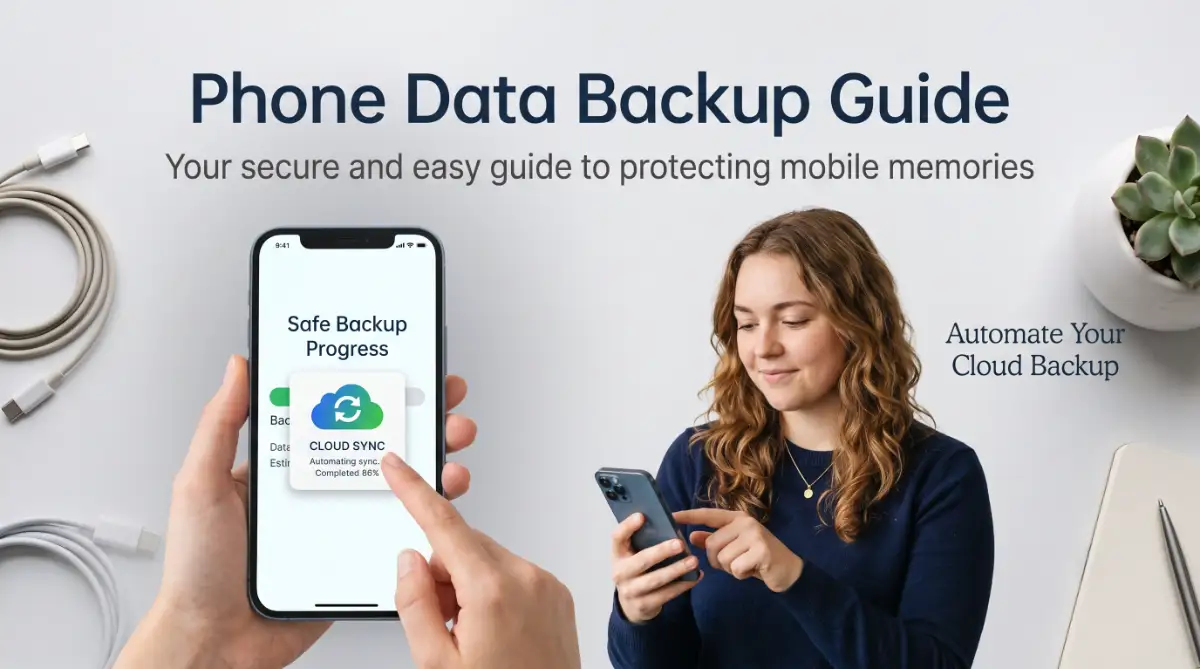
The Heartbreak of Losing Your Digital Life
We have all felt that sudden drop in our stomach. You reach for your phone, press the power button, and nothing happens. The screen stays completely black.
In a matter of seconds, panic sets in. You realize that your entire life is trapped inside that tiny device. Every single family photo, important work contact, and private note is suddenly gone. This unexpected tragedy happens to thousands of people every single day. A dropped phone, a random software crash, or a stolen device can instantly erase years of precious memories.
I still remember the exact moment my heart sank when my toddler knocked my phone into the bathtub. In a split second, I lost three years of unbacked-up family photos, including the only video of my daughter's first steps. That devastating mistake forced me to completely rethink how I handle my personal files, and I promised myself I would never let it happen again.
When your phone hardware fails unexpectedly, it feels exactly like dealing with sudden computer failure. Just as you might urgently try how to diagnose and fix overheating issues in high performance laptops to save your work, a dead phone leaves you desperate for a fix.
People often try to find quick solutions, but they usually fail. Misinformation makes this problem much worse for everyday users.
- False sense of security: Many people assume their data is automatically saved just because they created a Google or Apple account.
- Confusing technical jargon: Average users get easily overwhelmed by terms like "syncing," "local storage," and "encryption."
- Ignoring storage warnings: We often swipe away those annoying "storage full" notifications, not realizing we just stopped our backups from working.
- Trusting unreliable sources: People often download sketchy third-party apps that promise to save their files but actually steal their data instead.
If you want the absolute safest method, always start by backing up your iPhone via iCloud using official instructions. Android users should follow the exact steps for saving Android data properly to avoid falling into these traps.
The emotional toll of this problem is massive. It completely destroys your mental peace and daily confidence.
- Severe anxiety: You constantly worry about dropping your phone or losing it in a public place.
- Loss of identity: Losing years of family photos feels like losing a piece of your personal history.
- Professional embarrassment: Explaining to your boss or clients that you lost their contact information makes you look highly unprofessional.
You should not have to live with this constant fear. Your digital life is incredibly valuable, and protecting it should be easy and stress-free.
Let me show you exactly how to lock down your personal files permanently.
Proven Methods to Protect Your Precious Files Today
Protecting your digital life does not require a computer science degree. It just takes a few specific, actionable steps to build a safety net around your personal information.
By taking action today, you will finally sleep peacefully at night. You will know for a fact that your memories and work files are completely safe, no matter what happens to your physical device.
Let us walk through the absolute best ways to secure your smartphone today.
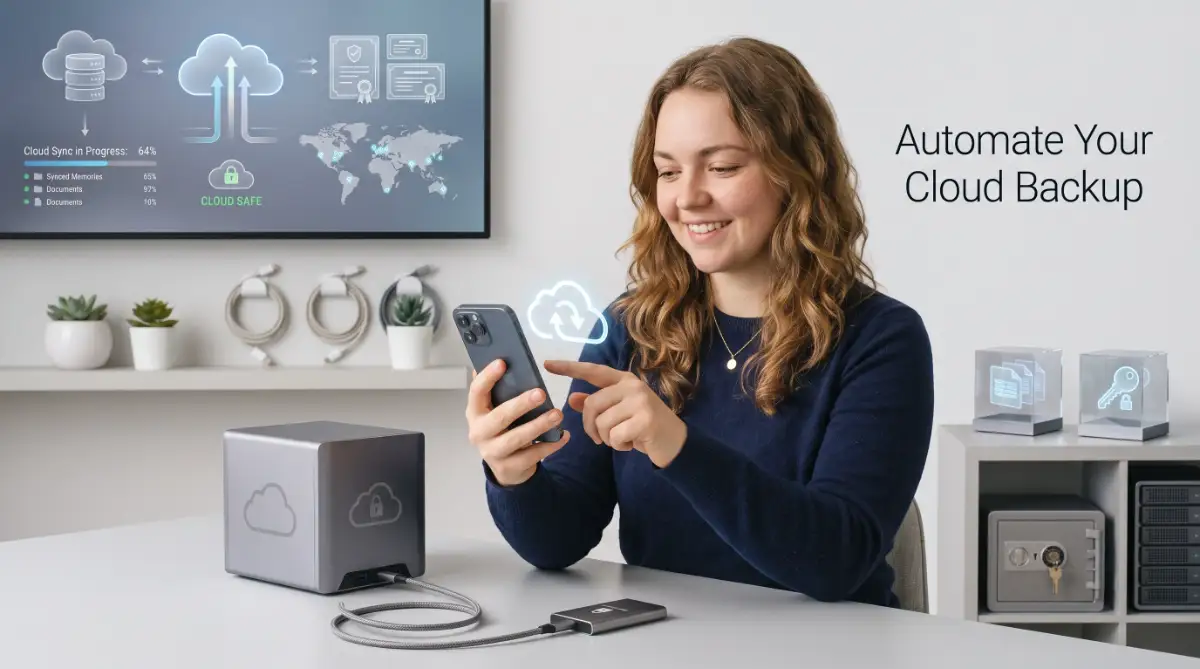
Automate Your Cloud Storage for Effortless Safety
The absolute best way to secure your digital life is to remove human error from the equation. If you have to remember to save your files manually, you will eventually forget.
Setting up an automatic cloud sync is like hiring a digital security guard who works for you 24/7. Every time you connect to Wi-Fi, this invisible guard copies your new photos, messages, and contacts to a secure online vault. If you use an Apple device, you already have iCloud built directly into your system. You just need to go to your phone settings, tap your name at the top, and open the iCloud menu.
Once there, turn on the backup switch. Make sure your device is plugged into power and connected to a solid Wi-Fi network, then tap "Back Up Now."
For Android users, Google Drive and Google One offer the exact same level of peace of mind. Open your system settings, scroll down to the Google section, and select the backup option. Toggle the switch to automatically save your device data to your Google account. This process quietly runs in the background while your phone is charging at night.
The biggest secret here is checking your storage limits regularly. Both Apple and Google only give you a small amount of free space to start with. If you take thousands of photos, you will quickly run out of that free storage. When the cloud fills up, the automatic syncing stops completely.
Do not let a full cloud drive trick you into thinking your new photos are safe. Spend a few extra dollars a month to upgrade your storage plan. Think of this small monthly fee as cheap insurance for your most precious digital belongings.
I used to ignore those annoying "storage full" warnings for months, assuming my phone was just trying to squeeze more money out of me. I finally realized that paying two dollars a month for extra cloud space is way cheaper than the pain of losing a week's worth of important work contacts. My biggest tip is to simply set your cloud storage to auto-pay so you literally never have to worry about it again.
Build an Unbreakable Local Backup Routine
While the cloud is incredibly convenient, you should never trust it as your only safety net. Having a physical copy of your files in your own hands gives you ultimate control.
Creating a local backup means copying your phone data directly to a computer or an external hard drive. This method requires no internet connection and keeps your private files out of online servers.
Before we jump into the specific desktop methods for Apple and Android, check out this quick video below to see exactly how professionals set up their offline drives. Watching this short visual guide will make the rest of the steps in this article incredibly easy to follow!
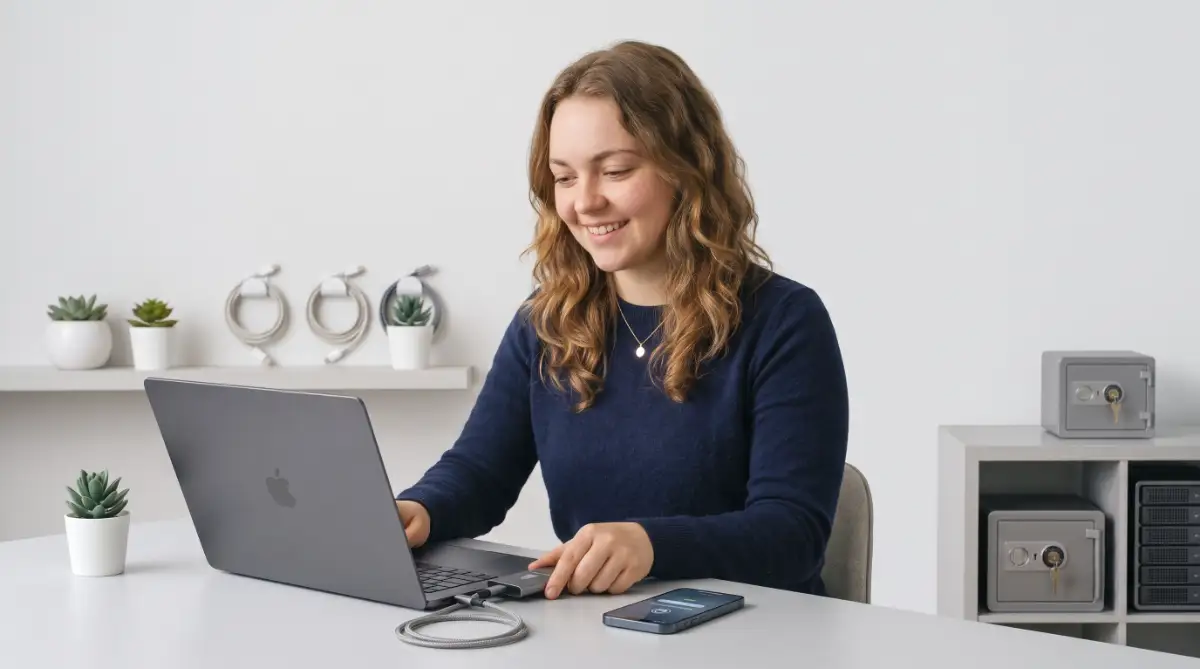
To do this, you simply need a high-quality USB cable and a reliable computer. When you connect your phone to your PC or Mac, you create a direct, secure bridge for your files. If you are a content creator, you know how heavy raw media files can be. Just as you understand how bad video editing is secretly killing your youtube money and how to fix it, you must understand that losing your raw footage is a career disaster.
Apple users can use the Finder app on a Mac to create a complete clone of their device. Just select your phone in the sidebar, check the box to encrypt the file, and click start. Android users have slightly different options depending on their phone brand. Samsung offers an excellent desktop program called Smart Switch that pulls everything from messages to home screen layouts into one neat file.
If you do not want to use special software, you can simply open your phone’s internal storage folder on your PC. You can drag and drop your camera folder directly onto your desktop.
For maximum security, move these files from your computer onto a portable Solid State Drive (SSD). Keep this drive in a safe place, like a locked drawer or a fireproof box. If your internet goes down, or if you get locked out of your online accounts, this physical drive will literally save your life.
Secure Your Passwords and Authenticator Apps
Many people successfully save their photos and contacts, but they completely forget about their security apps. This single mistake can lock you out of your digital life forever.
Your smartphone is likely the key to your bank accounts, your email, and your social media profiles. You probably use a Two-Factor Authentication (2FA) app like Google Authenticator or Authy.
If you drop your phone in a lake and buy a new one, your old authenticator app does not automatically transfer over. Without those special six-digit codes, you cannot log into your own accounts.
If you generate digital assets and know how to generate high quality conceptual art using ai and keep your budget intact, you rely on strict account logins. Losing access to your 2FA means losing access to your paid AI tools and workspaces. To fix this, you must explicitly enable cloud syncing inside your authenticator app settings. Google Authenticator now allows you to link your codes directly to your primary Google account.
If you use a password manager to store your login details, make sure you have the master recovery key written down on a physical piece of paper. Store this paper somewhere incredibly safe.
Messaging apps like WhatsApp and Telegram also require special attention. They do not always save your chat history automatically through your main phone settings. Open WhatsApp, go into the chat settings, and manually connect it to your Google Drive or iCloud account. Set the chat backup frequency to "Daily" so you never lose an important conversation.
By securing these specific apps, you ensure that transitioning to a brand-new device is completely painless. You will simply log in, and all your access codes and private messages will reappear instantly.
Pro-Level Strategies to Keep Your Files Untouchable
Now that you have the basic safety nets in place, it is time to upgrade your security. Average users stop at automatic syncing, but smart users take things to the next level.
By adding just a few more layers of protection, you will make your digital life virtually bulletproof. These expert strategies are highly effective and surprisingly easy to set up.
Let us look at how the professionals keep their data completely untouchable.
Implement the 3-2-1 Safety Rule for Mobile Devices
In the professional tech world, there is a golden standard for data protection. It is called the 3-2-1 rule, and it guarantees you will never lose your files.
The rule states that you should always have three total copies of your data. You should keep these copies on two different types of media, and store one copy completely offsite. You can easily adapt this professional strategy for your personal smartphone.
Your primary copy is the live data currently sitting on your physical phone. This is the version you interact with every single day.
Your second copy is the local clone sitting on your computer or your external hard drive. This is your fast, offline recovery option.
Your third copy is the one floating safely in your encrypted cloud storage. Because the cloud servers are located far away from your house, this counts as your "offsite" location. If a flood or fire destroys both your phone and your physical hard drive, your cloud copy remains totally safe. If a hacker locks you out of your cloud account, your offline hard drive saves the day.
For creative professionals, this setup is absolutely mandatory. Just as you rely on drone calibration tips to avoid costly repairs to protect your expensive hardware, the 3-2-1 rule protects your irreplaceable digital assets.
Set a recurring calendar reminder for the first Sunday of every month. Use this time to connect your phone to your computer and update your physical hard drive copy. This simple monthly habit takes less than twenty minutes but provides complete peace of mind.
Encrypt Your Backups for Maximum Privacy
Having copies of your data is wonderful, but you also need to make sure nobody else can read them. This is where the magic of encryption comes into play.
Encryption is like translating your personal files into a secret alien language. Even if a hacker steals your files, they cannot read anything without the special decoder ring.
When you create a local copy using your Mac or PC, always look for the tiny checkbox that says "Encrypt local backup." Checking this box forces you to create a specific password for that single file. When this is turned on, the system will also save your deepest secrets, like your saved passwords and health data.
For your cloud storage, you should turn on end-to-end encryption if your provider offers it. Apple calls this feature "Advanced Data Protection" for iCloud.
When you turn on Advanced Data Protection, Apple gives you the only digital key to unlock your files. If Apple's servers are ever hacked, the criminals will only get useless, scrambled code. Keep in mind that this high level of security means you must be responsible. If you lose your encryption password, the company cannot help you recover your files.
Always store your encryption passwords in a highly secure password manager. Treat these passwords like the physical keys to your front door.
Keep Your Digital Storage Clean and Organized
A messy digital environment makes it incredibly difficult to protect your information properly. If your phone is stuffed with useless junk, your syncing process will slow down to a crawl. Long-term success requires a little bit of regular digital housekeeping.
Every few months, scroll through your photo gallery and delete duplicate images or blurry shots. Get rid of those massive group chat videos that you never plan to watch again.
Uninstall apps that you have not opened in the last six months. These old apps take up valuable storage space and often drain your battery in the background.
When you keep your storage clean, your automated systems run much faster. Your cloud storage will not fill up as quickly, saving you money on subscription fees. A clean, organized device is always much easier to restore if things go wrong.
The Hidden Traps That Destroy Your Phone Data
Even with the best intentions, people often shoot themselves in the foot by making easily avoidable errors. Knowing what not to do is just as important as knowing what to do.
Here are the biggest mistakes everyday users make, and exactly why you need to avoid them.
1. Relying Entirely on a Single Service
Many people think that paying for a massive Google Drive plan makes them invincible. However, if your main email account gets suspended or hacked, you instantly lose access to everything. Never put all your eggs in one single digital basket.
2. Never Testing the Restoration Process
A backup is completely useless if you do not know how to put the files back onto your device. Many people successfully save their files but have zero clue how to restore them when they buy a new phone. You should occasionally test your recovery process to make sure the files are actually readable.
3. Ignoring the "Storage Full" Warnings
Your phone will actively warn you when it runs out of space to save your files. Many people just close these notifications because they find them annoying. The moment you ignore this warning, your phone stops saving new photos and messages permanently.
4. Using Weak Passwords for Cloud Accounts
Your online storage vault contains your most sensitive personal information. If you use a simple password like "password123" or your dog's name, a hacker can easily guess it. Always use a long, complex passphrase and turn on Two-Factor Authentication.
5. Assuming Apps Save Their Own Data
People often delete gaming apps or specialized editing apps assuming their progress is tied to their email. Many apps actually store their data locally on your physical device. When you delete the app or lose the phone, that specific data is gone forever unless you manually save it. Avoiding these hidden traps will save you from a massive headache down the road.
Take Control of Your Digital Memories Today
You now have the exact knowledge required to build a completely secure fortress around your digital life.
You no longer have to feel anxious about dropping your device or facing a sudden hardware failure. By automating your cloud sync, setting up offline drives, and protecting your passwords, you are entirely covered.
Remember, technology will always fail eventually, but your preparation determines the outcome. Taking twenty minutes today to organize these systems will save you years of regret tomorrow.
Grab your charging cable, connect to a strong Wi-Fi network, and start securing your files right now. You hold your memories in your hands, and they deserve to be protected safely.
Disclaimer: The information provided in this guide is for educational purposes and is based on personal experience. Mobile operating systems, cloud services, and backup features change frequently, so always double-check the official Apple or Google support pages for the most current steps. We are not responsible for any accidental data loss, so please handle your digital files with care.