
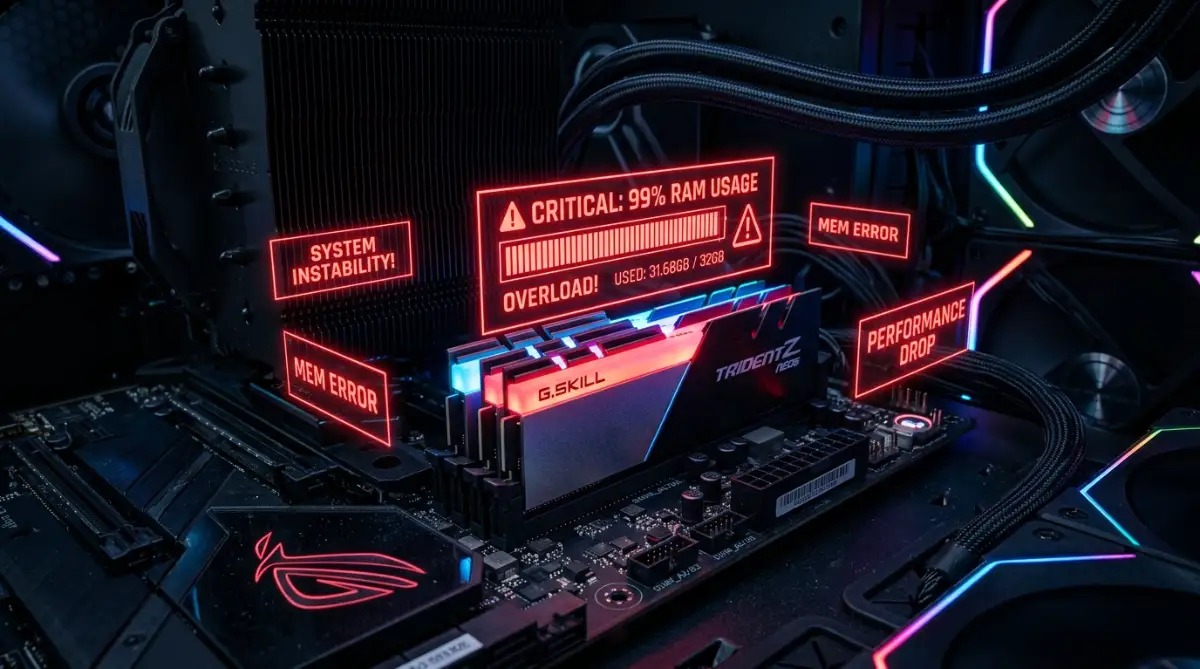
The Frozen Screen Nightmare: What's Eating Your RAM?
You're right in the middle of typing an email, and suddenly, your mouse cursor freezes.
You try clicking, but nothing happens. A few seconds later, the screen catches up in a violent stutter.
You hit CTRL+SHIFT+ESC to pull up Task Manager, and there it's staring right back at you: 99% Memory Usage.
Your operating system is practically screaming for air. But you barely have anything open.
So, what exactly is going on behind the scenes?
Here's the thing. Modern operating systems are incredibly smart about resource management, but they aren't perfect.
Software has become incredibly heavy. Developers prioritize speed and features over efficient memory management.
This means your computer's RAM (Random Access Memory) takes a massive beating every single day.
If you don't understand what's silently hoarding your resources, upgrading your hardware won't even fix the problem. You'll just run out of space all over again.
Let's break down exactly what's happening inside your machine.
The High Memory Usage Quick Summary
Short on time? Here are the most common culprits slowing down your system:
- Web Browsers on Steroids: Modern browsers separate every single tab and extension into a unique background process, multiplying memory demand.
- Electron Framework Apps: Apps like Discord, Spotify, and Slack run their own mini web browsers in the background, consuming double the RAM they actually need.
- The Dreaded Memory Leaks: Poorly written software that borrows memory to function but forgets to return it when closed.
- Hidden Startup Services: Apps that aggressively launch themselves the moment you turn on your PC, sitting idle but locking up valuable resources.
- System Caching Features: Features like Windows SuperFetch load apps into RAM before you even open them, which can sometimes backfire heavily.

The Heavyweights: Modern Web Browsers
Now, let's look at the most obvious offender sitting right on your taskbar.
Your web browser is almost certainly the biggest resource hog on your entire machine.
But it's not entirely the browser's fault.
The internet isn't just plain text and simple images anymore. Today, websites are essentially massive, complex software applications.
When you load up a modern web page, you're downloading heavy scripts, high-definition autoplaying videos, tracking pixels, and interactive elements.
To keep things secure and stable, modern browsers use a technique called "sandboxing".
Think about it. If one website crashes, you don't want your entire browser to freeze and lose all your other tabs.
So, the browser forces every single tab to run completely independent of the others.
If you have fifteen tabs open, your computer is essentially running fifteen separate mini-programs.
Add in five or six active browser extensions (like ad blockers, grammar checkers, and password managers), and you've got a recipe for a massive RAM drain.
That 16GB of memory you thought was overkill suddenly feels very small.
The Secret "Mini-Browsers": Electron Applications
You might think you closed your browser, so your memory should be totally free.
Not quite.
Many of your favorite desktop applications are secretly running web browsers under the hood.
This happens because of a development framework called "Electron."
Developers love Electron because it allows them to write an app once and easily release it on Windows, Mac, and Linux.
But there's a massive catch.
To make this work, apps like Slack, Discord, Microsoft Teams, and Spotify actually bundle an entire Chromium web browser engine inside themselves.
So, when you open Discord to chat with a friend, you're secretly opening another instance of a heavy web browser.
Open Spotify to listen to music? That's another browser running in the background.
It's highly inefficient. Instead of sharing core system resources, each of these apps walls off a massive chunk of your RAM just to display simple text and images.

The Silent Killer: Memory Leaks Explained
Sometimes, high memory usage isn't your fault at all.
It's caused by a severe programming error known as a "memory leak."
When an application opens, it politely asks your operating system for a specific amount of RAM to do its job.
When you close that application, it's supposed to give that memory back to the system pool.
But some badly written programs simply forget to hand it back.
The application might be closed, but the operating system still thinks that block of RAM is actively being used.
If you leave your computer running for days at a time, this leaked memory slowly builds up.
A tiny weather app could start by using 50MB of RAM. Two days later, due to a leak, it might be holding 4GB hostage.
You won't even notice it's happening until your entire system grinds to an agonizing halt.
Quick Comparison: How Different Apps Consume RAM
Pro Tip: Don't just look at the simple "Processes" tab in Task Manager. Click over to the "Details" or "Resource Monitor" tab. Sometimes, malware or a severe memory leak hides under a generic system name like svchost.exe. Digging deeper gives you the real truth about your hardware.
The Problem with Aggressive System Caching
Your operating system desperately wants to feel fast.
To give you that snappy experience, it actively tries to predict what you're going to do next.
If you open Photoshop every single morning at 9 AM, your system takes notes.
The next morning, before you even click the icon, the operating system pre-loads parts of Photoshop directly into your empty RAM.
This feature is called SuperFetch (or SysMain in recent updates).
In theory, it's a brilliant idea. Empty RAM is wasted RAM, so the system puts it to good use.
If a different app suddenly needs that space, the system is supposed to instantly dump the cached data and make room.
But in reality, it doesn't always work that smoothly.
Sometimes, the system refuses to let go of that cached memory fast enough.
When you try to open a heavy game, it collides with the pre-loaded data, causing massive stuttering and disk thrashing.
You're left staring at a loading screen while your computer frantically tries to organize its own messy file cabinets.
Want a visual breakdown of how to spot these hidden RAM hogs? Watch this quick guide right here:
By understanding these core concepts, you're already lightyears ahead of the average PC user.
You don't have to tolerate a sluggish machine.
Once you know exactly how browsers, hidden apps, and memory leaks behave, you can finally start fighting back.
Taking Back Control: Advanced Resource Management
Now that we know exactly what is hoarding your hardware resources, it is time to fight back.
You don't need a computer science degree to optimize your machine. You just need to know where to look.
Different operating systems handle hardware completely differently. A fix that works on a PC might completely break a Mac.
Here's how to tackle the problem based on the exact machine you're using right now.
Platform-Specific Playbooks: Windows vs. macOS
Let's start with Windows users.
Microsoft designed Windows to be highly compatible with almost every piece of software on earth. But that compatibility comes with massive overhead.
If you want to fix a slow laptop quickly, you have to manage your startup apps aggressively.
Press CTRL + SHIFT + ESC to open Task Manager and click on the "Startup" tab.
You'll probably see dozens of apps set to "Enabled". Right-click and disable anything you don't actively need the second your computer turns on.
This single action stops background processes from holding your hardware hostage.
For macOS users, the architecture is entirely different.
Recent MacBooks use something called Unified Memory. This means your processor and graphics card share the exact same pool of hardware.
When your Mac runs out of physical space, it aggressively uses "Swap Memory". It temporarily moves background app data onto your hard drive.
Open your Activity Monitor and look at the "Memory Pressure" graph at the bottom.
If that graph is green, you're totally fine, even if the usage number looks high. If it turns yellow or red, you have a severe bottleneck.
Macs are generally excellent at self-managing, but heavy video editors or virtual machines will quickly push that pressure gauge into the red zone.
If your fans suddenly start spinning like jet engines during this process, you might need to diagnose and fix overheating issues before the motherboard throttles your performance.

The Ultimate OS Deep Clean Checklist
Want to instantly free up gigabytes of wasted space?
Follow this rapid-fire checklist to flush out the junk data clogging up your system.
- Audit Your Browser Extensions: Remove any extension you haven't used in the last 30 days. They run in the background constantly.
- Disable Background Apps (Windows): Go to Settings > Privacy > Background Apps. Toggle off everything except your essential tools.
- Check for Rogue Cryptominers: Malware frequently disguises itself as legitimate system files. Run a deep scan using built-in security tools.
- Turn Off Hardware Acceleration: Apps like Discord and Spotify use your GPU and memory to render basic animations. Turn this off in their settings.
- Reboot, Don't Sleep: Putting your PC to sleep doesn't clear the memory. A full restart completely flushes the hardware cache.
Before making deep system changes, it's always smart to back up your work to stop sudden cloud data loss if something goes wrong.
The Resource Management Guide: Do's vs. Don'ts
Want to keep your computer running smoothly for years? Stop making these common mistakes.